> ## Documentation Index
> Fetch the complete documentation index at: https://docs.ownid.com/llms.txt
> Use this file to discover all available pages before exploring further.
# Account Recovery
> Learn how to set up account recovery on your website frontend
Account Recovery automates the process of re-authenticating users who forgot or had an issue with their password or existing device.
## Prerequisites
To get the most out of this guide, make sure to do the following tasks first:
1. Complete the backend integrations (see [Build Server-Side Endpoints](/building-blocks/build-server-endpoints)).
2. Complete the Login integration (see [Login](/building-blocks/boost/build-login)).
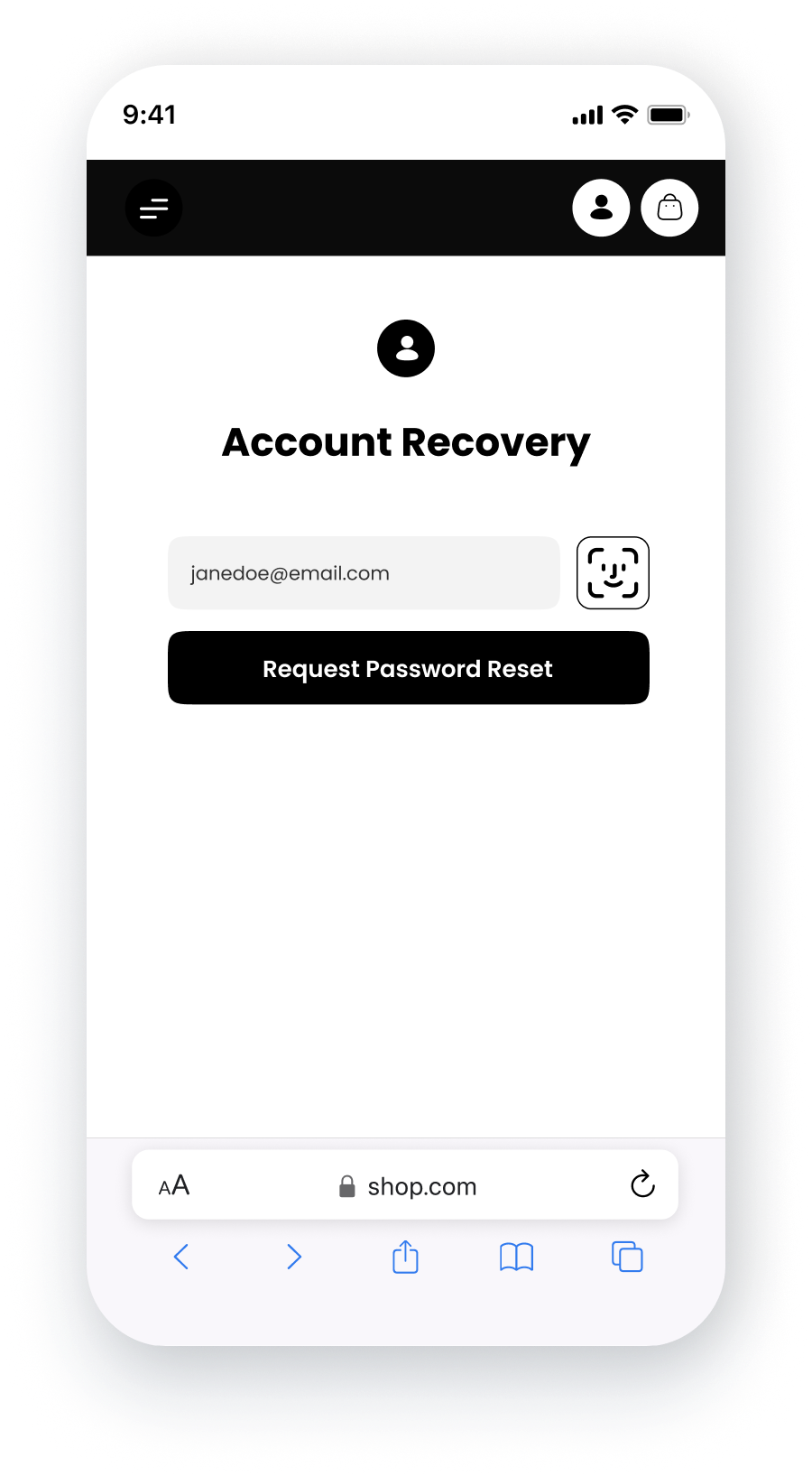 Figure 1. After integration (example)
The instructions on this page assume you have already installed and referenced the OwnID SDK as described in Steps 1 and 2 of [Login](/building-blocks/build-login).
## Add the Widget to your Account Recovery Form
The SDK **recover** method is used to integrate with the account recovery journey. It references the field Ids in your existing recovery form. It also renders the OwnId widget automatically referencing your field Ids to calculate its position in the DOM.
The sample recover forms in the snippets below are vanilla examples, shown here only to confirm the implementation pattern of form fields in SDK methods.
**Implementation Overview**
In the ownid method:
1. Enter "recover" for the method name.
2. Assign the form field (as a DOM element) you use as the login id to the `loginIdField` parameter.
3. Assign the the same field (as a DOM element) you use as the login id to the `targetIdField` parameter.
4. Assign an error function as desired in the `onError` parameter.
5. Configure the `onLogin` event to copy the `data.token` object locally. The `data.token` is the value generated by the `getSessionByLoginId` endpoint and you should use it to set a user session or exchange it for a session token.
**Session identifier can be ANY data Object**
As noted in the Login integration, the session identifier can be any unique data object, even though we're calling it a 'token'. We only pass it right back to you so you're able to associate a request with an active session.
1. Redirect the user to the appropriate landing page at your discretion.
Use the code snippets below, and check the embedded comments, to model your implementation of the submit handler and the SDK **recover** method.
```html Javascript theme={null}
```
```jsx React theme={null}
import { OwnID, WidgetType } from '@ownid/react';
...
function AccountRecoveryComponent() {
const emailField = useRef(null);
function onLogin(data) {
//Generic example on how to set a session and redirect the user (use your own!)
//1. set user session using data.token (usually a jwt or session token), generated in your backend and sent through the OwnID server
localStorage.setItem('sessionID', JSON.stringify({ token: data.token }));
//2. redirect the user (this is just an example)
window.location.href = '/account';
}
return (
);
}
```
```typescript Angular theme={null}
onLogin(data) {
//Generic example on how to set a session and redirect the user (use your own!)
//1. set user session using data.token (usually a jwt or session token), generated in your backend and sent through the OwnID server
this.authService.setAuth({ token: data.token });
//2. redirect the user (this is just an example)
this.router.navigateByUrl('/account');
}
```
## Styling Options
The OwnID recover widget can be styled in three different ways to match your application's design:
### Default Button
The default implementation places the OwnID button side by side with the password field. This is the standard configuration and requires no additional styling parameters.
Figure 1. After integration (example)
The instructions on this page assume you have already installed and referenced the OwnID SDK as described in Steps 1 and 2 of [Login](/building-blocks/build-login).
## Add the Widget to your Account Recovery Form
The SDK **recover** method is used to integrate with the account recovery journey. It references the field Ids in your existing recovery form. It also renders the OwnId widget automatically referencing your field Ids to calculate its position in the DOM.
The sample recover forms in the snippets below are vanilla examples, shown here only to confirm the implementation pattern of form fields in SDK methods.
**Implementation Overview**
In the ownid method:
1. Enter "recover" for the method name.
2. Assign the form field (as a DOM element) you use as the login id to the `loginIdField` parameter.
3. Assign the the same field (as a DOM element) you use as the login id to the `targetIdField` parameter.
4. Assign an error function as desired in the `onError` parameter.
5. Configure the `onLogin` event to copy the `data.token` object locally. The `data.token` is the value generated by the `getSessionByLoginId` endpoint and you should use it to set a user session or exchange it for a session token.
**Session identifier can be ANY data Object**
As noted in the Login integration, the session identifier can be any unique data object, even though we're calling it a 'token'. We only pass it right back to you so you're able to associate a request with an active session.
1. Redirect the user to the appropriate landing page at your discretion.
Use the code snippets below, and check the embedded comments, to model your implementation of the submit handler and the SDK **recover** method.
```html Javascript theme={null}
```
```jsx React theme={null}
import { OwnID, WidgetType } from '@ownid/react';
...
function AccountRecoveryComponent() {
const emailField = useRef(null);
function onLogin(data) {
//Generic example on how to set a session and redirect the user (use your own!)
//1. set user session using data.token (usually a jwt or session token), generated in your backend and sent through the OwnID server
localStorage.setItem('sessionID', JSON.stringify({ token: data.token }));
//2. redirect the user (this is just an example)
window.location.href = '/account';
}
return (
);
}
```
```typescript Angular theme={null}
onLogin(data) {
//Generic example on how to set a session and redirect the user (use your own!)
//1. set user session using data.token (usually a jwt or session token), generated in your backend and sent through the OwnID server
this.authService.setAuth({ token: data.token });
//2. redirect the user (this is just an example)
this.router.navigateByUrl('/account');
}
```
## Styling Options
The OwnID recover widget can be styled in three different ways to match your application's design:
### Default Button
The default implementation places the OwnID button side by side with the password field. This is the standard configuration and requires no additional styling parameters.
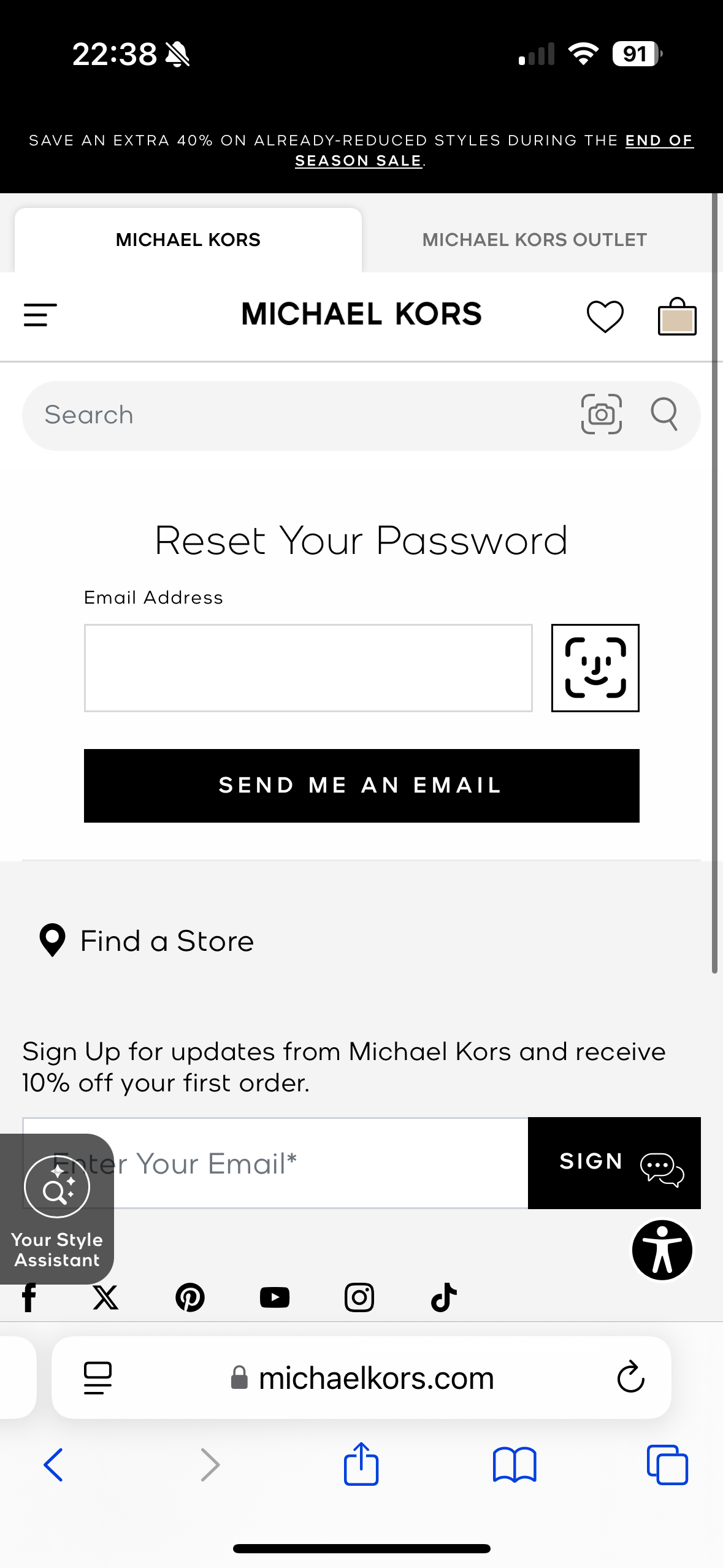 Default button variant (Example for michaelkors.com)
### Standalone Button
For cases where you want to position the OwnID button independently from the password field, use the standalone button variant:
Default button variant (Example for michaelkors.com)
### Standalone Button
For cases where you want to position the OwnID button independently from the password field, use the standalone button variant:
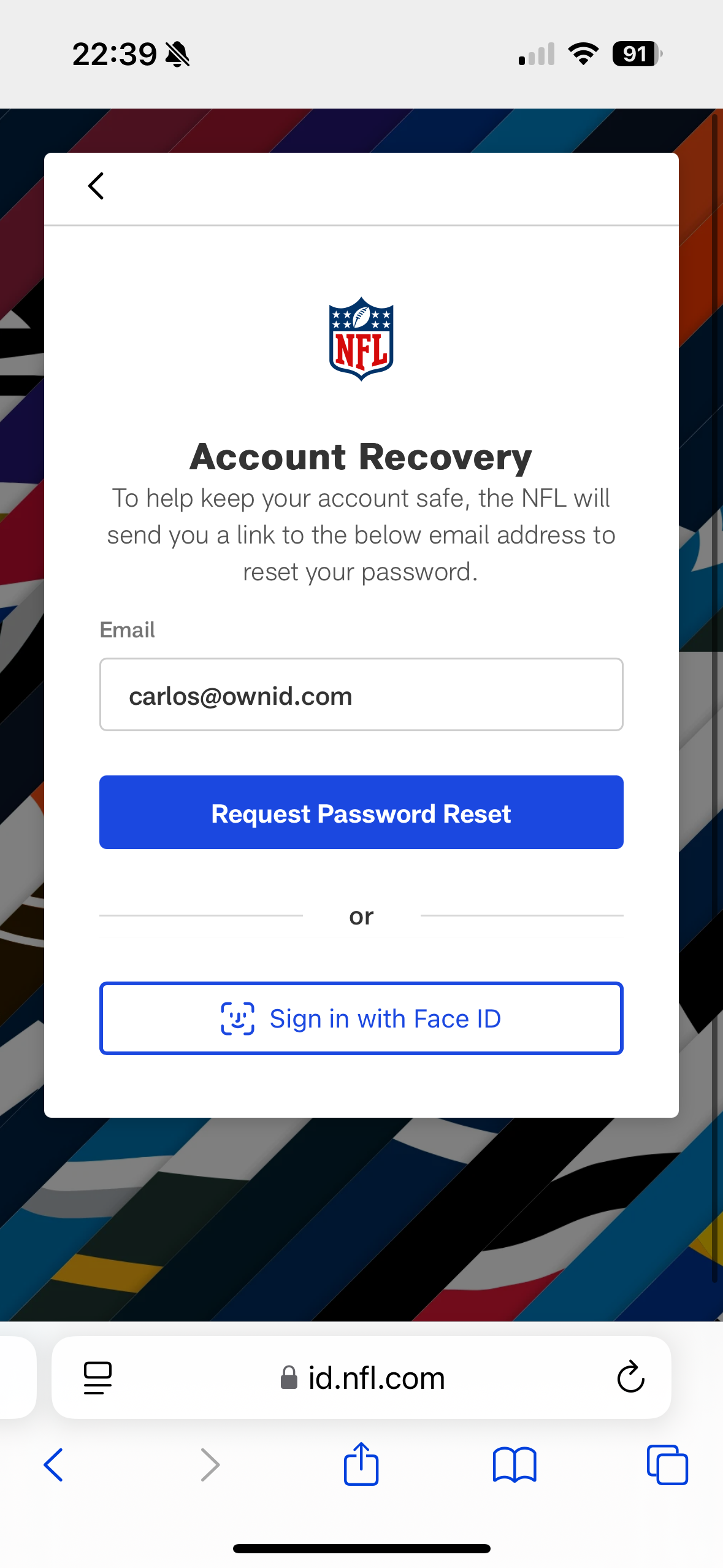 Standalone button variant (Example for nfl.com)
```javascript theme={null}
ownid('recover', {
variant: 'standalone-button',
infoTooltip: false,
loginIdField: document.querySelector('#email'),
element: document.getElementById('button-wrapper-div'),
// other configuration options...
});
```
Note: in the code sample above, `button-wrapper-div` represents the div where the button will be shown. Configure your own.
This creates a separate OwnID button that you can position anywhere in your login form.
If you would like to style this button, you can utilize the following CSS variables:
```css theme={null}
ownid-standalone-button-widget {
height;
--ownid-button-width;
--ownid-button-widget-border-color;
--ownid-button-widget-border-radius;
--ownid-button-widget-font-size;
--ownid-button-widget-font-weight;
--ownid-button-widget-color;
--ownid-button-widget-icon-height;
--ownid-button-widget-icon-stroke-width;
--ownid-button-widget-check-size;
--ownid-button-widget-check-position-top;
--ownid-button-widget-check-position-right;
}
```
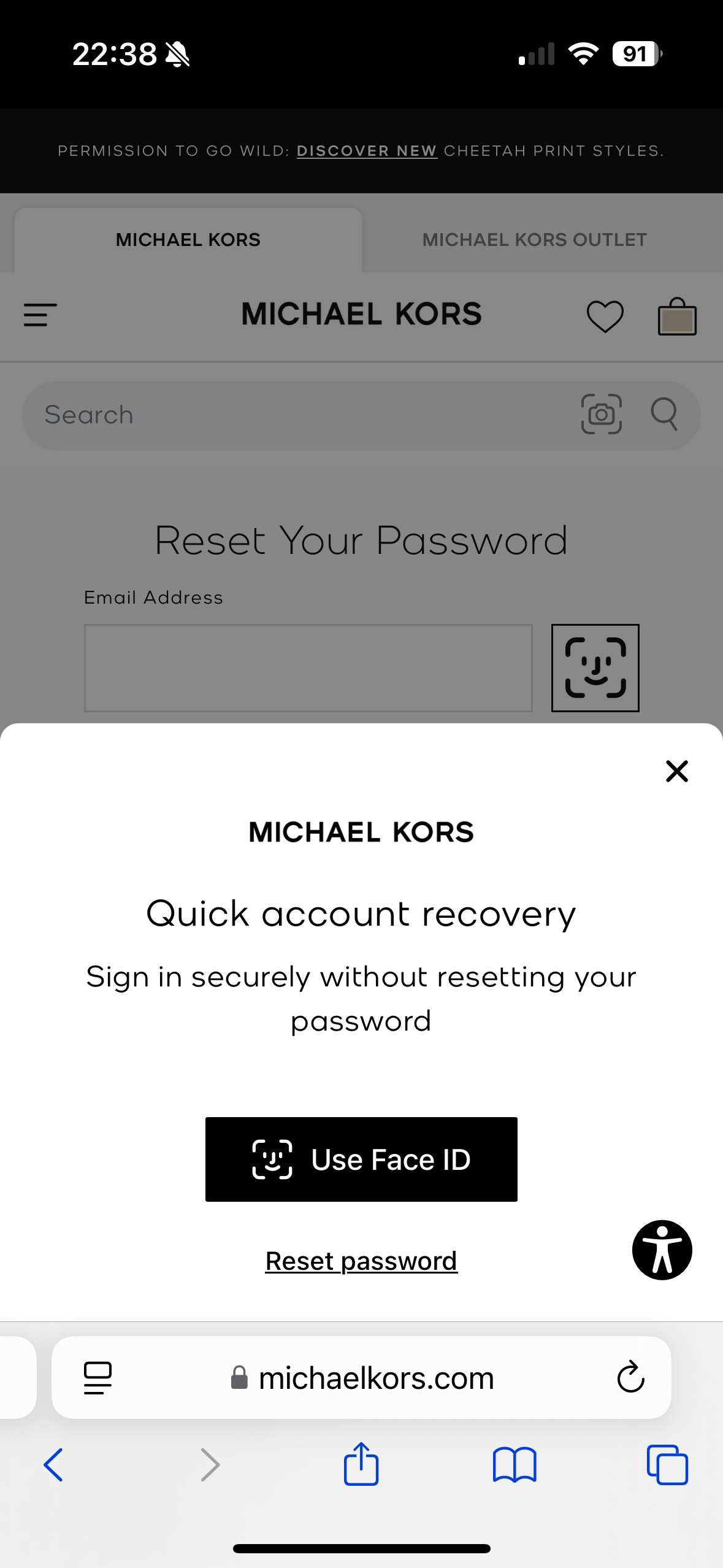
## Prompt Account Recovery on mobile devices
When users forget their passwords, offering biometric authentication as a recovery method provides a seamless and secure experience.
When implemented, users will see a modal overlay presenting two options:
* Use biometric authentication (Face ID/Touch ID)
* Set a traditional password
Standalone button variant (Example for nfl.com)
```javascript theme={null}
ownid('recover', {
variant: 'standalone-button',
infoTooltip: false,
loginIdField: document.querySelector('#email'),
element: document.getElementById('button-wrapper-div'),
// other configuration options...
});
```
Note: in the code sample above, `button-wrapper-div` represents the div where the button will be shown. Configure your own.
This creates a separate OwnID button that you can position anywhere in your login form.
If you would like to style this button, you can utilize the following CSS variables:
```css theme={null}
ownid-standalone-button-widget {
height;
--ownid-button-width;
--ownid-button-widget-border-color;
--ownid-button-widget-border-radius;
--ownid-button-widget-font-size;
--ownid-button-widget-font-weight;
--ownid-button-widget-color;
--ownid-button-widget-icon-height;
--ownid-button-widget-icon-stroke-width;
--ownid-button-widget-check-size;
--ownid-button-widget-check-position-top;
--ownid-button-widget-check-position-right;
}
```
## Prompt Account Recovery on mobile devices
When users forget their passwords, offering biometric authentication as a recovery method provides a seamless and secure experience.
When implemented, users will see a modal overlay presenting two options:
* Use biometric authentication (Face ID/Touch ID)
* Set a traditional password
 **Implementation Overview**
The account recovery prompt can be activated using OwnID's SDK:
```javascript theme={null}
ownid('activateAccountRecoveryPrompt', {
onLogin: window.ownidOnLogin, // Ensure this method is defined
onError: (errorMessage) => {
console.error("OwnID Login Error:", errorMessage);
}
})
.then((res) => {
console.log("Account recovery completed successfully:", res);
})
.catch((err) => {
console.error("Unhandled error in account recovery:", err);
});
```
**Implementation Overview**
The account recovery prompt can be activated using OwnID's SDK:
```javascript theme={null}
ownid('activateAccountRecoveryPrompt', {
onLogin: window.ownidOnLogin, // Ensure this method is defined
onError: (errorMessage) => {
console.error("OwnID Login Error:", errorMessage);
}
})
.then((res) => {
console.log("Account recovery completed successfully:", res);
})
.catch((err) => {
console.error("Unhandled error in account recovery:", err);
});
```