> ## Documentation Index
> Fetch the complete documentation index at: https://docs.ownid.com/llms.txt
> Use this file to discover all available pages before exploring further.
# One-Tap Sign-In
> Let existing users sign in with a single tap.
Returning users can be automatically prompted for a single tap to log back in, no matter where they are on the site.
## Prerequisites
To get the most out of this guide, make sure to do the following tasks first:
1. Complete the backend integrations (see [Build Server-Side Endpoints](/building-blocks/build-server-endpoints)).
2. Complete the Login integration (see [Login](/building-blocks/boost/build-login)).
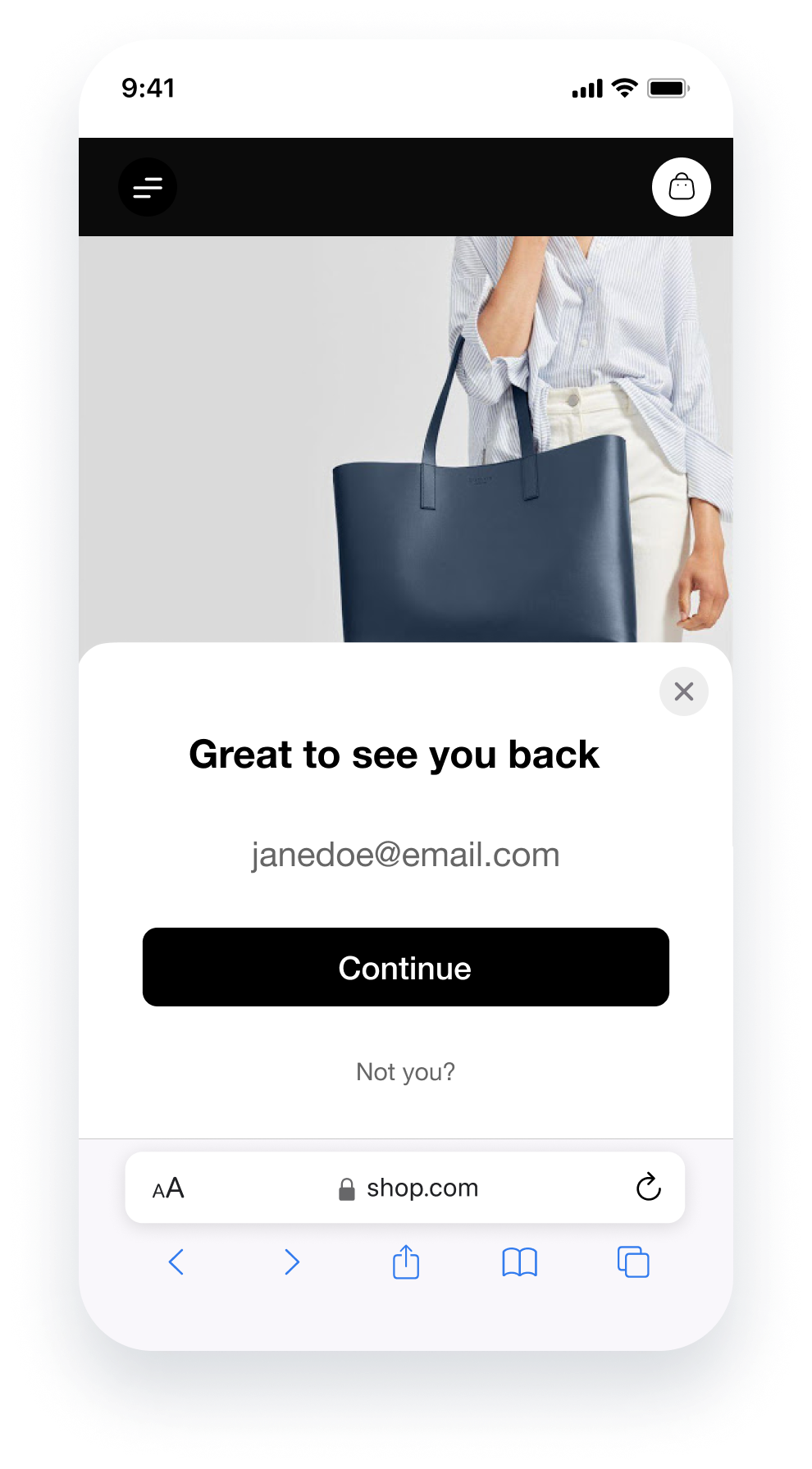 Figure 1. After integration (example)
The instructions on this page assume you have already installed and referenced the OwnID SDK as described in Steps 1 and 2 of [Login](/building-blocks/build-login).
## Integrating One-tap Sign-in
Implement a one-tap sign in on the desired pages.
### Add the Pop-Up Prompt to your Page
The SDK **activateReturningUsersPrompt** method is used to integrate with the one-tap sign-in journey. It starts by offering users on the site a pop-up to login by clicking the **Continue** button shown in Figure 1, if they're not already logged in.
#### Implement the **activateReturningUsersPrompt** Method
In the `ownid` method:
1. Enter **activateReturningUsersPrompt** for the method name.
2. Check to make sure the user isn't already logged in using the `checkSession` async function. Only if `false` the prompt will be shown.
3. Configure the `onLogin` event to copy the `data.token` object locally. The `data.token` is the value generated by the `getSessionByLoginId` endpoint and you should use it to set a user session or exchange it for a session token.
**Session identifier can be ANY data Object**
As noted in the Login integration, the session identifier can be any unique data object, even though we're calling it a 'token'. We only pass it right back to you so you're able to associate a request with an active session.
4. Assign an error function as desired in the `onError` parameter.
Use the code snippets below, and check the embedded comments, to model your implementation of the submit handler and the SDK **activateReturningUsersPrompt** method.
```Javascript Example on how to show the returning users prompt theme={null}
ownid('activateReturningUsersPrompt', {
onLogin: (data) => {
// use your own method to set a user session
this.authService.setSession(data.token);
},
checkSession: async () => {
// only if `false` then the prompt will be shown
// use your own method to check for if the user is logged in
return this.authService.isLoggedIn();
},
onError: (errorMessage) => {
// handle errorMessage
}
});
```
**That's it!**
You've implemented the frontend functionality required to allow registered users who aren't logged in to get a prompt to login with one tap from any page.
If you're ready to deploy your integration, make sure to read the [Pre-Deployment Checklist](/building-blocks/pre-deployment-checklist) before hand!
## Next Steps
### Ready to deploy?
Take me to the Deployment Checklist
I want to build another user journey
Figure 1. After integration (example)
The instructions on this page assume you have already installed and referenced the OwnID SDK as described in Steps 1 and 2 of [Login](/building-blocks/build-login).
## Integrating One-tap Sign-in
Implement a one-tap sign in on the desired pages.
### Add the Pop-Up Prompt to your Page
The SDK **activateReturningUsersPrompt** method is used to integrate with the one-tap sign-in journey. It starts by offering users on the site a pop-up to login by clicking the **Continue** button shown in Figure 1, if they're not already logged in.
#### Implement the **activateReturningUsersPrompt** Method
In the `ownid` method:
1. Enter **activateReturningUsersPrompt** for the method name.
2. Check to make sure the user isn't already logged in using the `checkSession` async function. Only if `false` the prompt will be shown.
3. Configure the `onLogin` event to copy the `data.token` object locally. The `data.token` is the value generated by the `getSessionByLoginId` endpoint and you should use it to set a user session or exchange it for a session token.
**Session identifier can be ANY data Object**
As noted in the Login integration, the session identifier can be any unique data object, even though we're calling it a 'token'. We only pass it right back to you so you're able to associate a request with an active session.
4. Assign an error function as desired in the `onError` parameter.
Use the code snippets below, and check the embedded comments, to model your implementation of the submit handler and the SDK **activateReturningUsersPrompt** method.
```Javascript Example on how to show the returning users prompt theme={null}
ownid('activateReturningUsersPrompt', {
onLogin: (data) => {
// use your own method to set a user session
this.authService.setSession(data.token);
},
checkSession: async () => {
// only if `false` then the prompt will be shown
// use your own method to check for if the user is logged in
return this.authService.isLoggedIn();
},
onError: (errorMessage) => {
// handle errorMessage
}
});
```
**That's it!**
You've implemented the frontend functionality required to allow registered users who aren't logged in to get a prompt to login with one tap from any page.
If you're ready to deploy your integration, make sure to read the [Pre-Deployment Checklist](/building-blocks/pre-deployment-checklist) before hand!
## Next Steps
### Ready to deploy?
Take me to the Deployment Checklist
I want to build another user journey