> ## Documentation Index
> Fetch the complete documentation index at: https://docs.ownid.com/llms.txt
> Use this file to discover all available pages before exploring further.
# Button Styles
> This optional step describes how to customize the look and feel of the OwnID button
After you have created your application in OwnID, the OwnID button has a default look and feel.
In the OwnID Console, select `Branding → Button look and feel`. The following is displayed, showing the current button’s appearance:
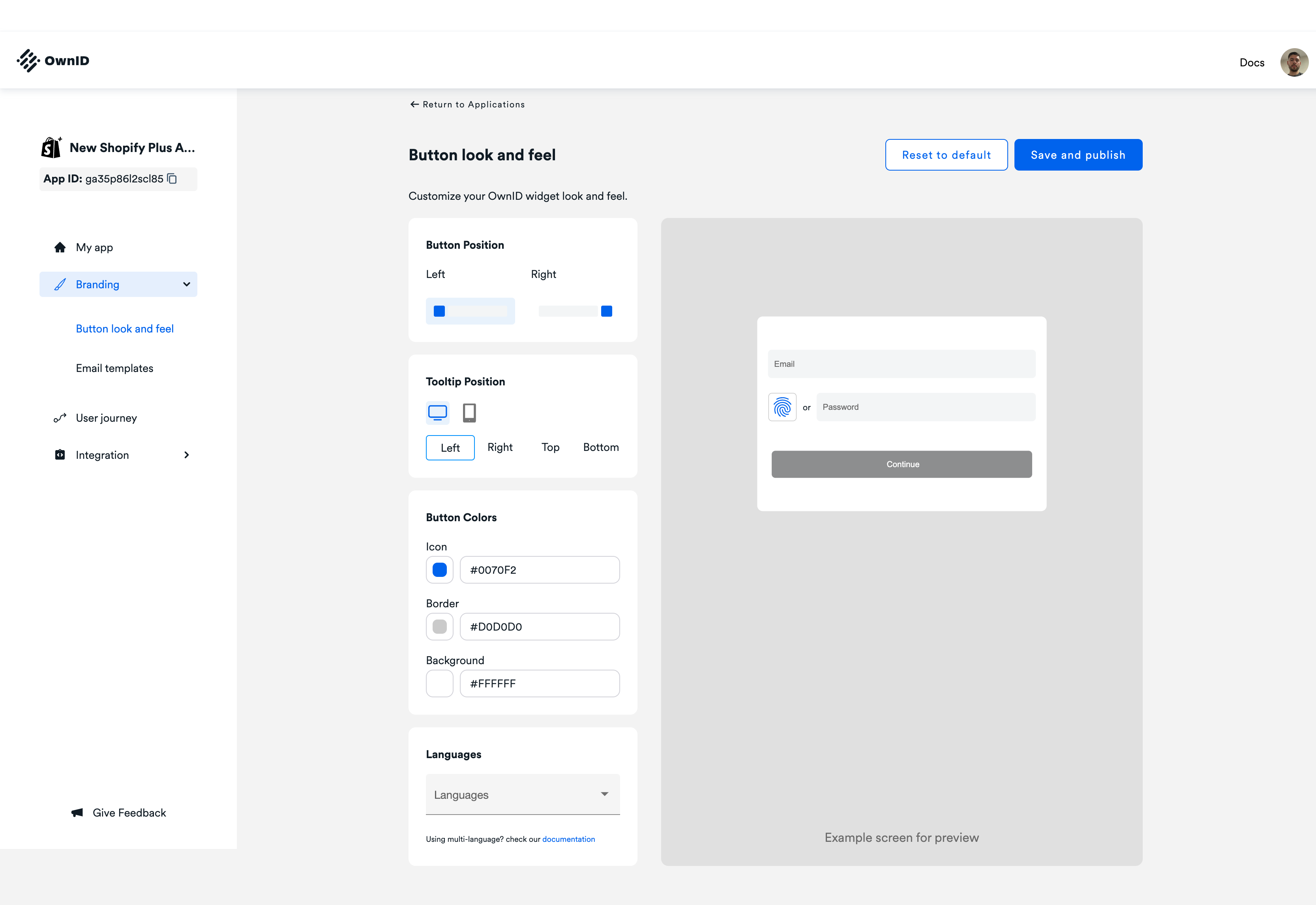 Select these options to customize the OwnID button. Its preview appears on the right.
* **Button Position**: Select whether the button appears on the Left or the Right.
* **Tooltip Position**: Select whether the button’s tooltip appears on the Left, Right, Top or Bottom on a Desktop or Mobile device.
If you want to disable the tooltip you can pass the parameter `infoTooltip: false` to the ownid login widget.
* **Button Colors**: Use the color picker to customize the Icon, Border and Background color. A preview appears on the right.
* **Language**: By default, the OwnID interface uses American English (en\_US).
Select these options to customize the OwnID button. Its preview appears on the right.
* **Button Position**: Select whether the button appears on the Left or the Right.
* **Tooltip Position**: Select whether the button’s tooltip appears on the Left, Right, Top or Bottom on a Desktop or Mobile device.
If you want to disable the tooltip you can pass the parameter `infoTooltip: false` to the ownid login widget.
* **Button Colors**: Use the color picker to customize the Icon, Border and Background color. A preview appears on the right.
* **Language**: By default, the OwnID interface uses American English (en\_US).