> ## Documentation Index
> Fetch the complete documentation index at: https://docs.ownid.com/llms.txt
> Use this file to discover all available pages before exploring further.
# Configuring Custom Email Provider
> Send user email messages through your server.
OwnID allows you to use your servers to integrate with your own email provider so you can more completely manage, monitor, and troubleshoot your email communications.
## Build Server-Side Endpoint
This endpoint handles a request to send an OTP to a specific email address using your own email provider integration.
Implement this endpoint according to the specifications:
### Handle Requests
**Headers**
You might notice two values in request headers from the OwnID plaform:
* `ownid-signature`
* `ownid-timestamp`
These are part of securing your integration.
To help ensure the integration and endpoints are secure, you must validate the signature of the requests as described in our [security page](/building-blocks/security).
**Adding Custom HTTP Headers**
OwnID supports sending custom HTTP headers to the OTP endpoint for improved integration with your email provider. See the `Console Configuration` section above for detailed instructions.
**Payload**
OwnID will make requests to this endpoint with the following payload:
* `email` - delivery email address of the user.
* `subject` - email subject according to what is defined in the email templates.
* `body` - email body in HTML format, according to what is defined in the email templates. Includes the OTP.
```json payload example theme={null}
{
"email": "user@example.com",
"subject": "Login Verification",
"body": "Your verification code is: 5928"
}
```
### Implement Responses
Implement these responses for your endpoint:
| Status | Description | Return |
| ------ | ---------------------------- | ----------------- |
| `202` | Accepted | return empty body |
| `401` | Invalid Signature Validation | return empty body |
## Console Configuration
To get started, go to the OwnID console and login to your account.
1. From the Apps page, click the app you want to set up SMTP for.
2. Click the **User journey** link from the navigation panel.  3. On the OTP configuration panel, select **Email** under Delivery Channel.
 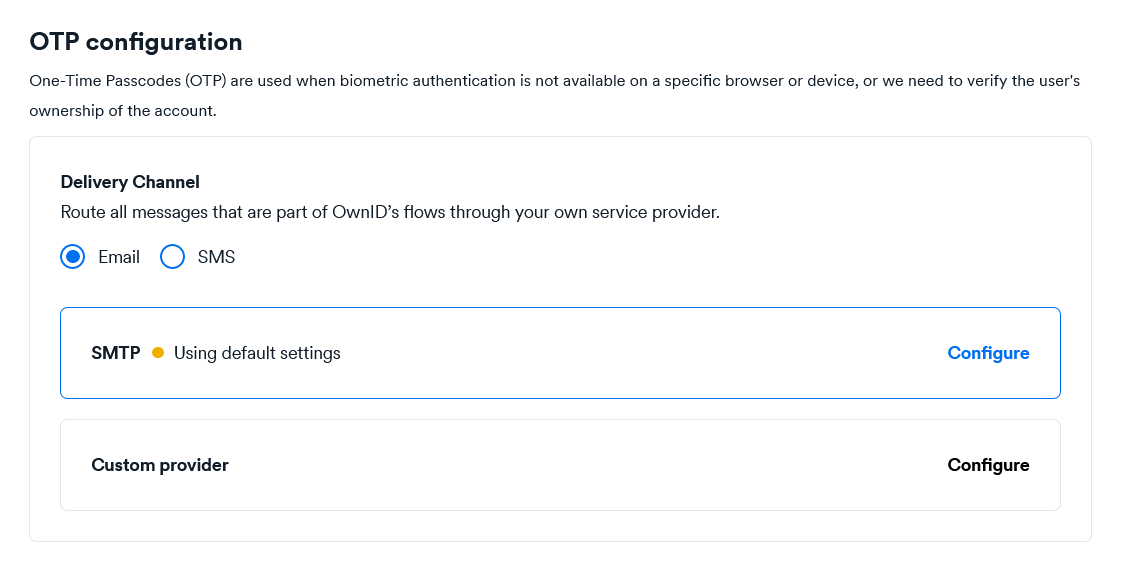 4. Click the **Custom Provider** bar.
5. When the configuration form opens, enter:
* Endpoint URL. OwnID will use it to make requests to your web server.
* Custom HTTP Headers (optional). Input the header names and values.
4. Click the **Custom Provider** bar.
5. When the configuration form opens, enter:
* Endpoint URL. OwnID will use it to make requests to your web server.
* Custom HTTP Headers (optional). Input the header names and values.
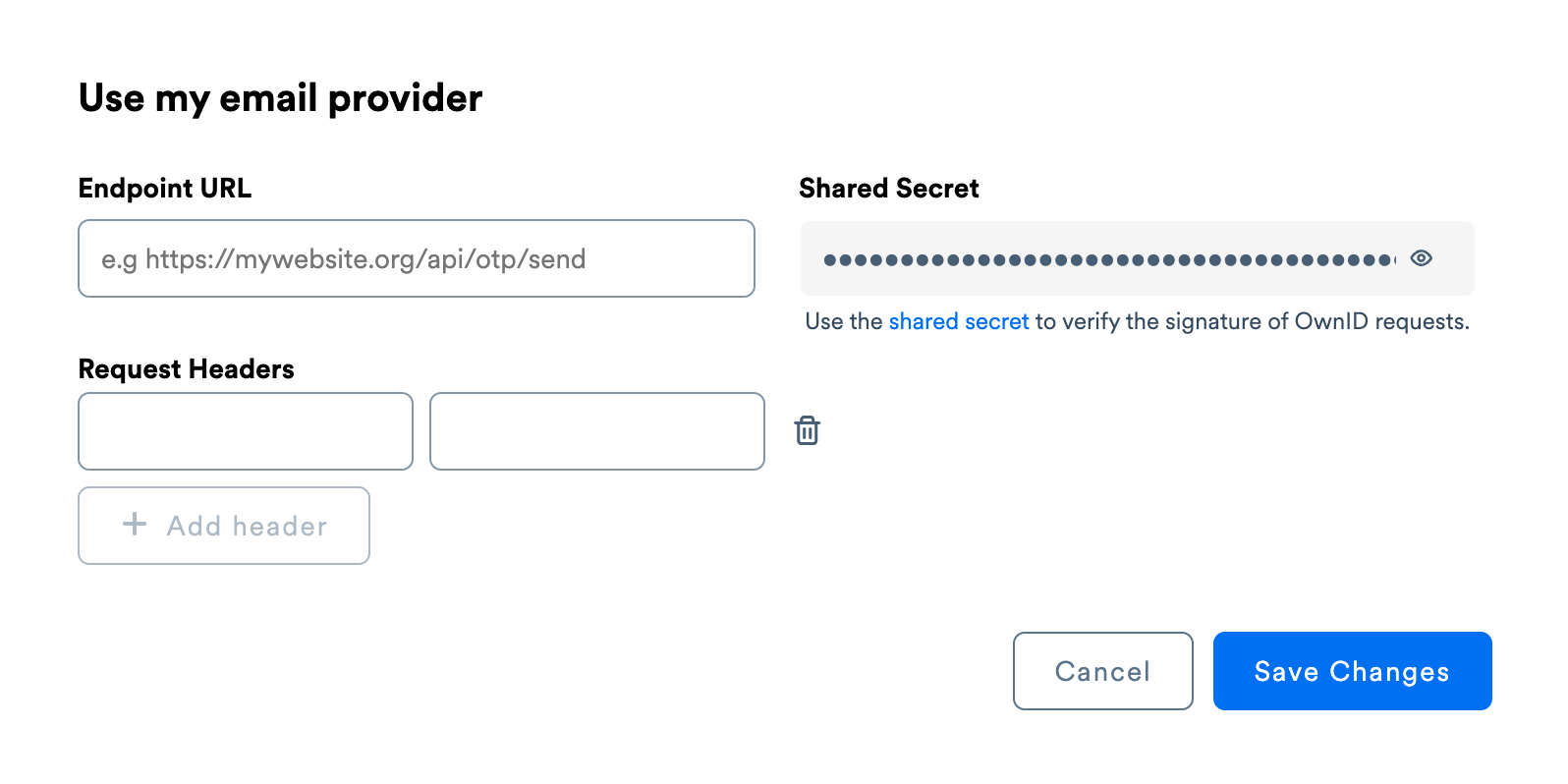 6. Click **Save Changes**.
Test your configuration by running through login workflow on a device without biometric verification.
Be sure to complete the email configuration for all your apps before deployment.
6. Click **Save Changes**.
Test your configuration by running through login workflow on a device without biometric verification.
Be sure to complete the email configuration for all your apps before deployment.