> ## Documentation Index
> Fetch the complete documentation index at: https://docs.ownid.com/llms.txt
> Use this file to discover all available pages before exploring further.
# Configuring SMTP Email Provider
> Send user email messages through your server.
Enter your SMTP server credentials to enable OwnID to send an OTP to your users through email.
## Configuring SMTP
You configure SMTP uniquely for each of your apps.
To get started, go to the OwnID console and login to your account.
1. From the Apps page, click the app you want to set up SMTP for.
2. Click the **User journey** link from the navigation panel.  3. On the OTP configuration panel, select **Email** under Delivery Channel.
 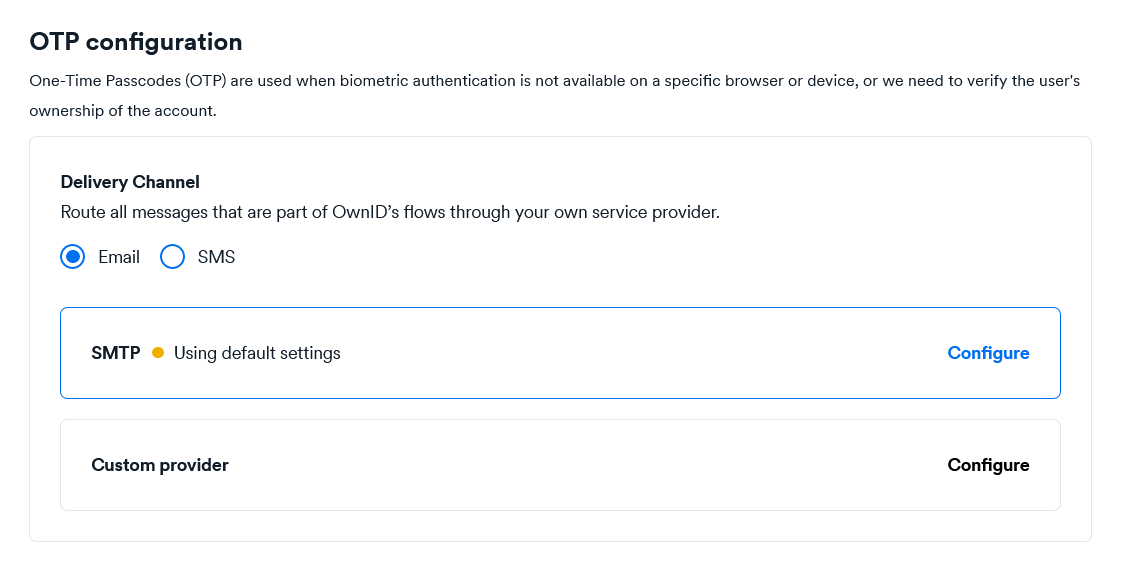 4. Click the **SMTP Configuration** bar.
5. When the configuration form opens, enter:
* The SMTP server Host URL.
* The SMTP server Port.
* The Username and Password of the account holder.
* Sender Email address (valid FROM address).
* Sender Name as it will appear to your recipients.
4. Click the **SMTP Configuration** bar.
5. When the configuration form opens, enter:
* The SMTP server Host URL.
* The SMTP server Port.
* The Username and Password of the account holder.
* Sender Email address (valid FROM address).
* Sender Name as it will appear to your recipients.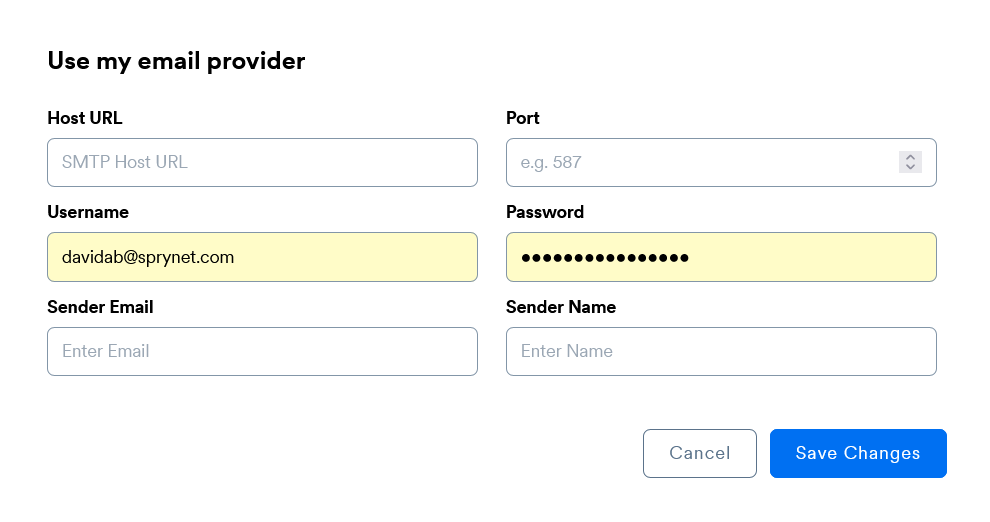 6. Click **Save Changes**.
Test your configuration by running through login workflow on a device without biometric verification.
Be sure to complete SMTP configuration for all your apps before deployment.
6. Click **Save Changes**.
Test your configuration by running through login workflow on a device without biometric verification.
Be sure to complete SMTP configuration for all your apps before deployment.