> ## Documentation Index
> Fetch the complete documentation index at: https://docs.ownid.com/llms.txt
> Use this file to discover all available pages before exploring further.
# Auth0
> Integrate OwnID password free authentication into your Auth0 flow
By integrating Auth0 with OwnID, you can implement the full set of OwnID features to simplify and streamline your user login experience.
## How it Works
OwnID supports integration with Auth0 through our pre-built Auth0 Connector.
Configuration on the Auth0 side happens through your Auth0 Dashboard. Ensure you have an account with sufficient access in Auth0.
Complete these five basic steps to integrate OwnID with Auth0:
**Step 1** - Get API Explorer Credentials.
**Step 2** - Create the OwnID App.
**Step 3** - Add OwnID as an Auth0 Social Connection.
**Step 4** - Frontend Integration.
## Step 1 - Get API Explorer Credentials.
1. In your Auth0 Dashboard go to *Applications -> Applications -> API Explorer Application* 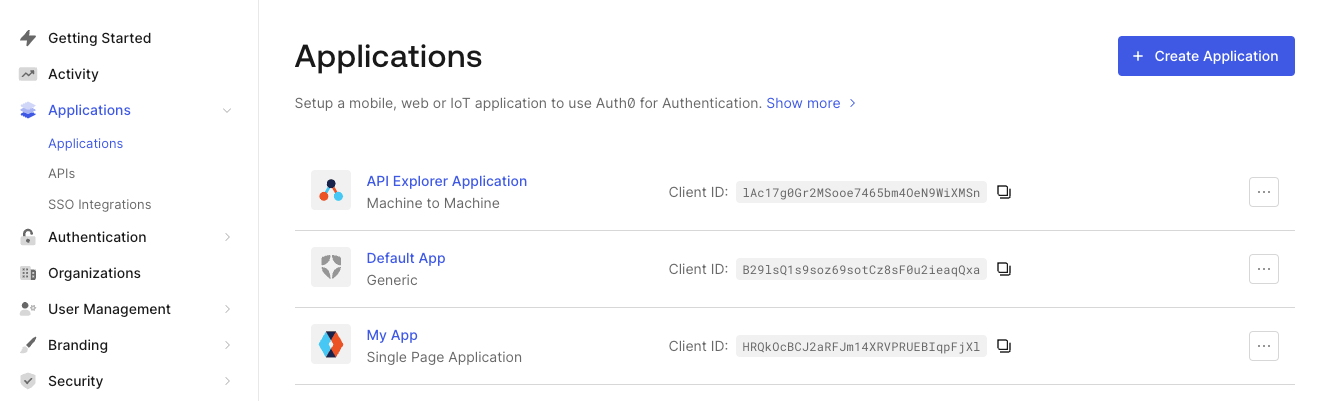 Figure 1. API Explorer Application in Auth0 Dashboard
2. If this app is not listed for you, you'd have to quickly create it:
Go to *Applications -> APIs -> Auth0 Management API*, select tab API Explorer and click *Create & Authorize API Explorer Application*
After that you should see API Explorer Application in the list of applications.
Figure 1. API Explorer Application in Auth0 Dashboard
2. If this app is not listed for you, you'd have to quickly create it:
Go to *Applications -> APIs -> Auth0 Management API*, select tab API Explorer and click *Create & Authorize API Explorer Application*
After that you should see API Explorer Application in the list of applications. 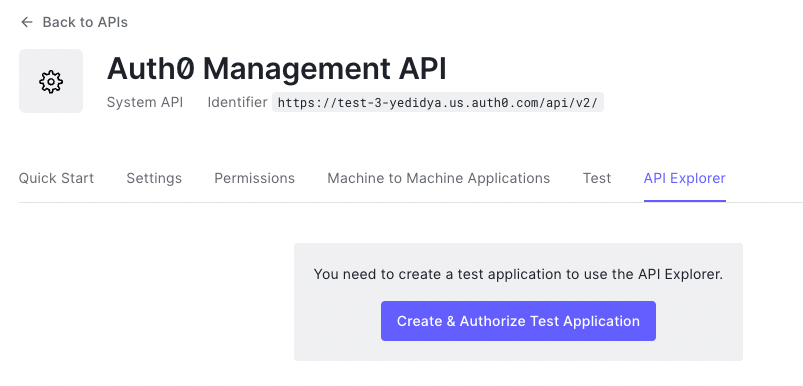 Figure 2. Create & Authorize API Explorer Application
1. In API Explorer Application go to *Settings* tab and copy `Client ID` and `Client Secret` values. We will use them in the next step.
Figure 2. Create & Authorize API Explorer Application
1. In API Explorer Application go to *Settings* tab and copy `Client ID` and `Client Secret` values. We will use them in the next step. 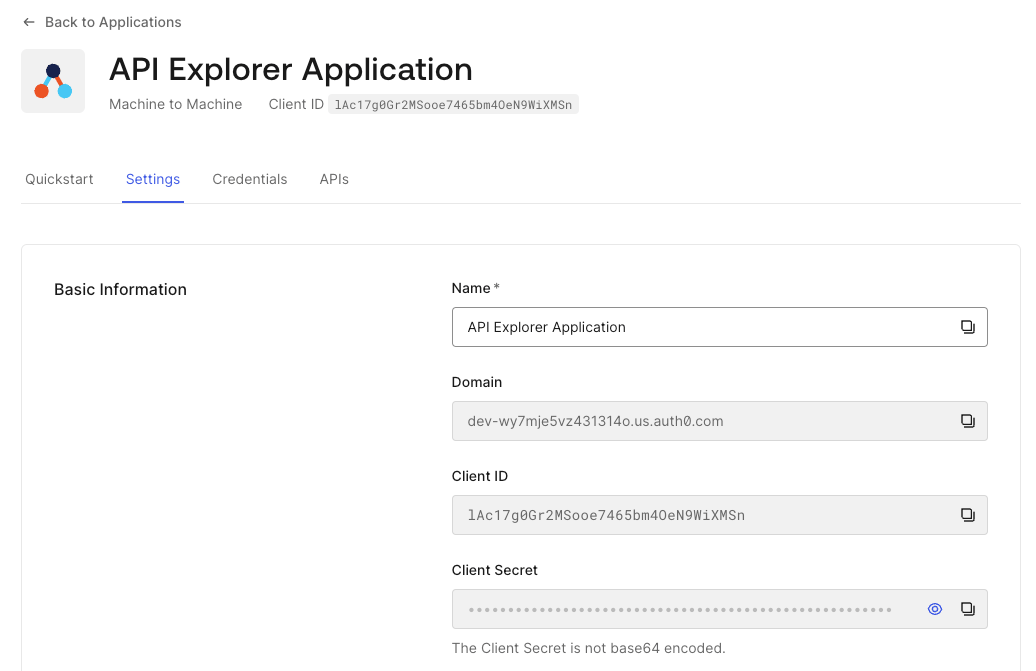 Figure 3. API Explorer Credentials
**Securing User's Personal Data**
OwnID does not store or process any user data. Users' public keys and device information are stored on your platform.
Private keys are kept exclusively on the user's device and are never transmitted elsewhere.
## Step 2 - Create the OwnID App
We'll create a new OwnID app using the Auth0 Connector.
Figure 3. API Explorer Credentials
**Securing User's Personal Data**
OwnID does not store or process any user data. Users' public keys and device information are stored on your platform.
Private keys are kept exclusively on the user's device and are never transmitted elsewhere.
## Step 2 - Create the OwnID App
We'll create a new OwnID app using the Auth0 Connector.
 An OwnID App is what connects the existing identity provider used by your website with the OwnID widget you insert on the front end.
 OwnID widget
Each of your OwnID Apps acts as the central point of configuration for each of your integrations. These no-code Apps are created, hosted, and maintained entirely within the OwnID Console environment.
When you create an App, it's assigned a unique `appId` automatically. Use that `appId` in OwnID SDK interaction from your website’s front end.
#### Step 2.1 - To Create an OwnID App
1. Login to the [OwnID Console](https://console.ownid.com) (or create your account).
2. Click **+Create Application** from the Apps screen.
3. Enter a name for your application in the *App name* field.
4. From the *Choose your integration* panel, select the *Auth0* tile.
OwnID widget
Each of your OwnID Apps acts as the central point of configuration for each of your integrations. These no-code Apps are created, hosted, and maintained entirely within the OwnID Console environment.
When you create an App, it's assigned a unique `appId` automatically. Use that `appId` in OwnID SDK interaction from your website’s front end.
#### Step 2.1 - To Create an OwnID App
1. Login to the [OwnID Console](https://console.ownid.com) (or create your account).
2. Click **+Create Application** from the Apps screen.
3. Enter a name for your application in the *App name* field.
4. From the *Choose your integration* panel, select the *Auth0* tile. 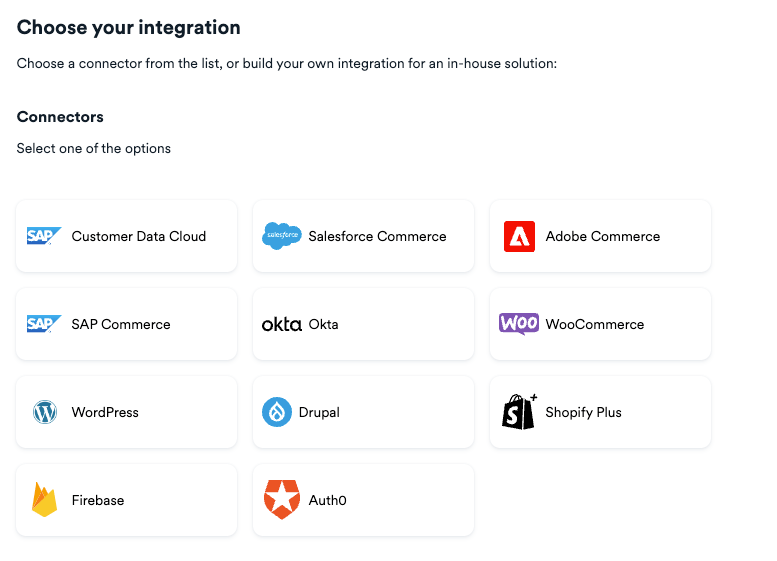 5. Click **Next**.
6. Click **Explore my App** on the "Congratulations" popup.
5. Click **Next**.
6. Click **Explore my App** on the "Congratulations" popup. 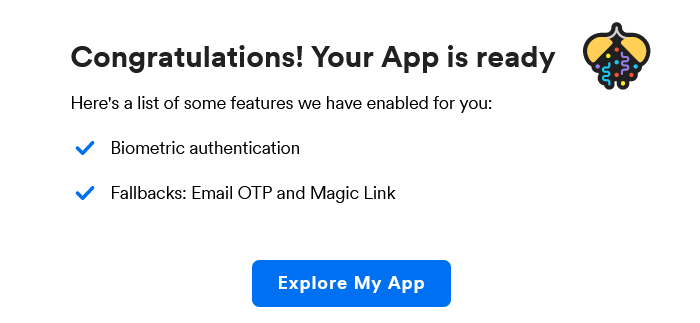 #### Step 2.2 - Set Auth0 Integration Parameters
In your Auth0 integration page, fill in the following information:
1. In *Auth0 Settings*, set the **Site Domain** - *e.g: [https://acme.auth0.com](https://acme.auth0.com)*
2. In *Auth0 Settings*, set the **Client ID** value you created above.
3. In *Auth0 Settings*, skip the **Client Secret** value you created above.
#### Step 2.2 - Set Auth0 Integration Parameters
In your Auth0 integration page, fill in the following information:
1. In *Auth0 Settings*, set the **Site Domain** - *e.g: [https://acme.auth0.com](https://acme.auth0.com)*
2. In *Auth0 Settings*, set the **Client ID** value you created above.
3. In *Auth0 Settings*, skip the **Client Secret** value you created above.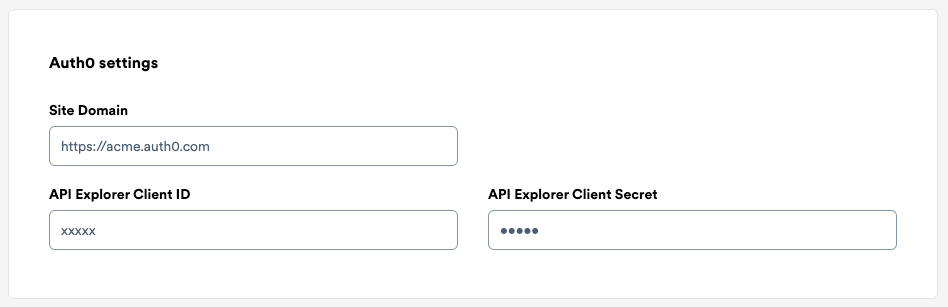 Figure 4. Auth0 settings
4. In *OpenID Connect settings*, set **Redirect URIs** by adding one or more Auth0 redirect URIs, typically in the format `https://your-auth-domain.com/login/callback`.
Figure 4. Auth0 settings
4. In *OpenID Connect settings*, set **Redirect URIs** by adding one or more Auth0 redirect URIs, typically in the format `https://your-auth-domain.com/login/callback`. 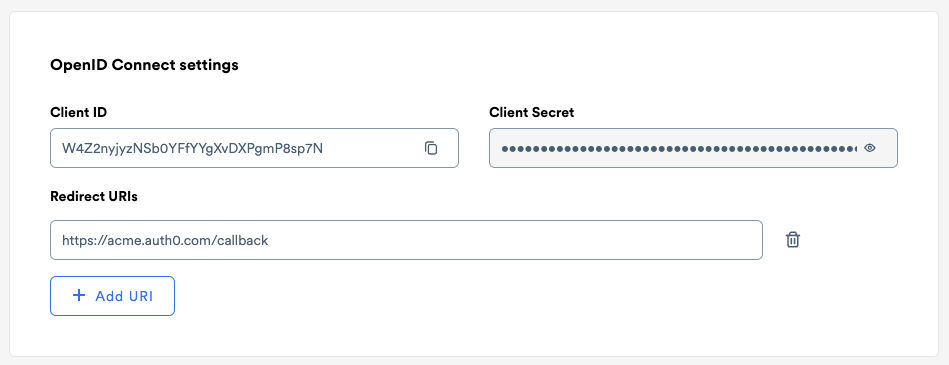 5. Click **Save Changes**.
The other values in this page will be used in the next step.
## Step 3 - Add OwnID as an Auth0 Social Connection.
Create a new social connection in Auth0.
1. In your Auth0 Dashboard, go to *Authentication -> Social*.
2. Click **+ Create Connection**.
5. Click **Save Changes**.
The other values in this page will be used in the next step.
## Step 3 - Add OwnID as an Auth0 Social Connection.
Create a new social connection in Auth0.
1. In your Auth0 Dashboard, go to *Authentication -> Social*.
2. Click **+ Create Connection**.  Figure 5. Create connection
3. Scroll all the way to the bottom of the widgets list and select `Create Custom`.
Figure 5. Create connection
3. Scroll all the way to the bottom of the widgets list and select `Create Custom`. 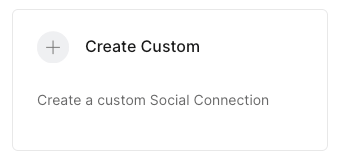 Figure 6. Create custom
4. In the *General* section, configure the following settings:
* **Name**: `OwnID`
* **Authorization URL**: The value from the OwnID application created in the previous step.
* **Token URL**: The value from the OwnID application created in the previous step.
* **Scope**: `openid profile email`
* **Separate scopes using a space:** Enabled
* **Client ID**: The value from the OwnID application created in the previous step.
* **Client Secret**: The value from the OwnID application created in the previous step.
* **Fetch User Profile Script:** Use the script provided below.
* **Custom Headers**: Leave empty.
In the *Advanced* section, disable **Sync user profile attributes at each login**.
```javascript Fetch User Profile Script theme={null}
function(accessToken, ctx, cb) {
const parts = accessToken.split('.');
const payload = JSON.parse(Buffer.from(parts[1], 'base64').toString('utf8'));
const profile = {
user_id: payload.user_id || payload.sub
};
cb(null, profile);
}
```
5. Click **Create**.
6. Once created, go to the *Applications -> Applications* page, choose the application you want to integrate with OwnID.
7. In the *Connections* tab, under the *Social* section, make sure `ownid` is enabled.
Figure 6. Create custom
4. In the *General* section, configure the following settings:
* **Name**: `OwnID`
* **Authorization URL**: The value from the OwnID application created in the previous step.
* **Token URL**: The value from the OwnID application created in the previous step.
* **Scope**: `openid profile email`
* **Separate scopes using a space:** Enabled
* **Client ID**: The value from the OwnID application created in the previous step.
* **Client Secret**: The value from the OwnID application created in the previous step.
* **Fetch User Profile Script:** Use the script provided below.
* **Custom Headers**: Leave empty.
In the *Advanced* section, disable **Sync user profile attributes at each login**.
```javascript Fetch User Profile Script theme={null}
function(accessToken, ctx, cb) {
const parts = accessToken.split('.');
const payload = JSON.parse(Buffer.from(parts[1], 'base64').toString('utf8'));
const profile = {
user_id: payload.user_id || payload.sub
};
cb(null, profile);
}
```
5. Click **Create**.
6. Once created, go to the *Applications -> Applications* page, choose the application you want to integrate with OwnID.
7. In the *Connections* tab, under the *Social* section, make sure `ownid` is enabled. 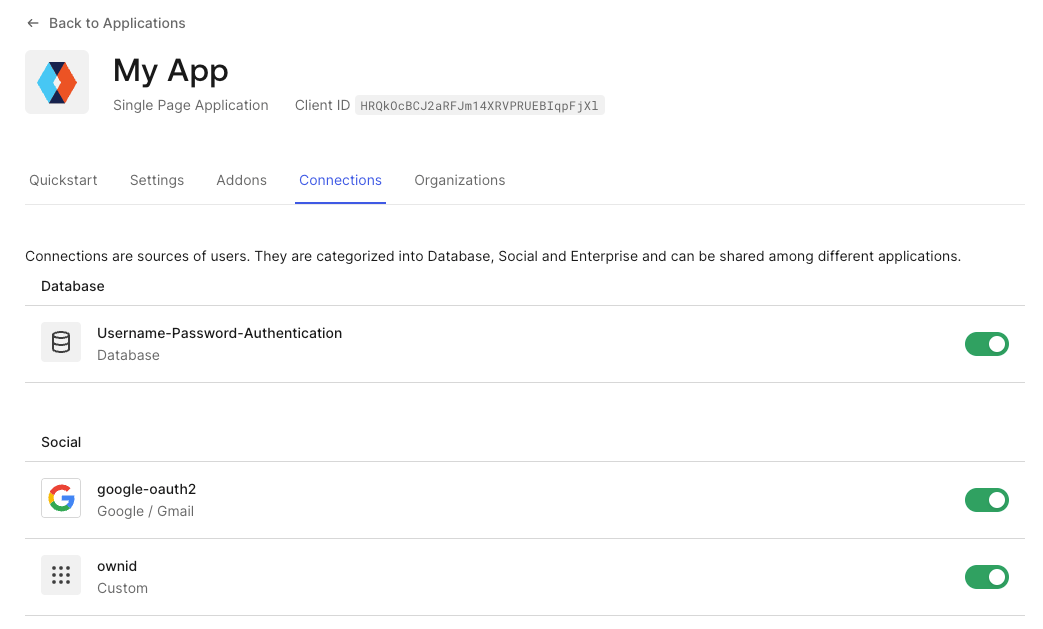 Figure 7. App connections
## Step 4 - Frontend Integration
### Step 4.1 - Universal login page
1. In your Auth0 Dashboard, go to *Branding -> Universal Login -> Advanced Options* and choose the *Login* tab.
2. In the HTML, locate the `Auth0Lock` instantiation. Typically, it would be as the following:
```javascript theme={null}
var lock = new Auth0Lock(...
```
3. Add the following Javascript code snippet after the `Auth0Lock` instance is instantiated and configured.
* Replace `` with the `appId` from the OwnID application created in step 2.
* Replace `` with the `lock` instance that was created in previous lines.
* Replace `` with your Auth0 login application client id.
* Set `enableRegister` to `false` if you prefer to not render the OwnID widget on the signup form.
```javascript theme={null}
((o,w,n,i,d)=>{o[i]=o[i]||((...a) =>new Promise((r, j)=>((o[i].q = o[i].q || []).push([{r,j,_isResolvers:true},...a])))),
(d=w.createElement("script")).src='https://cdn.ownid.com/sdk/'+n,d.async=1,w.head.appendChild(d);o[i].whenReady = o[i]('init')})
(window,document,'','ownid');
ownid("auth0Render", {auth0: {
lock: ,
universalLogin: true,
clientId: '',
enableRegister: true,
}});
```
### Step 4.2 - Storefront
This setup is optional, but it enables the following features for your storefront:
* Returning user prompt
* Passwordless registration flow
* Device enrollment flow
#### React SDK
1. Install the OwnID React SDK:
```curl npm react theme={null}
npm install @ownid/react
```
2. Define the following component, import it to your App component and configure it:
* Replace `` with the `appId` from the OwnID application created in step 2.
* Replace `` with the your Auth0 domain.
* Set paths in `` for which you want the returning uer prompt to be activated. Remove or leave empty to skip this feature.
* Set a custom `` if you had used a different name in step 3. The default name is `"OwnID"`.
* Set a custom `` if you had set a custom redirect path for the Auth0 login. It defaults to your app home page, same as the Auth0 sdk.
```javascript theme={null}
import {useAuth0} from "@auth0/auth0-react";
import {OwnIDInit} from '@ownid/react';
export const OwnIDInitAuth0 = () => {
const auth0 = useAuth0();
useEffect(() => {
window.ownid("auth0Render", {auth0: {
spaClient: auth0,
storefront: true,
authDomain: '',
instantConnectPathnames: ["/"],
ownidConnectionName: undefined,
loginRedirectUri: undefined
}});
}, []);
return ' }}/>
}
```
#### Other JS Setups
1. We assume you are using the [@auth0/auth0-spa-js](https://github.com/auth0/auth0-spa-js) package. Locate the `Auth0Client` instantiation. Typically, it would be as the following:
```javascript theme={null}
const auth0 = await createAuth0Client({ ... });
// or
const auth0 = new Auth0Client({ ... });
```
2. Define the following code snippet in your Javascript code, so that it will run on all of your application pages, and pass your `Auth0Client` instance to it.
* Replace `` with the `appId` from the OwnID application created in step 2.
* Replace `` with the your Auth0 domain.
* Set paths in `` for which you want the returning uer prompt to be activated. Remove or leave empty to skip this feature.
* Set a custom `` if you had used a different name in step 3. The default name is `"OwnID"`.
* Set a custom `` if you had set a custom redirect path for the Auth0 login. It defaults to your app home page, same as the Auth0 sdk.
```javascript theme={null}
((o,w,n,i,d)=>{o[i]=o[i]||((...a) =>new Promise((r, j)=>((o[i].q = o[i].q || []).push([{r,j,_isResolvers:true},...a])))),
(d=w.createElement("script")).src='https://cdn.ownid.com/sdk/'+n,d.async=1,w.head.appendChild(d);o[i].whenReady = o[i]('init')})
(window,document,'','ownid');
ownid("auth0Render", {auth0: {
spaClient: auth0,
storefront: true,
authDomain: '',
instantConnectPathnames: ["/"],
ownidConnectionName: undefined,
loginRedirectUri: undefined
}});
```
3. To allow the returning user prompt flow (instant connect), your app would have to have a handler for the OAuth redirect callback. See the [Auth0 documentation](https://github.com/auth0/auth0-spa-js?tab=readme-ov-file#logging-in):
```javascript theme={null}
// On redirect path loaded:
await auth0.handleRedirectCallback();
```
The OwnID widget in the *signup* form is currently only supported if the Universal Login page is opened in the `popup` mode.
**Congratulations!**
Enjoy your Auth0-integrated passwordless authentication!
## Next Steps
### Ready to deploy?
Take me to the Deployment Checklist
Figure 7. App connections
## Step 4 - Frontend Integration
### Step 4.1 - Universal login page
1. In your Auth0 Dashboard, go to *Branding -> Universal Login -> Advanced Options* and choose the *Login* tab.
2. In the HTML, locate the `Auth0Lock` instantiation. Typically, it would be as the following:
```javascript theme={null}
var lock = new Auth0Lock(...
```
3. Add the following Javascript code snippet after the `Auth0Lock` instance is instantiated and configured.
* Replace `` with the `appId` from the OwnID application created in step 2.
* Replace `` with the `lock` instance that was created in previous lines.
* Replace `` with your Auth0 login application client id.
* Set `enableRegister` to `false` if you prefer to not render the OwnID widget on the signup form.
```javascript theme={null}
((o,w,n,i,d)=>{o[i]=o[i]||((...a) =>new Promise((r, j)=>((o[i].q = o[i].q || []).push([{r,j,_isResolvers:true},...a])))),
(d=w.createElement("script")).src='https://cdn.ownid.com/sdk/'+n,d.async=1,w.head.appendChild(d);o[i].whenReady = o[i]('init')})
(window,document,'','ownid');
ownid("auth0Render", {auth0: {
lock: ,
universalLogin: true,
clientId: '',
enableRegister: true,
}});
```
### Step 4.2 - Storefront
This setup is optional, but it enables the following features for your storefront:
* Returning user prompt
* Passwordless registration flow
* Device enrollment flow
#### React SDK
1. Install the OwnID React SDK:
```curl npm react theme={null}
npm install @ownid/react
```
2. Define the following component, import it to your App component and configure it:
* Replace `` with the `appId` from the OwnID application created in step 2.
* Replace `` with the your Auth0 domain.
* Set paths in `` for which you want the returning uer prompt to be activated. Remove or leave empty to skip this feature.
* Set a custom `` if you had used a different name in step 3. The default name is `"OwnID"`.
* Set a custom `` if you had set a custom redirect path for the Auth0 login. It defaults to your app home page, same as the Auth0 sdk.
```javascript theme={null}
import {useAuth0} from "@auth0/auth0-react";
import {OwnIDInit} from '@ownid/react';
export const OwnIDInitAuth0 = () => {
const auth0 = useAuth0();
useEffect(() => {
window.ownid("auth0Render", {auth0: {
spaClient: auth0,
storefront: true,
authDomain: '',
instantConnectPathnames: ["/"],
ownidConnectionName: undefined,
loginRedirectUri: undefined
}});
}, []);
return ' }}/>
}
```
#### Other JS Setups
1. We assume you are using the [@auth0/auth0-spa-js](https://github.com/auth0/auth0-spa-js) package. Locate the `Auth0Client` instantiation. Typically, it would be as the following:
```javascript theme={null}
const auth0 = await createAuth0Client({ ... });
// or
const auth0 = new Auth0Client({ ... });
```
2. Define the following code snippet in your Javascript code, so that it will run on all of your application pages, and pass your `Auth0Client` instance to it.
* Replace `` with the `appId` from the OwnID application created in step 2.
* Replace `` with the your Auth0 domain.
* Set paths in `` for which you want the returning uer prompt to be activated. Remove or leave empty to skip this feature.
* Set a custom `` if you had used a different name in step 3. The default name is `"OwnID"`.
* Set a custom `` if you had set a custom redirect path for the Auth0 login. It defaults to your app home page, same as the Auth0 sdk.
```javascript theme={null}
((o,w,n,i,d)=>{o[i]=o[i]||((...a) =>new Promise((r, j)=>((o[i].q = o[i].q || []).push([{r,j,_isResolvers:true},...a])))),
(d=w.createElement("script")).src='https://cdn.ownid.com/sdk/'+n,d.async=1,w.head.appendChild(d);o[i].whenReady = o[i]('init')})
(window,document,'','ownid');
ownid("auth0Render", {auth0: {
spaClient: auth0,
storefront: true,
authDomain: '',
instantConnectPathnames: ["/"],
ownidConnectionName: undefined,
loginRedirectUri: undefined
}});
```
3. To allow the returning user prompt flow (instant connect), your app would have to have a handler for the OAuth redirect callback. See the [Auth0 documentation](https://github.com/auth0/auth0-spa-js?tab=readme-ov-file#logging-in):
```javascript theme={null}
// On redirect path loaded:
await auth0.handleRedirectCallback();
```
The OwnID widget in the *signup* form is currently only supported if the Universal Login page is opened in the `popup` mode.
**Congratulations!**
Enjoy your Auth0-integrated passwordless authentication!
## Next Steps
### Ready to deploy?
Take me to the Deployment Checklist