> ## Documentation Index
> Fetch the complete documentation index at: https://docs.ownid.com/llms.txt
> Use this file to discover all available pages before exploring further.
# Shopify
> OwnID's Shopify Plus Connector is a low-code way to add passwordless authentication to your store with a few clicks.
By integrating Shopify with OwnID, you can implement the full set of OwnID features to simplify and streamline your user login experience.
## How it Works
OwnID supports integration with Shopify through our pre-built Shopify Connector. To use it, create your OwnID app in the Console and select the *Shopify Plus* connector as described below.
Configuration on the Shopify side happens through the OwnID Connector in the Shopify marketplace. Ensure you have an account with admin access in Shopify.
Integrate OwnID with Shopify in four basic steps:
**Step 1** - Enable Multipass.
**Step 2** - Get your Shopify Token.
**Step 3** - Create a new OwnID No-code App.
**Step 4** - Insert OwnID Widget.
## Step 1 - Enable Multipass
Multipass login is for store owners who have a separate website and a Shopify store. It redirects users from the website to the Shopify store and seamlessly logs them in with the same email address they used to sign up for the original website. If no account with that email address exists yet, one is created. There is no need to synchronize any customer databases.
### To Enable Multipass
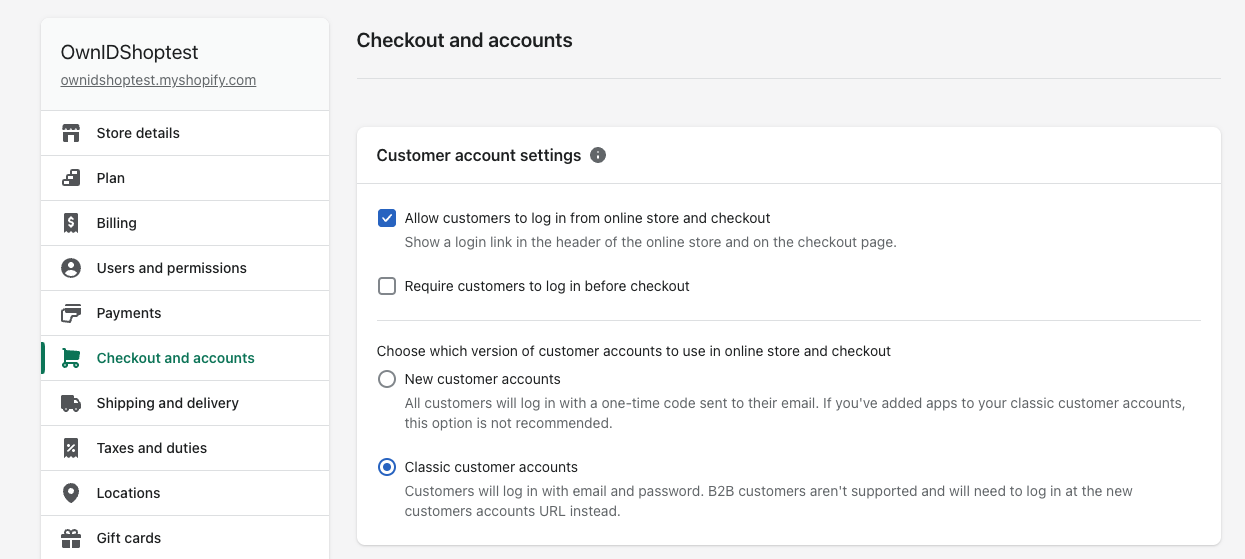
1. Log in to your Shopify admin and go to the **Settings > Checkout and accounts** page.
2. Scroll down to the **Customer accounts section** section and ensure that you have "Allow customers to log in from online store and checkout" selected.
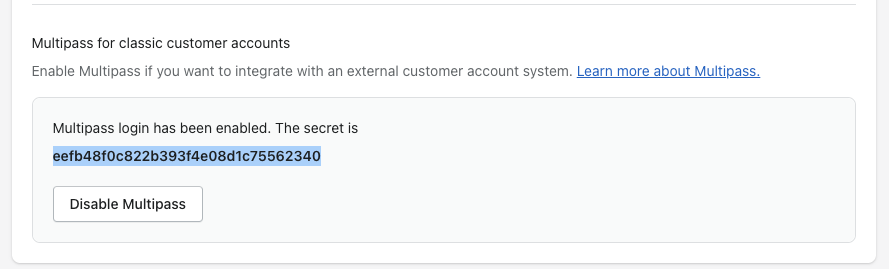
3. Select **Enable Multipass**.
Once enabled, a secret will be shared with you. You need the secret during the OwnID onboarding. Make sure you keep your secret private.
## Step 2 - Get your Shopify Token
To implement our Shopify integration you will need to specify two identifiers:
* URL of your Shopify Store
* Shopify API access token.
In this section you'll learn how to get your API access token within your Shopify Store.
First enable a custom app from your Shopify owner's account:
1. Log in to your Shopify Store as the store owner.
2. Select **Apps** in the admin section on the left sidebar.
3. From the dropdown menu, select **Apps and sales channels settings**.
4. In the next window that appears click on **Develop apps for your store**.
5. Click to **Allow Custom App Development** in the next two screens.
6. Select **Create an app**. You'll be asked to give your app a name, and add your email in the App developer text box.
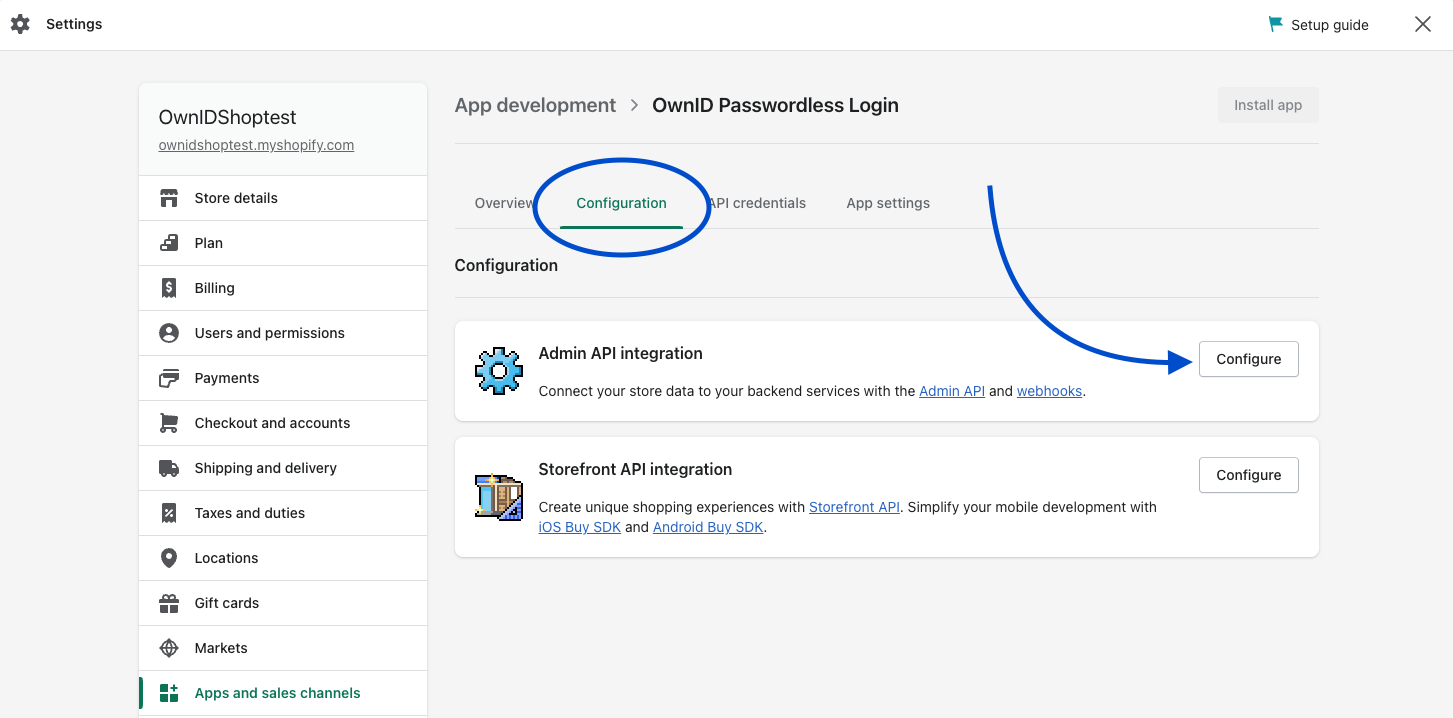
7. Navigate to the **Configuration** tab and select **Configure** in the Admin API Integration section.
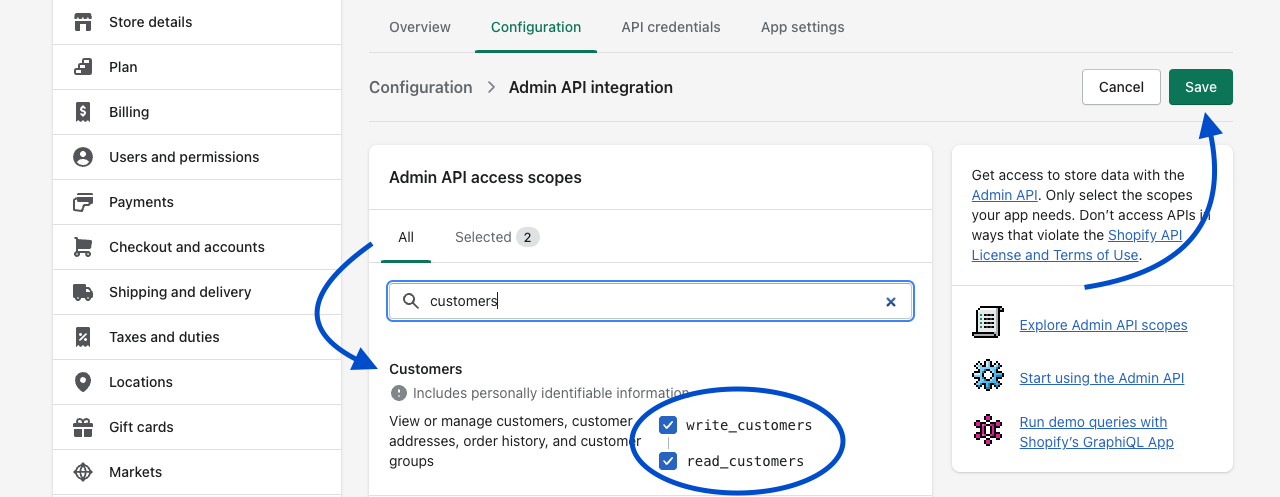
8. Under **Admin API access scopes** you'll see many categories. Scroll down until you reach **Customers**, or search for "Customers" in the search bar.
9. Select the boxes for 'write\_customers' and 'read\_customers'
10. Click **Save**.
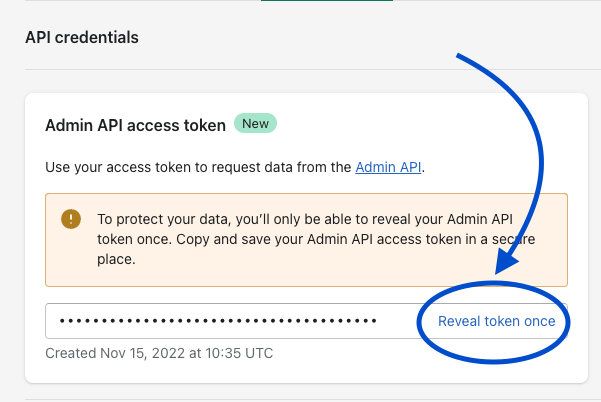
11. Go to the **API Credentials** and click on **Install** in the Access tokens box. The Admin API Access Token is generated. Click on **Reveal token once** to see the token as plain text. Make a copy to use during onboarding in the OwnID console.
**Securing User's Personal Data**
OwnID does not store or process any user data. Users' public keys and device information are stored on your platform.
Private keys are kept exclusively on the user's device and are never transmitted elsewhere.
## Step 3 - Create OwnID Application
Each website integrating with OwnID must have an OwnID application.
1. Login to the [OwnID Console](https://console.ownid.com) (or create your account).
2. Click **+Create Application** from the Apps screen.
3. Enter a name for your application in the *App name* field.
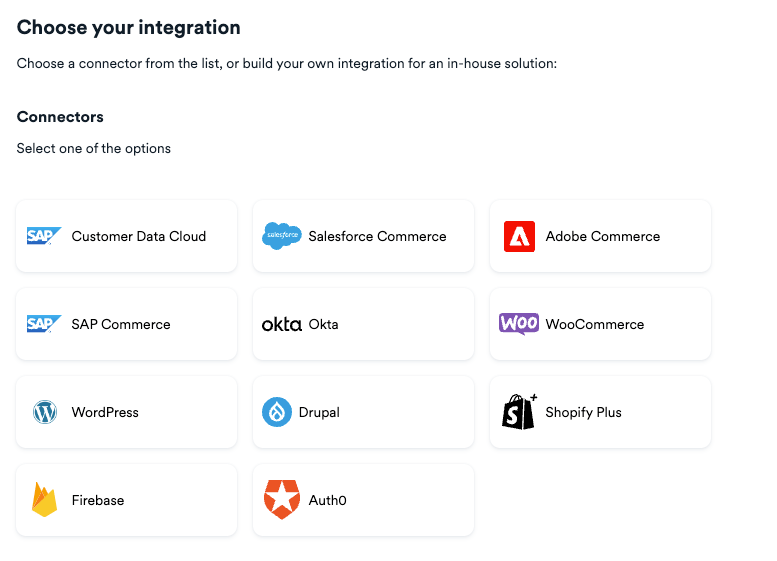
4. From the *Choose your integration* panel, select the Shopify Plus tile.
5. Click **Next**.
6. Enter the your Shopify settings and click **Continue**.
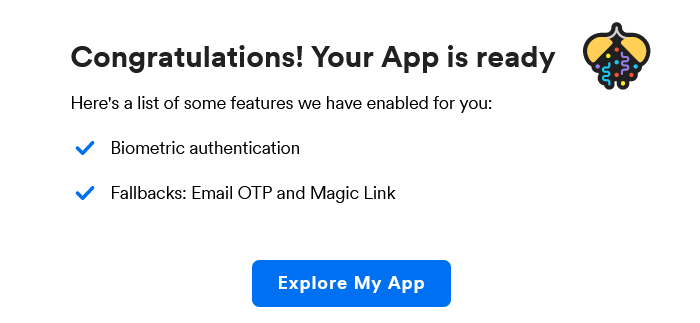
7. Click **Explore my App** on the "Congratulations" popup.
8. From the *OwnID Settings* panel, copy the *App ID* and the *Shared Secret* for use in configuration on the Shopify side. Your OwnID application and secret key are created and you're ready for next steps!
Complete the integration steps. Use your `Shopify Multipass secret` and `Shopify API Access Token` described above.
## Step 4 - Add the OwnID Widget
Lastly, we'll add the passwordless widget to the frontend login and registration forms.
Do this by editing three pages of your Shopify theme:
1. From your Shopify admin, go to **Online Store > Themes**.
2. Click **Actions > Edit code**. The code editor shows a directory of theme files on the left, and a space to view and edit the files on the right.
3. On the left panel, go to the folder **Layout** and select the file **theme.liquid**. Place the following script in the `` of the file:
```js theme={null}
```
4. Go to the **Sections** folder and select the file **main-login.liquid**. Place the following code **after** your login form:
```js theme={null}
```
5. Finally, inside the same folder **Sections**, select the file **main-register.liquid**.
6. Add the following input after your password field element, inside the registration form:
```html theme={null}
```
7. In the same file, insert the following code below the registration form:
```js theme={null}
```
8. Save your changes.
Congratulations! Enjoy your Shopify Plus passwordless authentication!
### Client secrets
Your app's client secret is a unique key that authenticates your app when it requests access to a store's data. You can use your client secret to retrieve an access token for a store, or to verify a webhook request is genuine.
Retrieve your app's client credentials
Anchor link to section titled "Retrieve your app's client credentials"
You can manually retrieve your app's client credentials in the Partner Dashboard.
1. Log in to your Partner Dashboard.
2. Click Apps.
3. Click the name of the app you want to retrieve client credentials for.
4. Click Client credentials.
5. View or copy your client ID and client secret.
## Next Steps
### Ready to deploy?
Take me to the Deployment Checklist
 Configuration on the Shopify side happens through the OwnID Connector in the Shopify marketplace. Ensure you have an account with admin access in Shopify.
Integrate OwnID with Shopify in four basic steps:
**Step 1** - Enable Multipass.
**Step 2** - Get your Shopify Token.
**Step 3** - Create a new OwnID No-code App.
**Step 4** - Insert OwnID Widget.
## Step 1 - Enable Multipass
Multipass login is for store owners who have a separate website and a Shopify store. It redirects users from the website to the Shopify store and seamlessly logs them in with the same email address they used to sign up for the original website. If no account with that email address exists yet, one is created. There is no need to synchronize any customer databases.
### To Enable Multipass
1. Log in to your Shopify admin and go to the **Settings > Checkout and accounts** page.
2. Scroll down to the **Customer accounts section** section and ensure that you have "Allow customers to log in from online store and checkout" selected.
Configuration on the Shopify side happens through the OwnID Connector in the Shopify marketplace. Ensure you have an account with admin access in Shopify.
Integrate OwnID with Shopify in four basic steps:
**Step 1** - Enable Multipass.
**Step 2** - Get your Shopify Token.
**Step 3** - Create a new OwnID No-code App.
**Step 4** - Insert OwnID Widget.
## Step 1 - Enable Multipass
Multipass login is for store owners who have a separate website and a Shopify store. It redirects users from the website to the Shopify store and seamlessly logs them in with the same email address they used to sign up for the original website. If no account with that email address exists yet, one is created. There is no need to synchronize any customer databases.
### To Enable Multipass
1. Log in to your Shopify admin and go to the **Settings > Checkout and accounts** page.
2. Scroll down to the **Customer accounts section** section and ensure that you have "Allow customers to log in from online store and checkout" selected.
 3. Select **Enable Multipass**.
Once enabled, a secret will be shared with you. You need the secret during the OwnID onboarding. Make sure you keep your secret private.
3. Select **Enable Multipass**.
Once enabled, a secret will be shared with you. You need the secret during the OwnID onboarding. Make sure you keep your secret private.
 ## Step 2 - Get your Shopify Token
To implement our Shopify integration you will need to specify two identifiers:
* URL of your Shopify Store
* Shopify API access token.
In this section you'll learn how to get your API access token within your Shopify Store.
First enable a custom app from your Shopify owner's account:
1. Log in to your Shopify Store as the store owner.
2. Select **Apps** in the admin section on the left sidebar.
## Step 2 - Get your Shopify Token
To implement our Shopify integration you will need to specify two identifiers:
* URL of your Shopify Store
* Shopify API access token.
In this section you'll learn how to get your API access token within your Shopify Store.
First enable a custom app from your Shopify owner's account:
1. Log in to your Shopify Store as the store owner.
2. Select **Apps** in the admin section on the left sidebar.
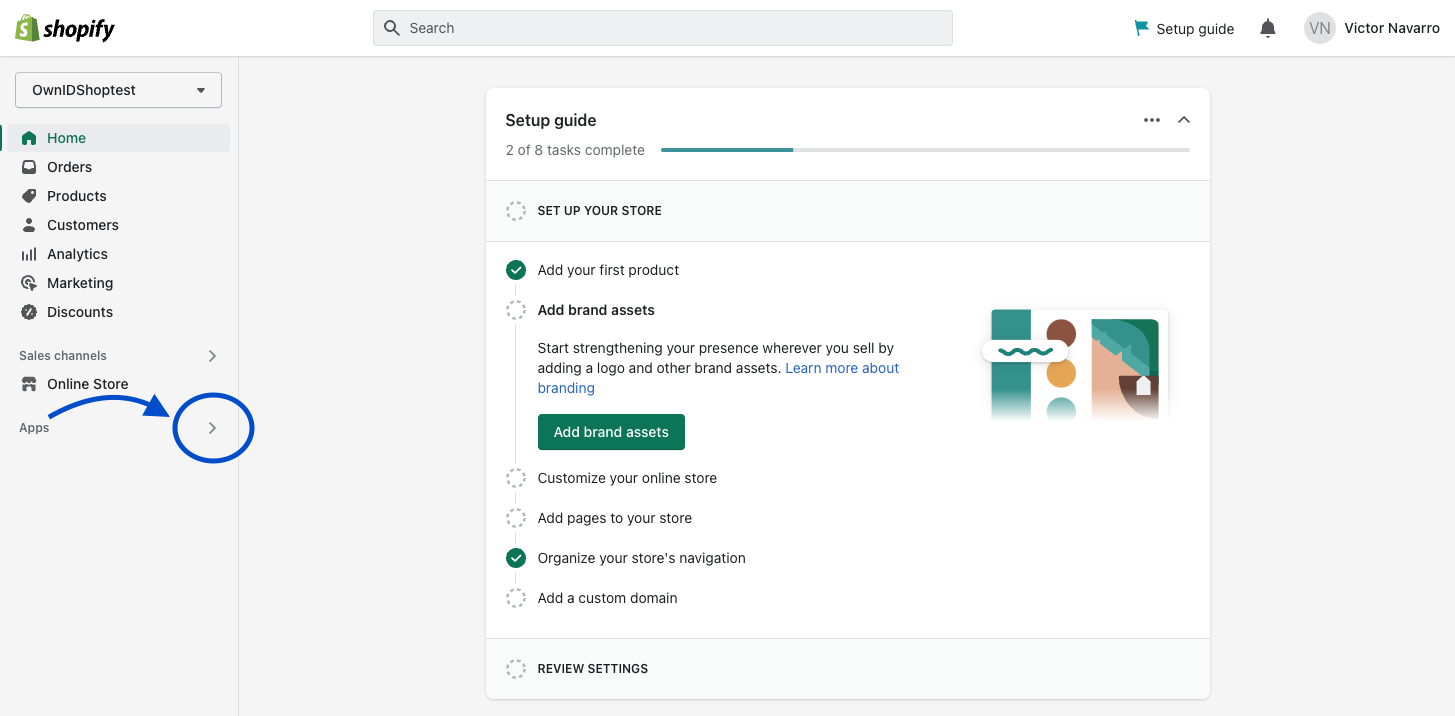 3. From the dropdown menu, select **Apps and sales channels settings**.
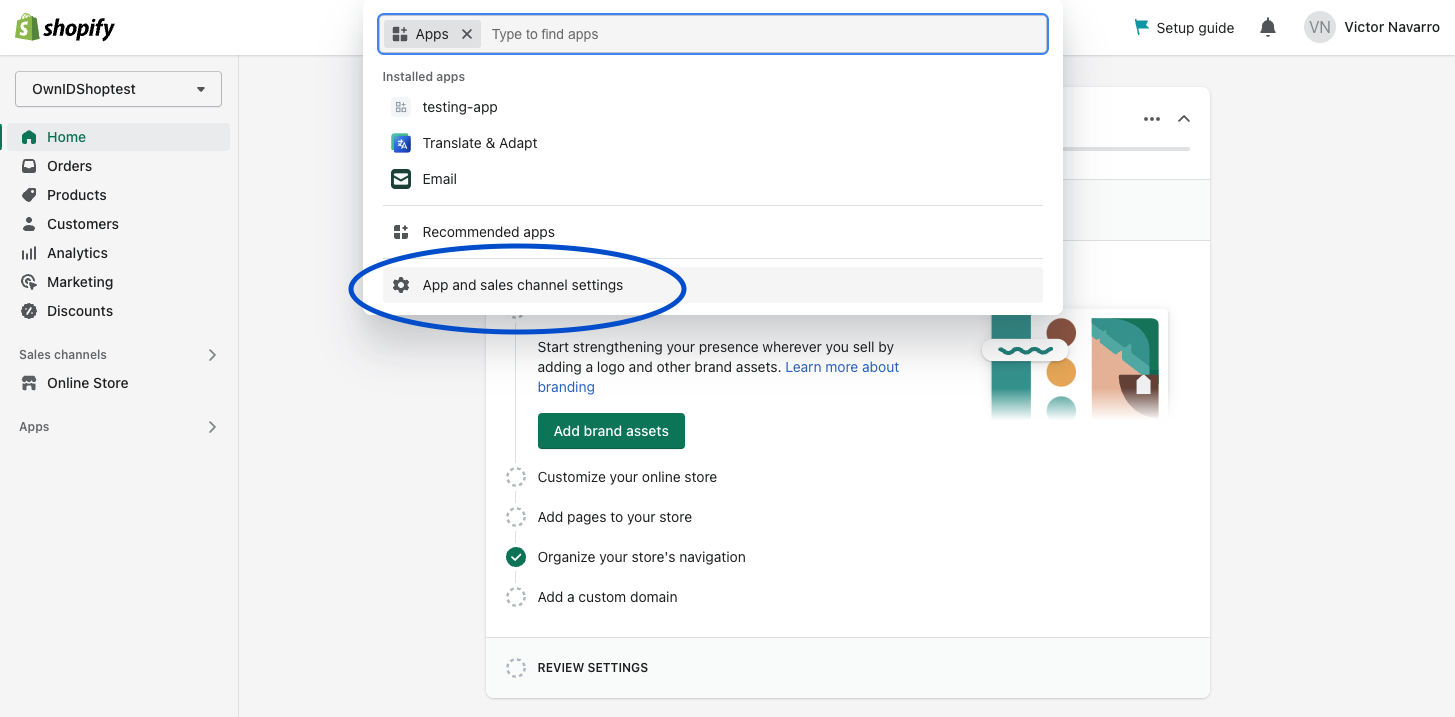 4. In the next window that appears click on **Develop apps for your store**.
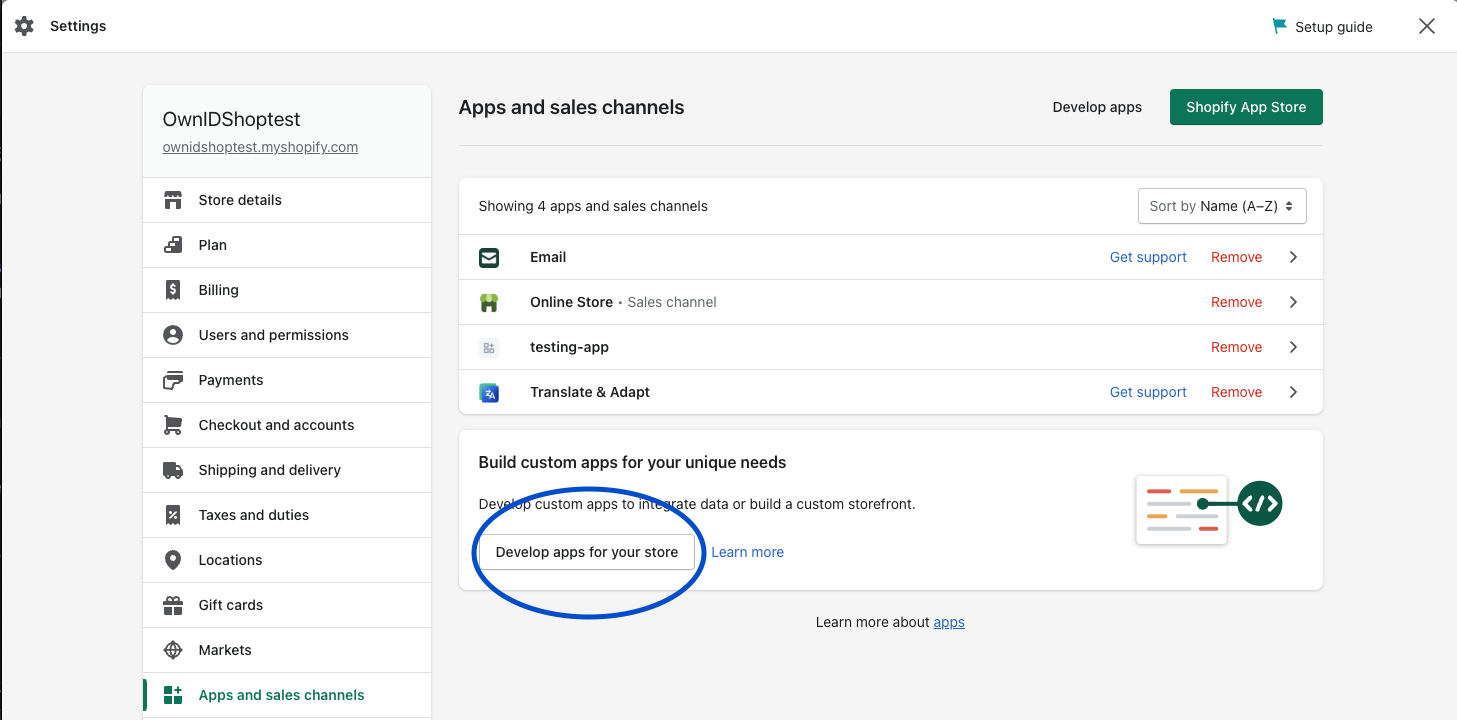 5. Click to **Allow Custom App Development** in the next two screens.
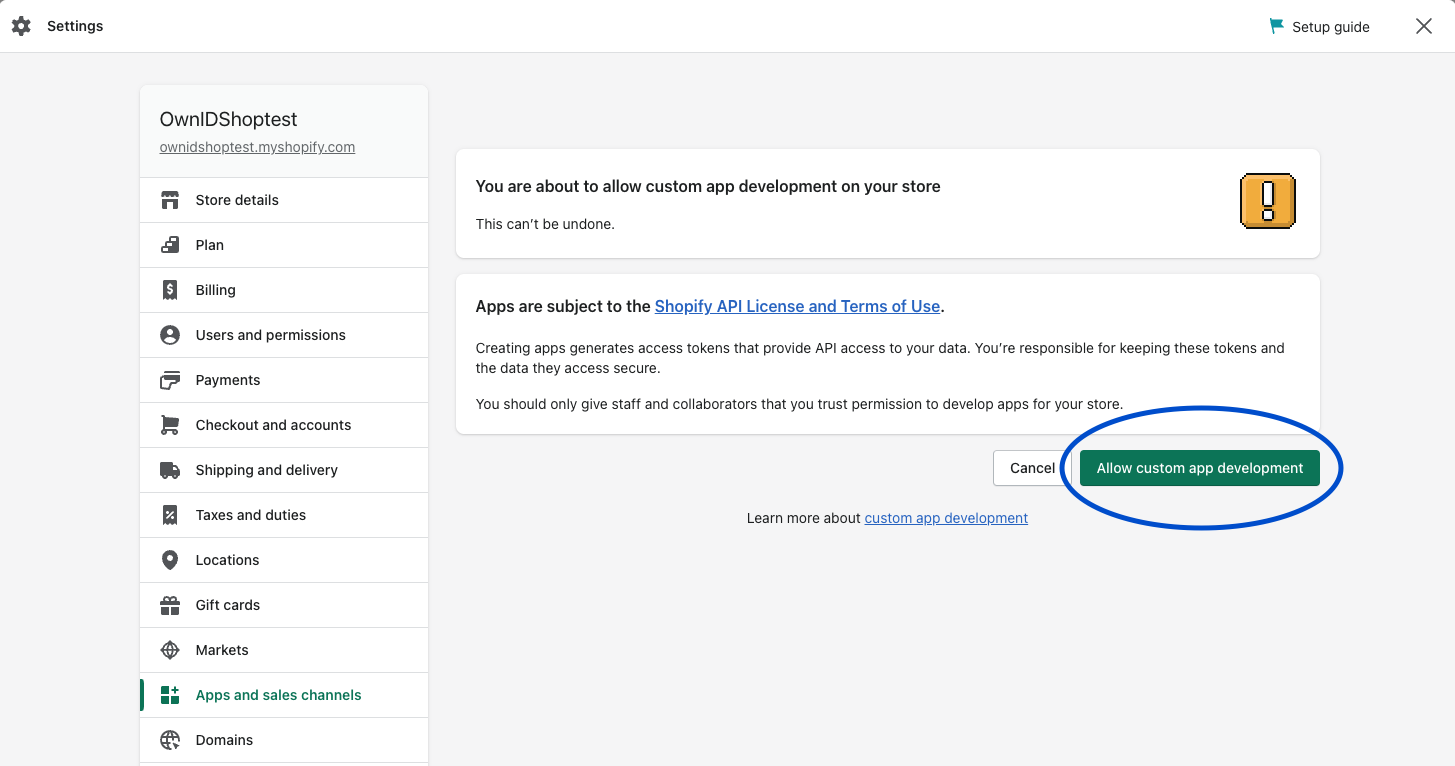 6. Select **Create an app**. You'll be asked to give your app a name, and add your email in the App developer text box.
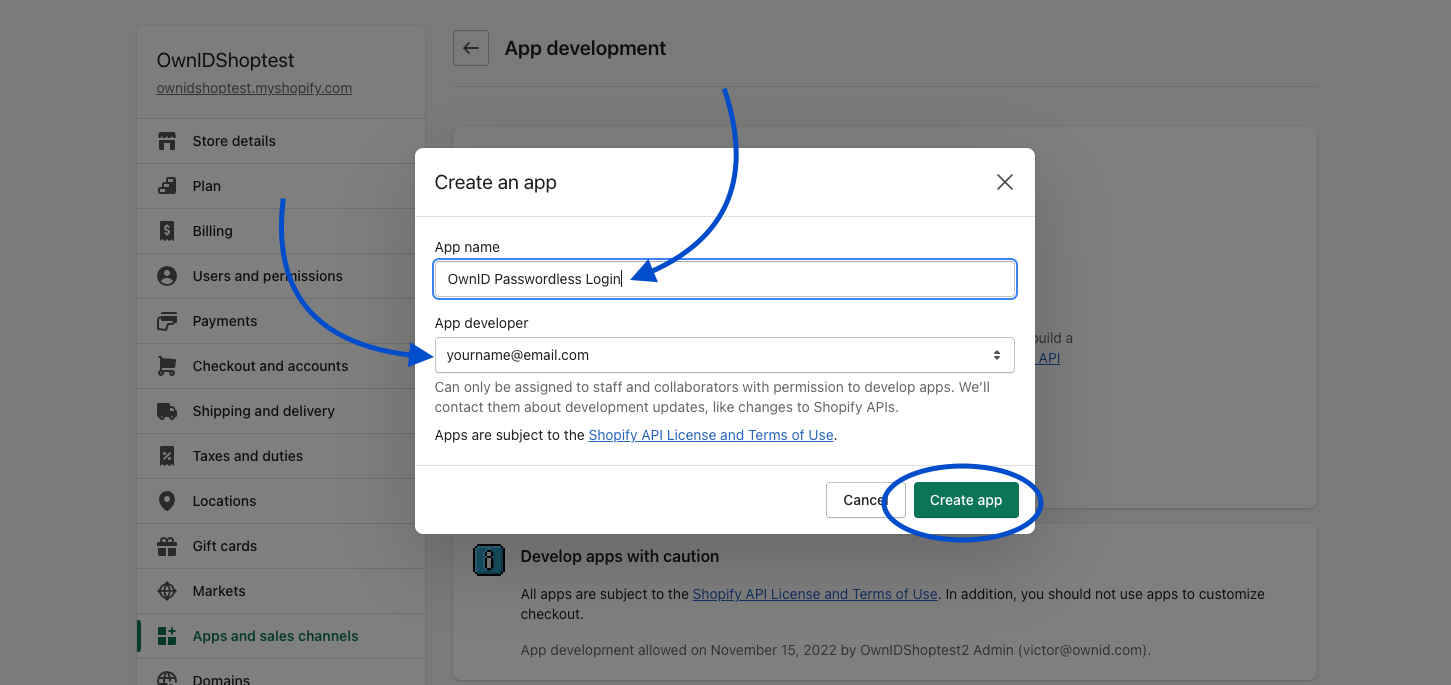 7. Navigate to the **Configuration** tab and select **Configure** in the Admin API Integration section.
 8. Under **Admin API access scopes** you'll see many categories. Scroll down until you reach **Customers**, or search for "Customers" in the search bar.
9. Select the boxes for 'write\_customers' and 'read\_customers'
10. Click **Save**.
8. Under **Admin API access scopes** you'll see many categories. Scroll down until you reach **Customers**, or search for "Customers" in the search bar.
9. Select the boxes for 'write\_customers' and 'read\_customers'
10. Click **Save**.
 11. Go to the **API Credentials** and click on **Install** in the Access tokens box. The Admin API Access Token is generated. Click on **Reveal token once** to see the token as plain text. Make a copy to use during onboarding in the OwnID console.
 5. Click **Next**.
6. Enter the your Shopify settings and click **Continue**.
5. Click **Next**.
6. Enter the your Shopify settings and click **Continue**. 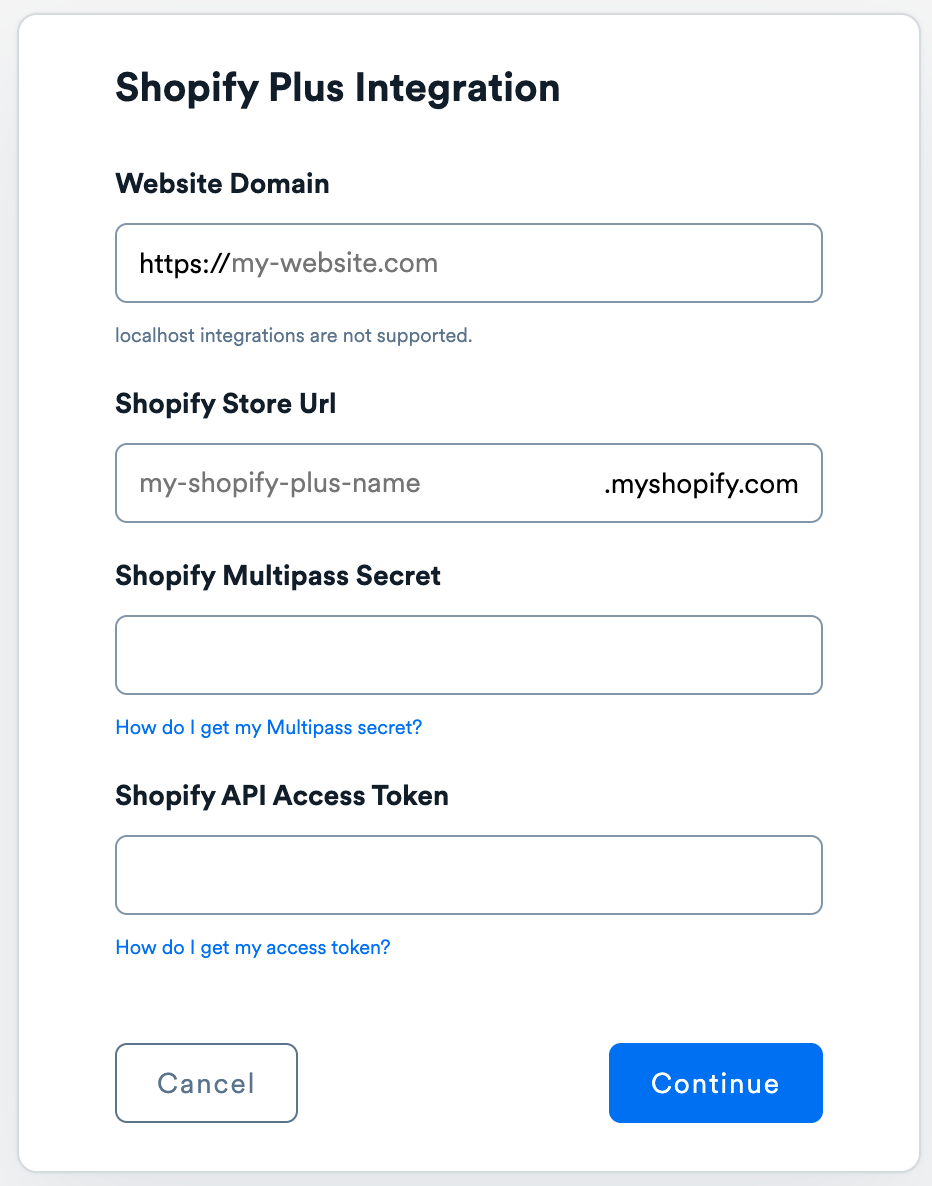 7. Click **Explore my App** on the "Congratulations" popup.
  8. From the *OwnID Settings* panel, copy the *App ID* and the *Shared Secret* for use in configuration on the Shopify side.