> ## Documentation Index
> Fetch the complete documentation index at: https://docs.ownid.com/llms.txt
> Use this file to discover all available pages before exploring further.
# WooCommerce
> OwnID’s WordPress/WooCommerce plugin is a completely no-code way to add passwordless authentication to your website with a few clicks.
export const connector_name_0 = "WordPress"
Integration with WooCommerce gives you full access to the OwnID features that simplify and streamline the login experience for your users.
## How it Works
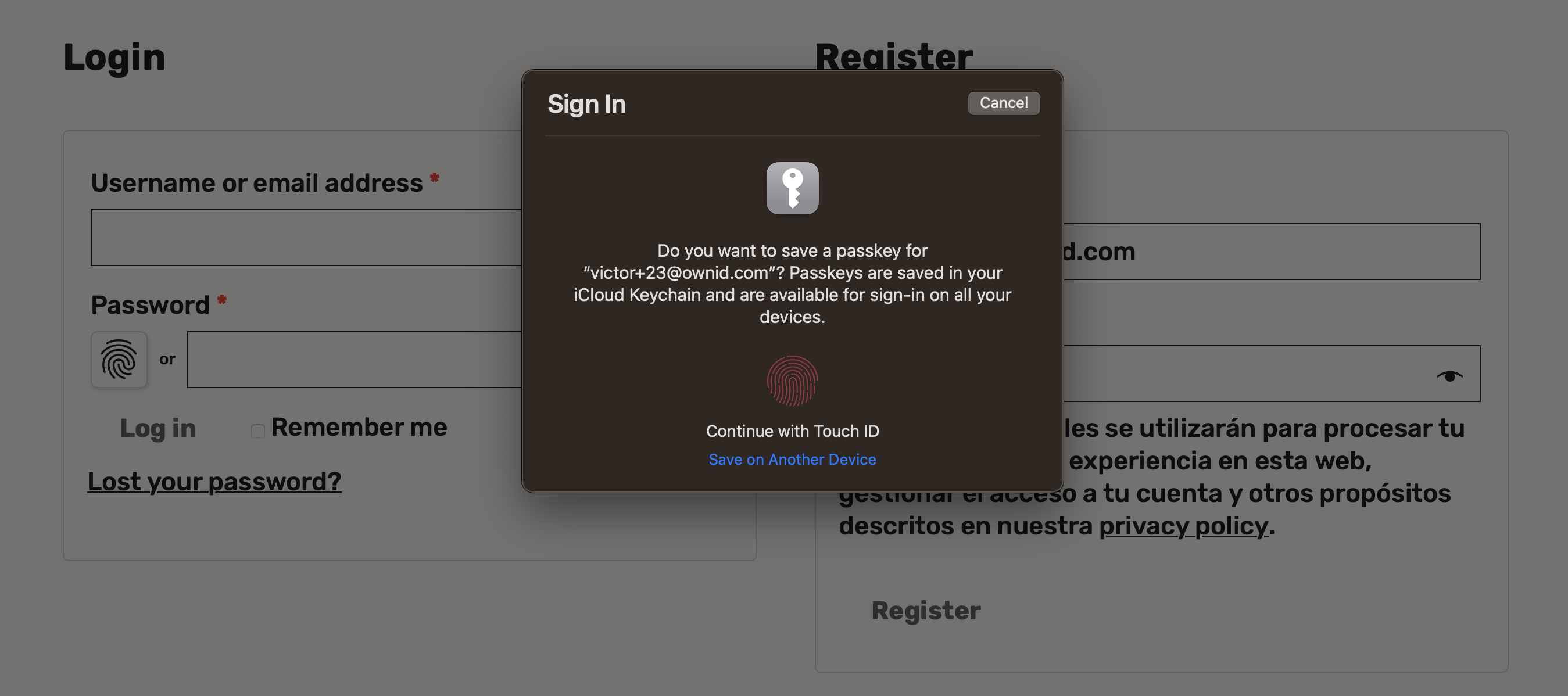 OwnID supports integration with WooCommerce through our pre-built Connector.
 ## Installing the OwnID Plugin
To download and install the OwnID plugin, access the official [plugin page](https://wordpress.org/plugins/ownid-passwordless-login/), or search for it directly in the `WordPress > Plugins` admin menu.
## Configuration Steps
An OwnID application connects your WordPress website with the OwnID button in the front end.
An OwnID App is what connects the existing identity provider used by your website with the OwnID widget you insert on the front end.
## Installing the OwnID Plugin
To download and install the OwnID plugin, access the official [plugin page](https://wordpress.org/plugins/ownid-passwordless-login/), or search for it directly in the `WordPress > Plugins` admin menu.
## Configuration Steps
An OwnID application connects your WordPress website with the OwnID button in the front end.
An OwnID App is what connects the existing identity provider used by your website with the OwnID widget you insert on the front end.
 OwnID widget
Each of your OwnID Apps acts as the central point of configuration for each of your integrations. These no-code Apps are created, hosted, and maintained entirely within the OwnID Console environment.
When you create an App, it's assigned a unique `appId` automatically. Use that `appId` in OwnID SDK interaction from your website’s front end.
#### To Create an OwnID App
1. Login to the [OwnID Console](https://console.ownid.com) (or create your account).
2. Click **+Create Application** from the Apps screen.
3. Enter a name for your application in the *App name* field.
4. From the *Choose your integration* panel, select the *{connector_name_0}* tile.
OwnID widget
Each of your OwnID Apps acts as the central point of configuration for each of your integrations. These no-code Apps are created, hosted, and maintained entirely within the OwnID Console environment.
When you create an App, it's assigned a unique `appId` automatically. Use that `appId` in OwnID SDK interaction from your website’s front end.
#### To Create an OwnID App
1. Login to the [OwnID Console](https://console.ownid.com) (or create your account).
2. Click **+Create Application** from the Apps screen.
3. Enter a name for your application in the *App name* field.
4. From the *Choose your integration* panel, select the *{connector_name_0}* tile. 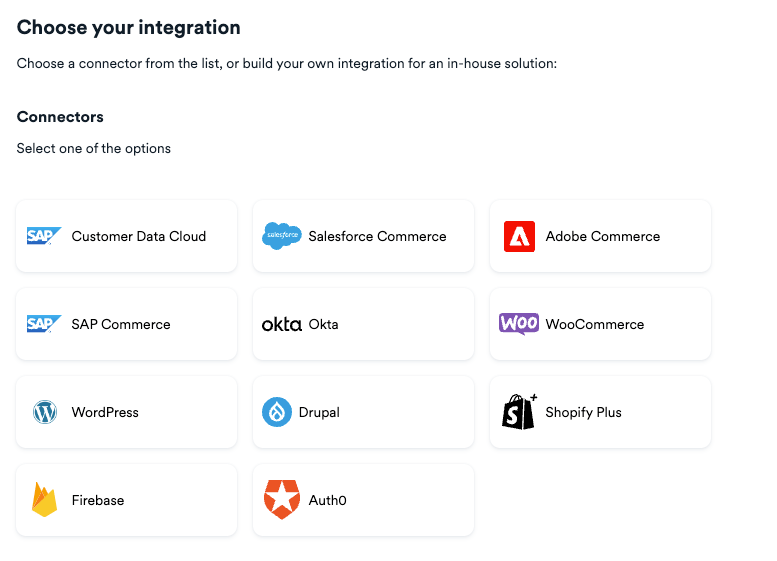 5. Click **Next**.
6. Enter the website URL to your *{connector_name_0}* application instance and click **Continue**.
7. Click **Explore my App** on the "Congratulations" popup.
5. Click **Next**.
6. Enter the website URL to your *{connector_name_0}* application instance and click **Continue**.
7. Click **Explore my App** on the "Congratulations" popup. 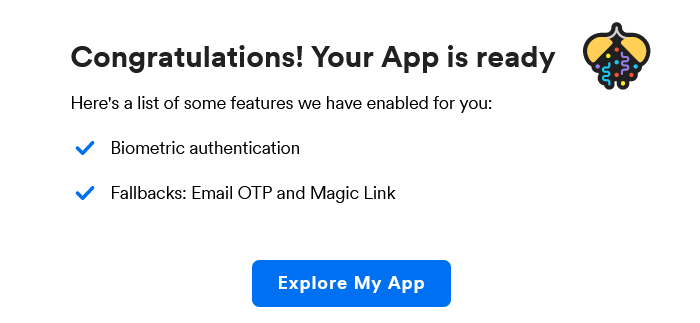 8. From the *OwnID Settings* panel, copy the *App ID* and the *Shared Secret* for use in configuration on the *{connector_name_0}* side.
  Your OwnID application and secret key are created and you're ready for next steps!
1. Open the [OwnID Console](https://console.ownid.com/) and create an account or log in to an existing account.
2. Create a **WordPress or WooCommerce** integration and complete the onboarding.
Your OwnID application and secret key are created and you're ready for next steps!
1. Open the [OwnID Console](https://console.ownid.com/) and create an account or log in to an existing account.
2. Create a **WordPress or WooCommerce** integration and complete the onboarding.
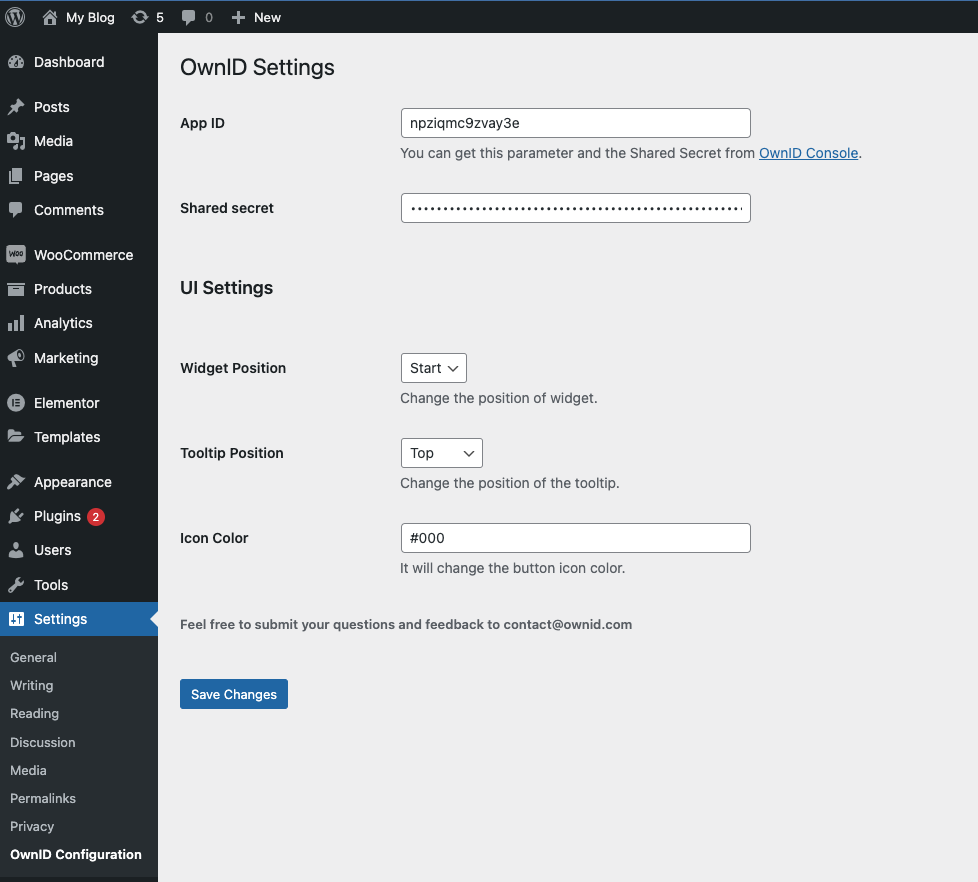 3. Copy and paste the **appID** and **shared secret** into the settings of the OwnID WordPress plugin.
**Congratulations!**\
Enjoy your WooCommerce-integrated passwordless authentication!
## Next Steps
### Ready to deploy?
Take me to the Deployment Checklist
3. Copy and paste the **appID** and **shared secret** into the settings of the OwnID WordPress plugin.
**Congratulations!**\
Enjoy your WooCommerce-integrated passwordless authentication!
## Next Steps
### Ready to deploy?
Take me to the Deployment Checklist