> ## Documentation Index
> Fetch the complete documentation index at: https://docs.ownid.com/llms.txt
> Use this file to discover all available pages before exploring further.
# Boost flow
> Add passkey-first login and account creation to native Android and iOS forms with Boost flow.
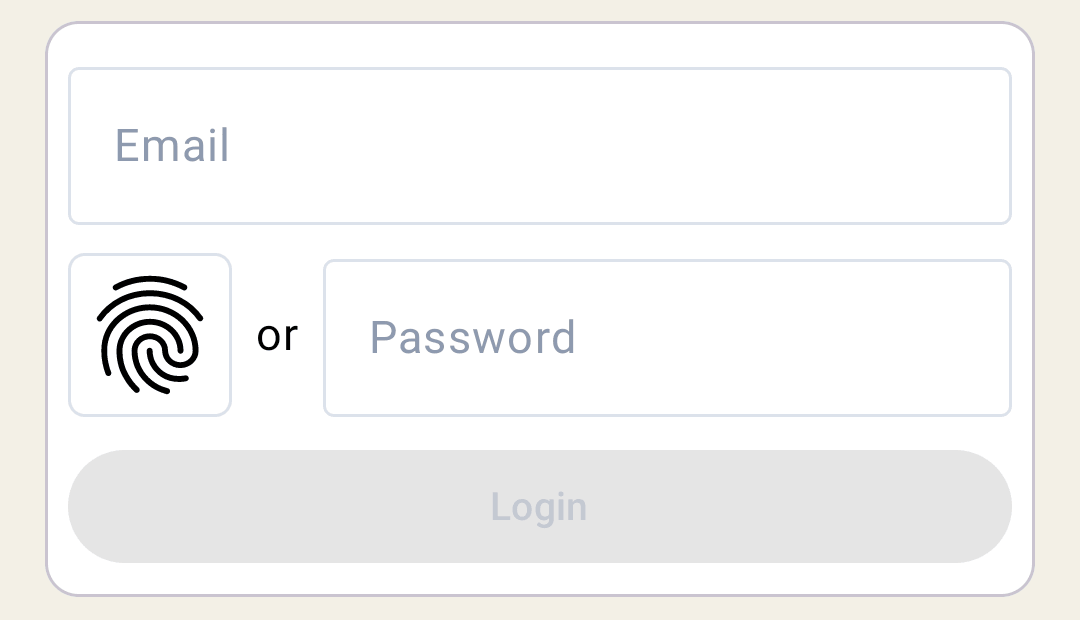
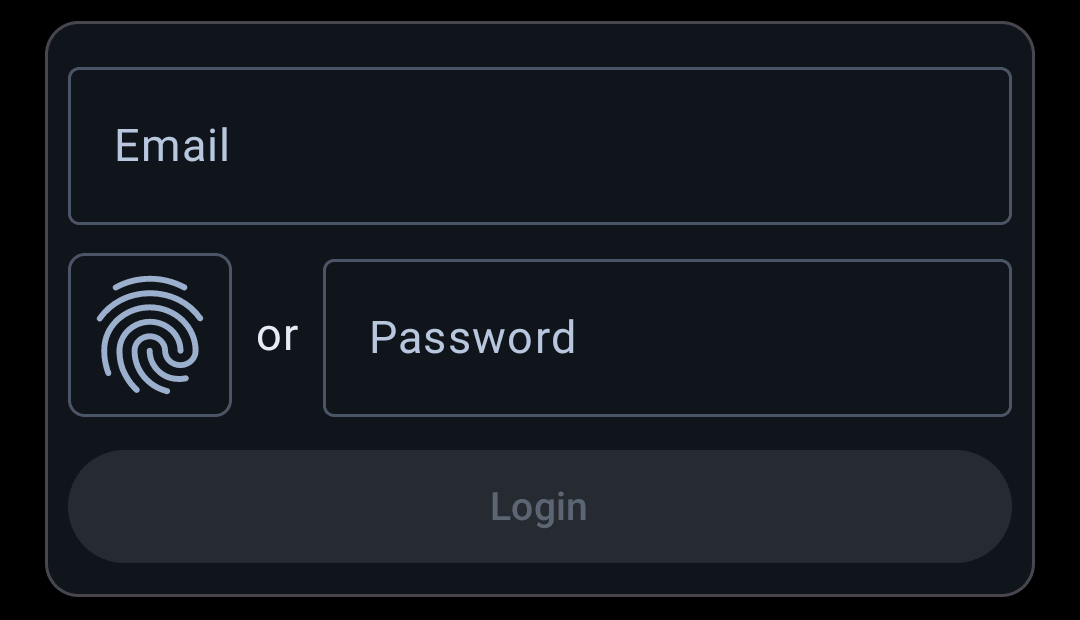
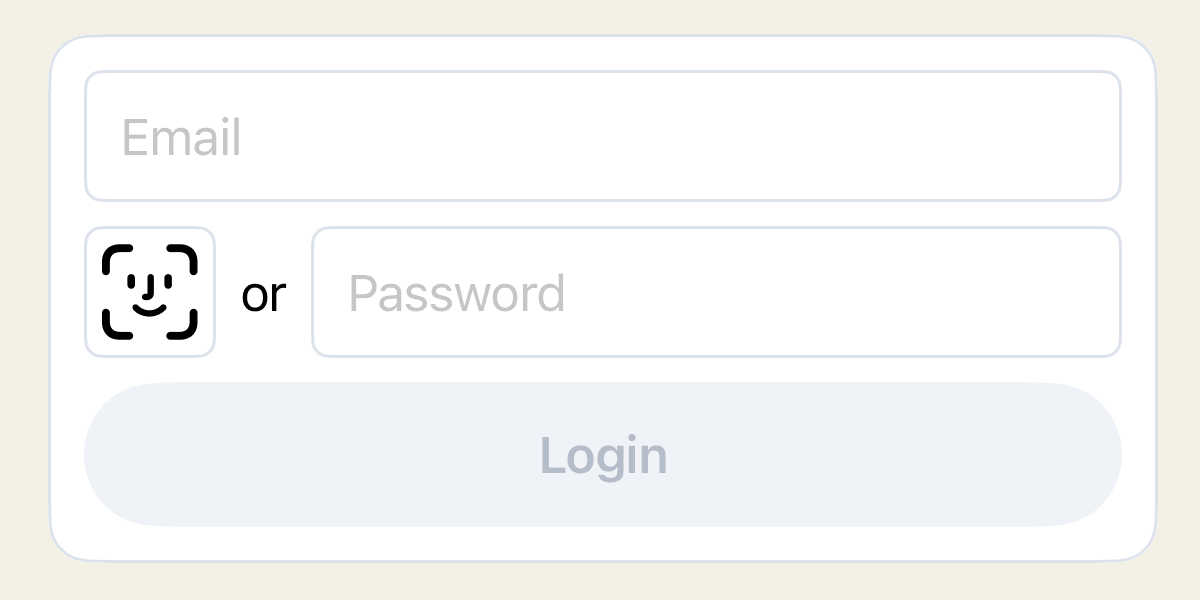
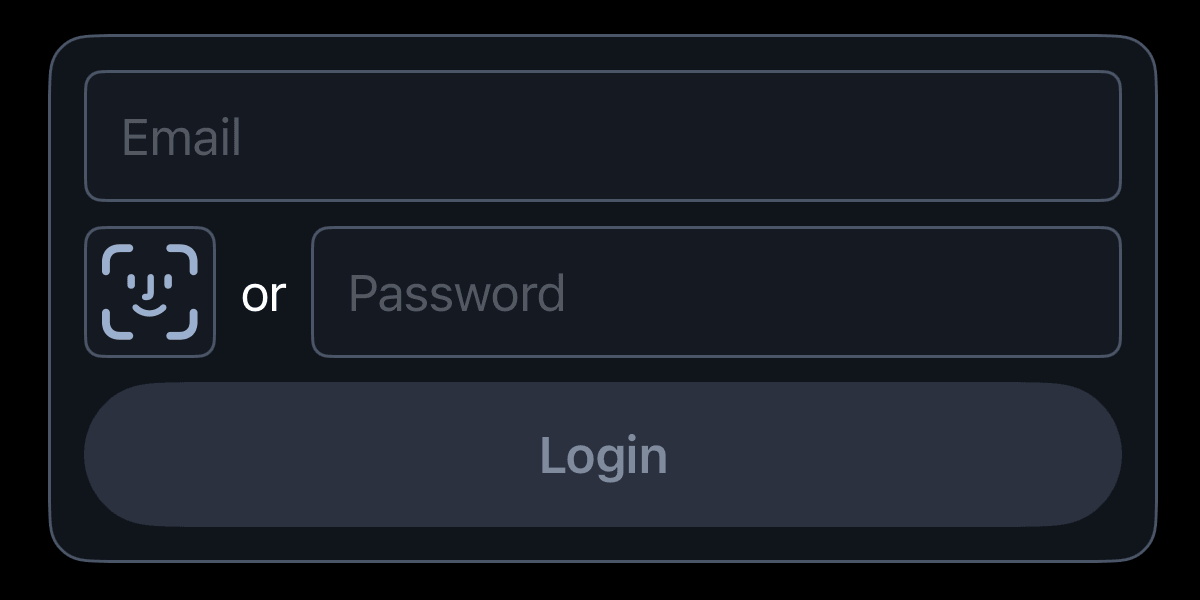
Boost flow adds passkey-first actions to your existing native login and registration forms. Use it when you want to keep your current UI and offer passkeys alongside the existing password path.
## Before you start
* Complete the [Android](/mobile-sdks/setup/android) or [iOS](/mobile-sdks/setup/ios) SDK setup.
* Add the Android Compose artifact or iOS SwiftUI product.
* Complete [Passkey setup](/mobile-sdks/setup/passkeys).
* Keep password login and manual registration available as fallback paths.
## Add the login widget
Place the OwnID login widget next to the password field on your login form and pass the current form login ID. Handle `onLogin`, `onError`, and `onCancel` in your app.
```kotlin theme={null}
import androidx.compose.runtime.Composable
import com.ownid.sdk.compose.widget.OwnIdLoginWidget
import com.ownid.sdk.flow.boost.BoostFlow
@Composable
fun LoginScreen(
email: String,
onOwnIdLogin: (BoostFlow.Response.Login) -> Unit
) {
OwnIdLoginWidget(
loginId = email,
onLogin = { response ->
// Update the form from response.loginId.id when needed.
onOwnIdLogin(response)
},
onError = {
// Show app-owned error or fallback UI.
},
onCancel = {
// Keep the user on the current login screen.
}
)
}
```
```swift theme={null}
import OwnIDCore
import OwnIDSwiftUI
import SwiftUI
struct LoginView: View {
@Binding var email: String
let onOwnIDLogin: (BoostFlowLoginResponse) -> Void
var body: some View {
OwnIDLoginWidget(
onLogin: { response in
// Update the form from response.loginID.id when needed.
onOwnIDLogin(response)
},
loginID: email,
onError: { _ in
// Show app-owned error or fallback UI.
},
onCancel: { _ in
// Keep the user on the current login screen.
}
)
}
}
```
## Add the create-passkey widget
Place the OwnID create-passkey widget next to the password field on your registration form and pass the current form login ID. Handle `onLogin`, `onNewPasskey`, `onReset`, `onError`, and `onCancel` in your app.
Store the `onNewPasskey` response only for the current login ID. Its `ownIdData` value is an opaque OwnID authentication payload: send it unchanged to your backend with the registration request, and do not inspect or modify it. If no matching `ownIdData` is available, continue with your normal registration path.
```kotlin wrap theme={null}
import androidx.compose.material3.Button
import androidx.compose.material3.Text
import androidx.compose.runtime.Composable
import androidx.compose.runtime.getValue
import androidx.compose.runtime.mutableStateOf
import androidx.compose.runtime.remember
import androidx.compose.runtime.setValue
import com.ownid.sdk.compose.widget.OwnIdCreatePasskeyWidget
import com.ownid.sdk.flow.boost.BoostFlow
import com.ownid.sdk.flow.boost.ownIdDataFor
@Composable
fun RegistrationForm(
email: String,
onEmailChange: (String) -> Unit,
onRegister: (ownIdData: String?) -> Unit,
onOwnIdLogin: (BoostFlow.Response.Login) -> Unit
) {
var createPasskeyResponse by remember {
mutableStateOf(null)
}
val ownIdData = createPasskeyResponse
?.ownIdDataFor(currentLoginId = email)
OwnIdCreatePasskeyWidget(
onLogin = { response ->
onEmailChange(response.loginId.id)
onOwnIdLogin(response)
},
onNewPasskey = { response ->
onEmailChange(response.loginId.id)
createPasskeyResponse = response
},
onReset = {
createPasskeyResponse = null
},
loginId = email,
onError = {
// Keep manual registration available.
},
onCancel = {
// Keep the current registration form state.
}
)
Button(onClick = { onRegister(ownIdData) }) {
Text("Register")
}
}
```
```swift wrap theme={null}
import OwnIDCore
import OwnIDSwiftUI
import SwiftUI
struct RegistrationForm: View {
@Binding var email: String
@State
private var createPasskeyResponse: BoostFlowCreatePasskeyResponse?
let onRegister: (String?) -> Void
let onOwnIDLogin: (BoostFlowLoginResponse) -> Void
private var ownIdData: String? {
createPasskeyResponse?.ownIdData(forLoginID: email)
}
var body: some View {
VStack {
OwnIDCreatePasskeyWidget(
onLogin: { response in
email = response.loginID.id
onOwnIDLogin(response)
},
onNewPasskey: { response in
email = response.loginID.id
createPasskeyResponse = response
},
onReset: {
createPasskeyResponse = nil
},
loginID: email,
onError: { _ in
// Keep manual registration available.
},
onCancel: { _ in
// Keep the current registration form state.
}
)
Button("Register") {
onRegister(ownIdData)
}
}
}
}
```
## Handle widget callbacks
| Callback | Widget | What your app should do |
| -------------- | ------------------------ | --------------------------------------------------------------------------------------------------------------------------------------------------------------------------- |
| `onLogin` | Login and create-passkey | Update the form from the returned login ID, then create or restore the app session. The create-passkey widget uses this callback when OwnID authenticates an existing user. |
| `onNewPasskey` | Create-passkey | Store the response for the current login ID and submit its `ownIdData` unchanged with registration. |
| `onReset` | Create-passkey | Discard the stored create-passkey response. |
| `onError` | Both | Keep the current form state, show app-owned error or retry UI, and leave the password path available. |
| `onCancel` | Both | Keep the user on the current form and leave the existing fallback available. |
Register the optional `sessionCreate` provider ([Android setup](https://github.com/OwnID/ownid-android-sdk/blob/master/docs/setup/providers.md#session-create) or [iOS setup](https://github.com/OwnID/ownid-ios-sdk/blob/master/docs/setup/providers.md#session-create)) when `onLogin` should include your app's session object. Without it, the login response still contains an OwnID Access Token and session payload for app-owned handling.
Treat Access Tokens, session payloads, and `ownIdData` as sensitive. Never log them.
## Continue with the full guides
Complete widget callbacks, failure handling, customization, and examples.
Complete widget callbacks, failure handling, customization, and examples.