

How it Works
OwnID supports integration with Ping Advanced Identity Cloud through our pre-built Ping Advanced Identity Cloud Connector. Configuration on the Ping Advanced Identity Cloud side happens through your AIC Dashboard. Ensure you have an account with admin access in Ping Advanced Identity Cloud. Complete these five basic steps to integrate OwnID with Ping Advanced Identity Cloud: Step 1 - Create a service account Step 2 - Create the OwnID App Step 3 - Define a custom user attribute Step 4 - Configure screen flows Step 5 - Frontend IntegrationStep 1 - Create a service account
Create a new service account with thefr:idm:* scope. You should get service account id and a private JWK file.
These two values, along with the tenant FQDN and realm are the values required for the integration configuration in OwnID.
Reference: https://docs.pingidentity.com/pingoneaic/latest/tenants/service-accounts.html#create-a-new-service-account
Step 2 - Create the OwnID App
We’ll create a new OwnID app using the Ping Advanced Identity Cloud Connector. An OwnID App is what connects the existing identity provider used by your website with the OwnID widget you insert on the front end.
appId automatically. Use that appId in OwnID SDK interaction from your website’s front end.
To Create an OwnID App
Please contact the OwnID team to create a new OwnID app with Ping Advanced Identity Cloud Connector.Step 3 - Define a custom user attribute
- Go to AIC dashboard
- Go to Native Consoles > Identity Management.
- Click Configure > Managed Objects and click Alpha_user.
- On the Alpha_user page, click
Add a property. - Create property
custom_ownIdConnectionsof type string. - Edit it and fill in:
- Title:
ownIdConnections - Description:
OwnID Authentication Connections - Enable only the Viewable toggle
Securing User’s Personal DataOwnID does not store or process any user data. Users’ public keys and device information are stored on your platform.Private keys are kept exclusively on the user’s device and are never transmitted elsewhere.
Step 4 - Configure screen flows
Login screen
- Go to AIC dashboard
- Go to Journeys > Custom Nodes and create a new custom node with the name
OwnID Validatorand typeBasic Authentication.
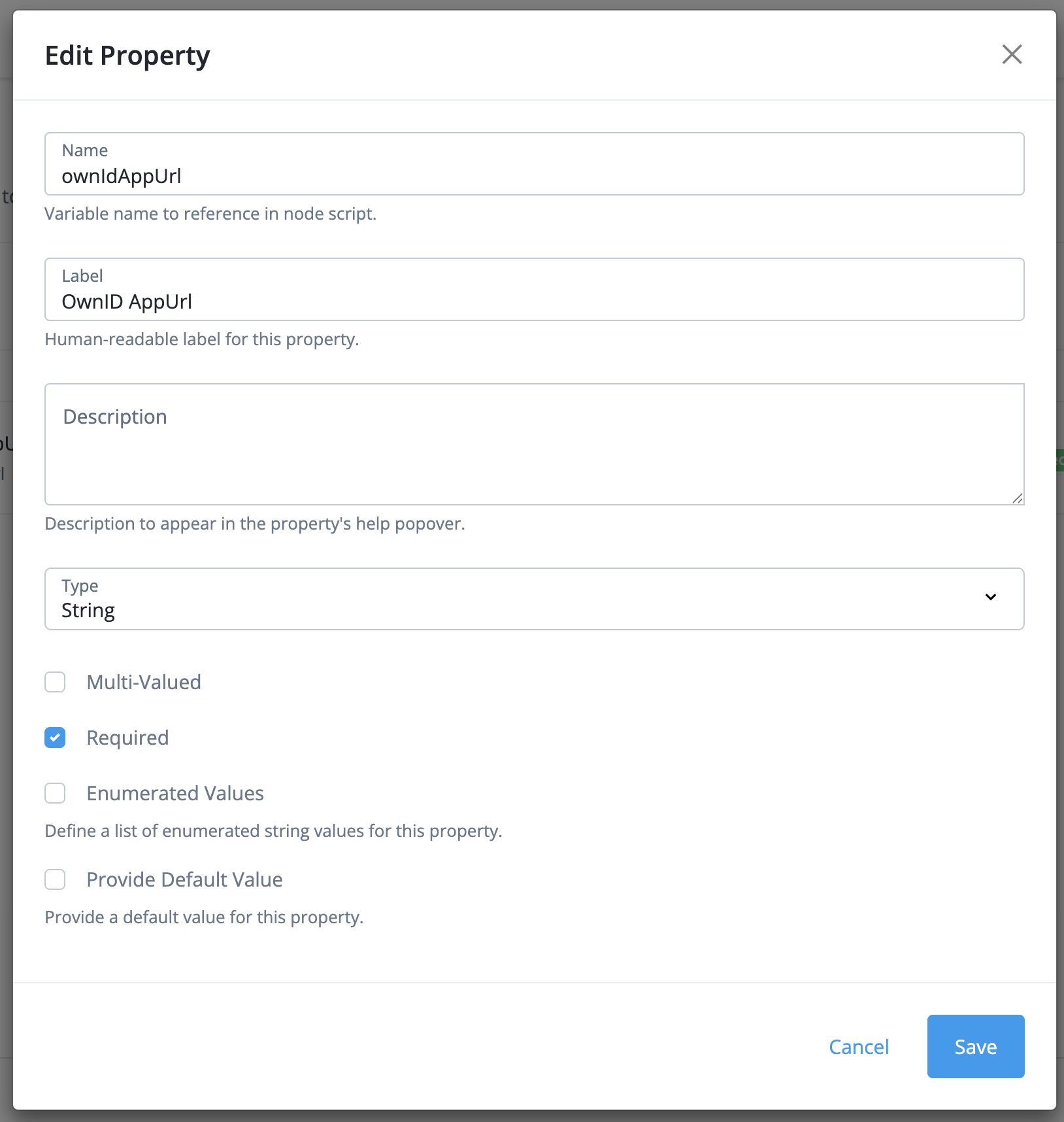
ownIdAppUrl, the label OwnID AppUrl and type string. Make it required.
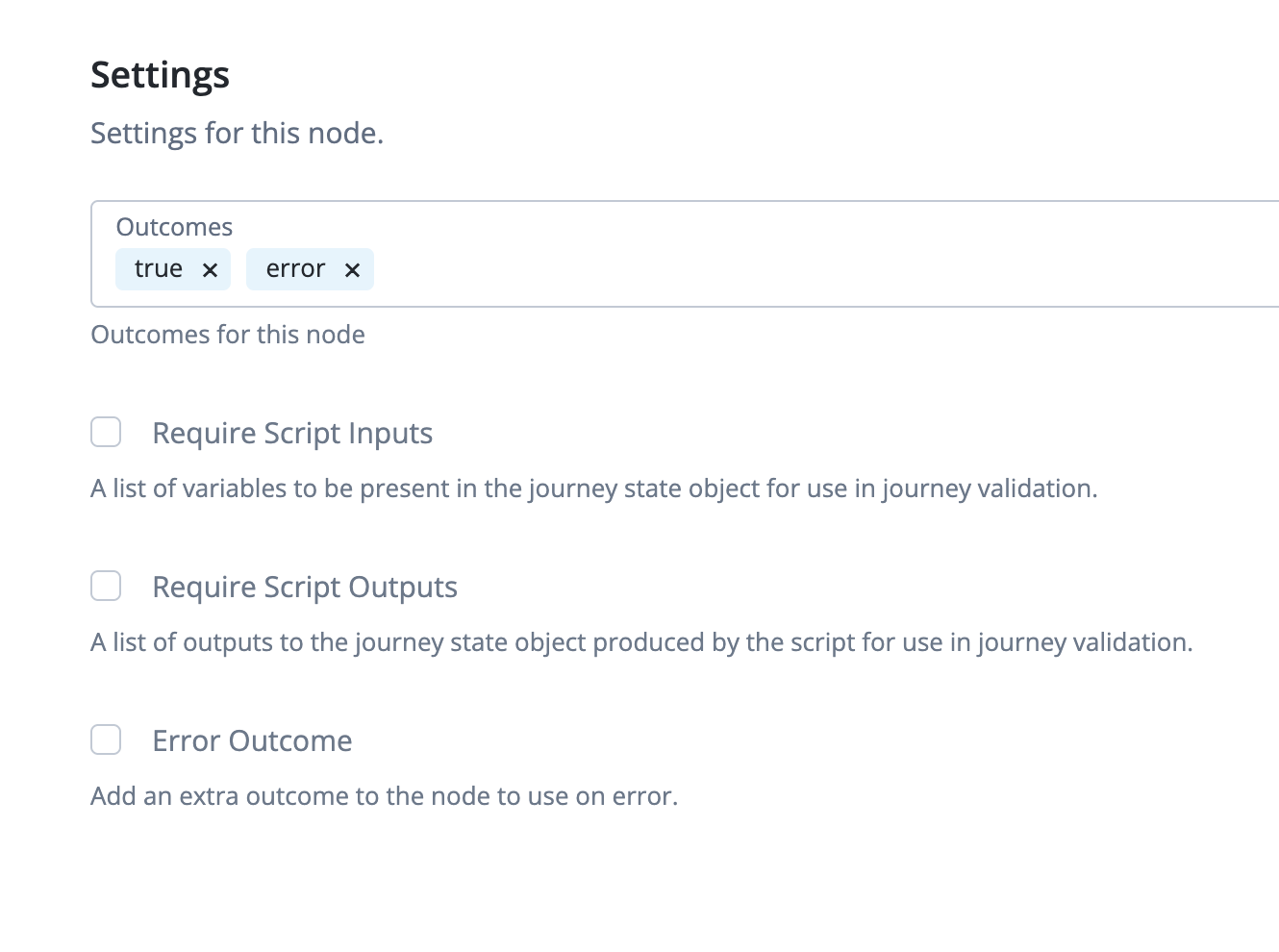
true and error outcomes.
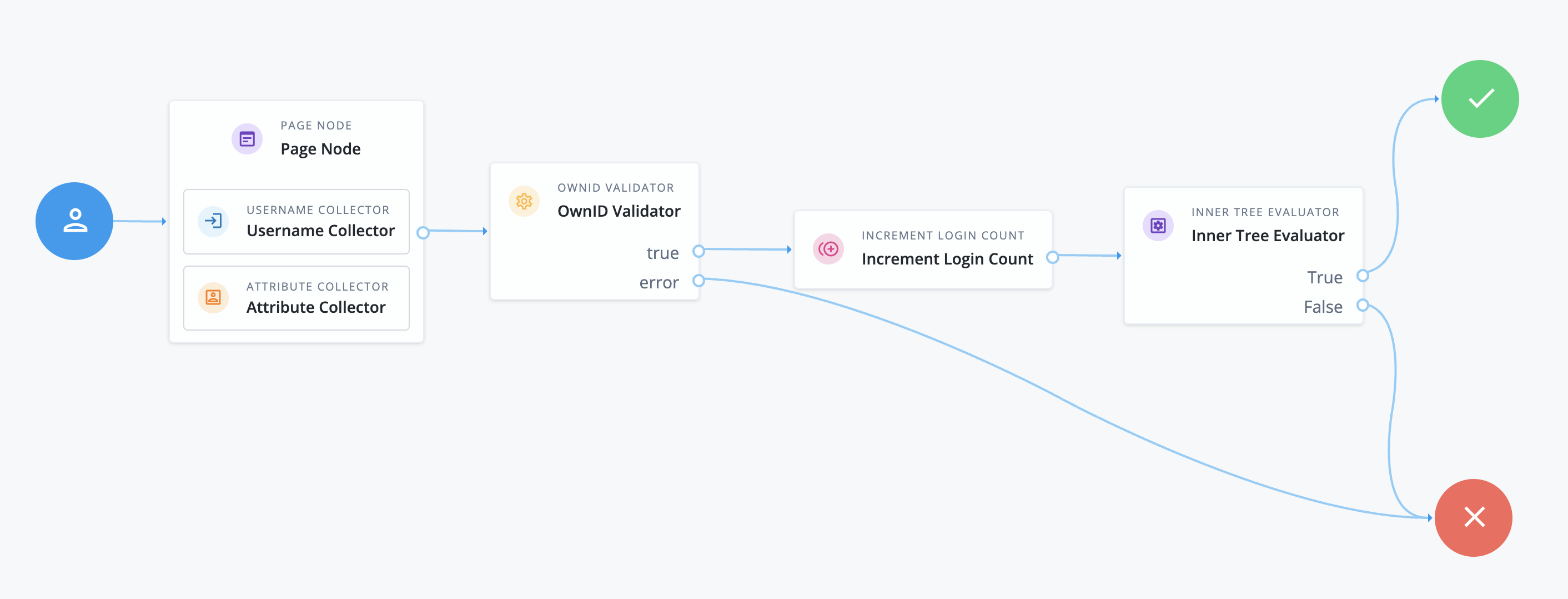
- Go to Journeys > Journeys and create a new journey with following nodes:
- Add a Page Node
- In this node, add a Username Collector
- Also in this node, add an Attribute Collector widget. To Attributes to Collect add the value
custom_ownIdConnections. Mark all attributes as required. Identity Attribute should renameuserName.
- Add the custom OwnID Validator node created above, configure its
OwnID AppUrlto the App URL you received in step 2. Connect the Page Node node to this new node. - Finish the flow by connecting the OwnID Validator node to your journey completion logic.
Register screen
- Go to AIC dashboard
- Go to Journeys and click to edit your Registration journey
- In the Page Node, select the Attribute Collector widget. Add to Attributes to Collect the value
custom_ownIdConnections
Step 5 - Frontend integration
For the login flow, implement theonLogin callback to expect a payload with following structure, which you can use to establish a session:
custom_ownIdConnections attribute when making the registration callback.
The value for this property can be retrieved at form submission time using the following logic, which will return an optional string:
Congratulations!
Enjoy your Ping Advanced Identity Cloud-integrated passwordless authentication!
Next Steps
Ready to deploy?
YES!
Take me to the Deployment Checklist