

Before you start
- Complete the Android or iOS SDK setup.
- Add the Android Compose artifact or iOS SwiftUI product.
- Complete Passkey setup.
- Keep password login and manual registration available as fallback paths.
Add the login widget
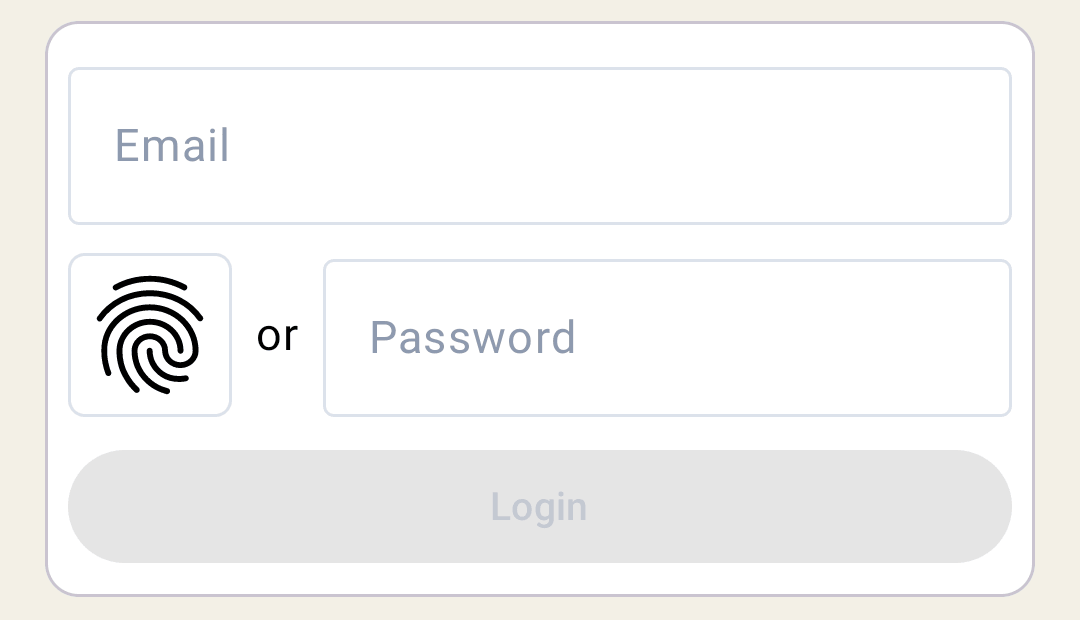
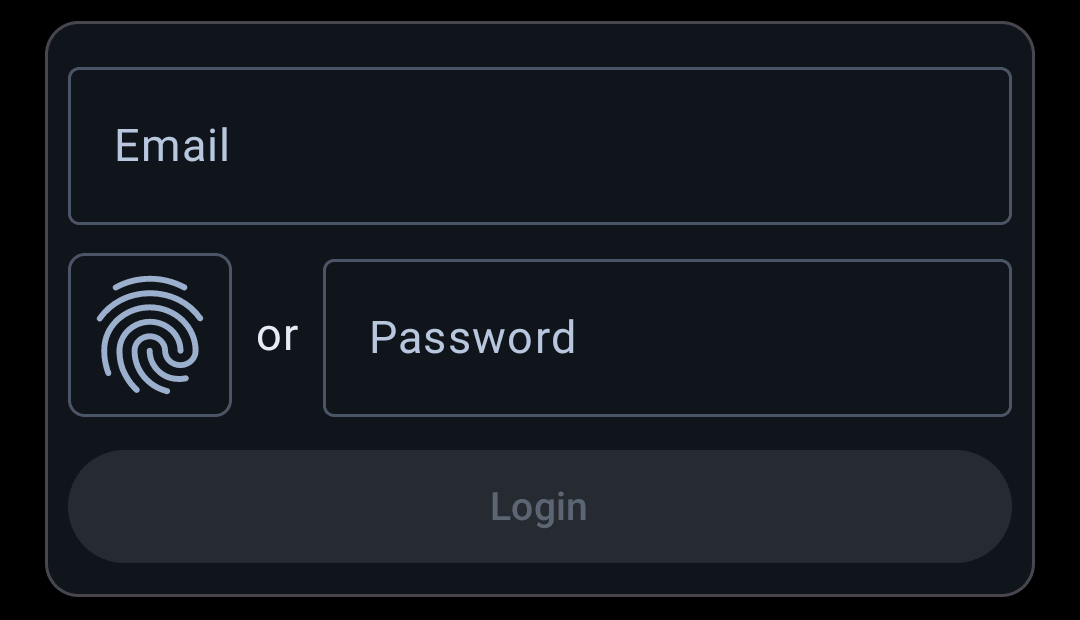
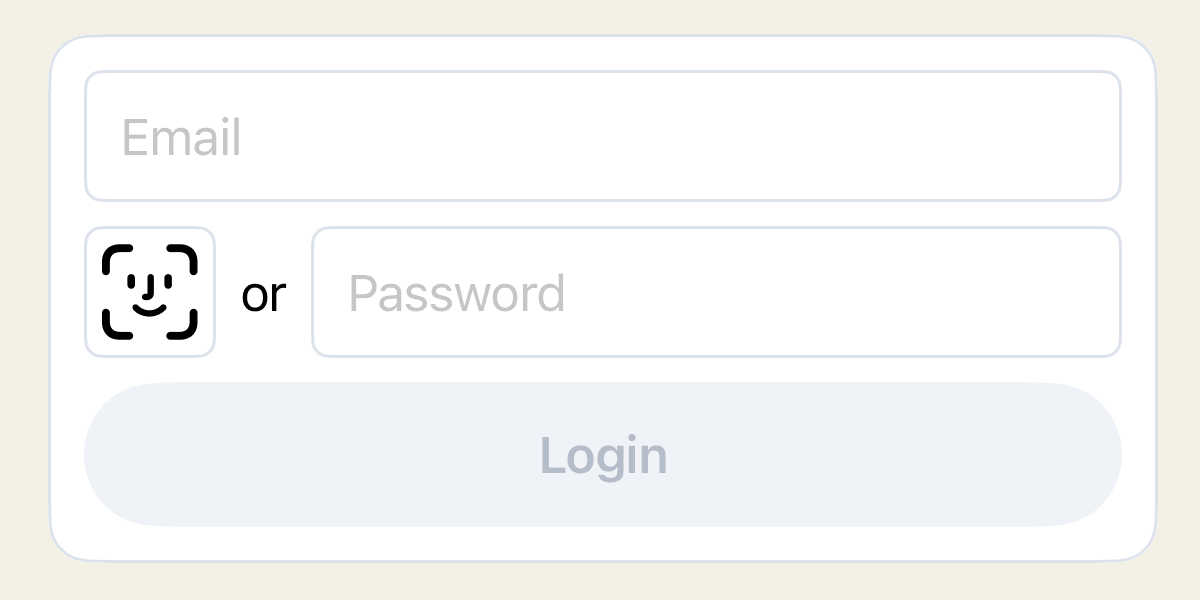
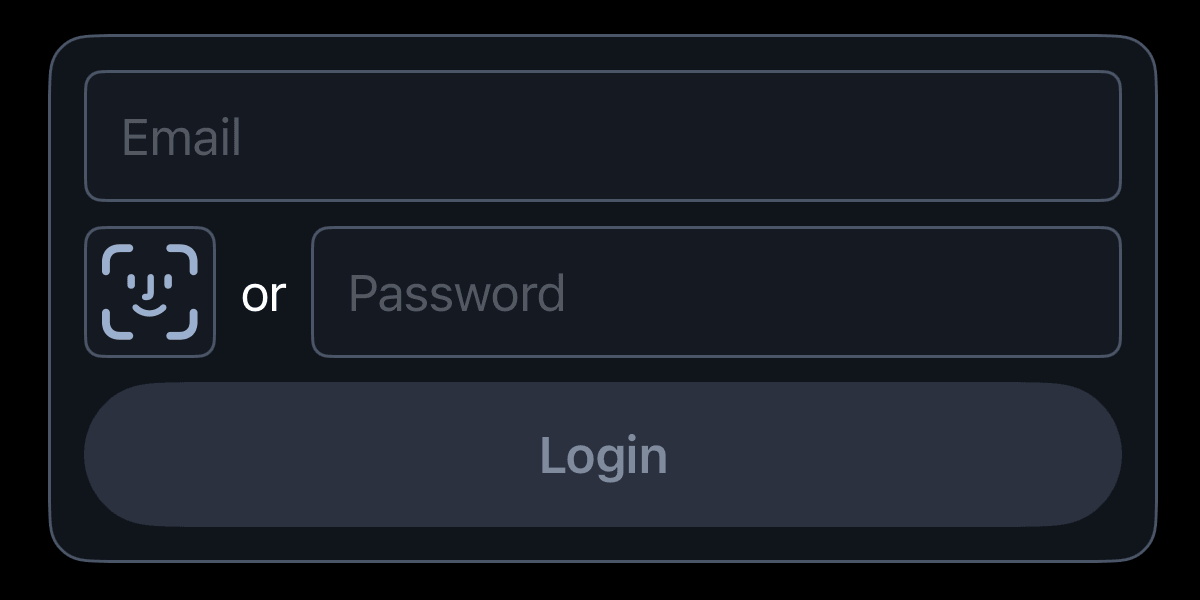
Place the OwnID login widget next to the password field on your login form and pass the current form login ID. HandleonLogin, onError, and onCancel in your app.
- Android
- iOS
Add the create-passkey widget
Place the OwnID create-passkey widget next to the password field on your registration form and pass the current form login ID. HandleonLogin, onNewPasskey, onReset, onError, and onCancel in your app.
Store the
onNewPasskey response only for the current login ID. Its ownIdData value is an opaque OwnID authentication payload: send it unchanged to your backend with the registration request, and do not inspect or modify it. If no matching ownIdData is available, continue with your normal registration path.- Android
- iOS
Handle widget callbacks
Register the optional
sessionCreate provider (Android setup or iOS setup) when onLogin should include your app’s session object. Without it, the login response still contains an OwnID Access Token and session payload for app-owned handling.
Continue with the full guides
Android Boost flow guide
Complete widget callbacks, failure handling, customization, and examples.
iOS Boost flow guide
Complete widget callbacks, failure handling, customization, and examples.