Associate your native Android or iOS app with its relying party domain and configure passkeys in the OwnID Console.
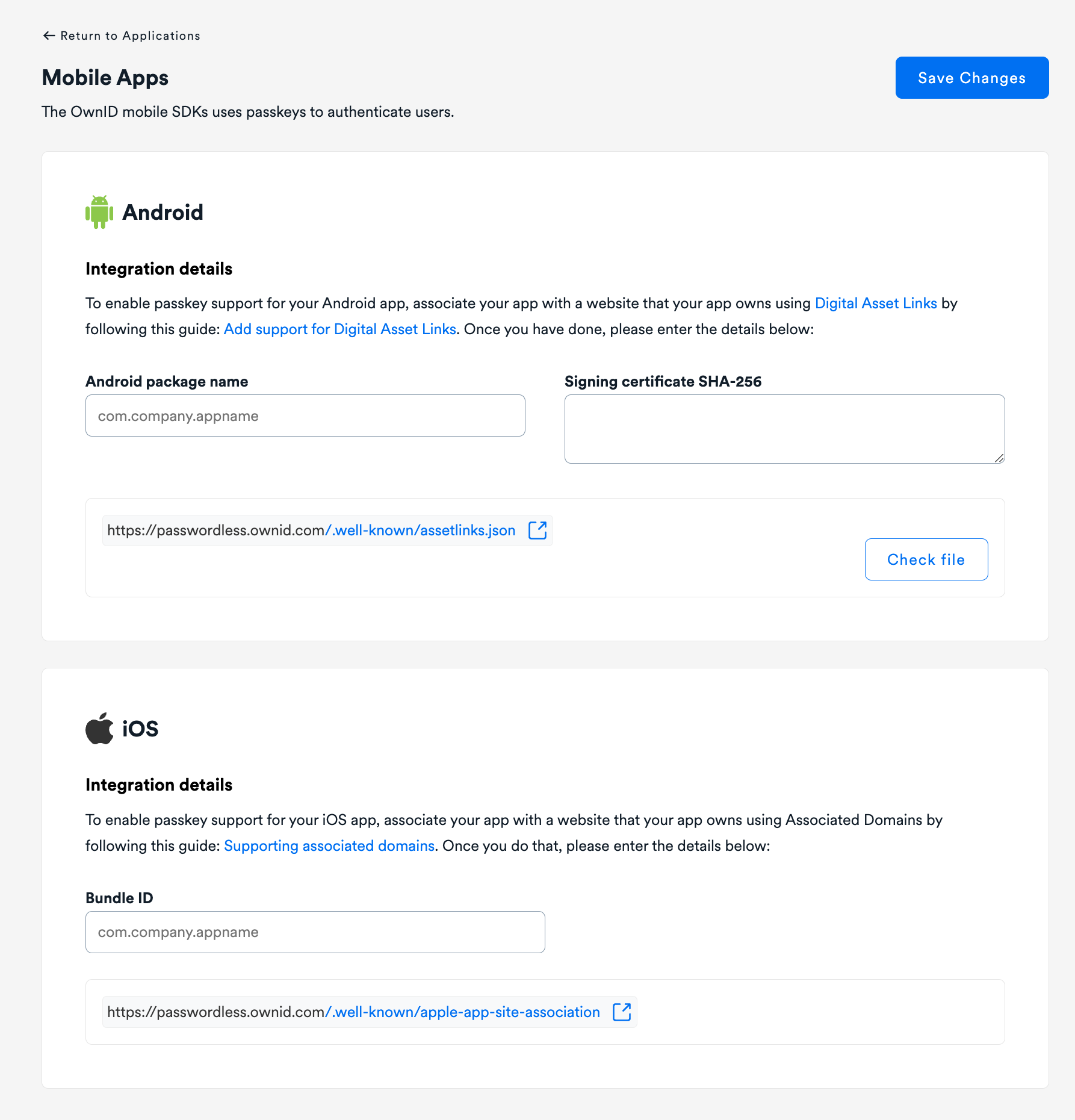
Passkeys require a verified association between your native app and its relying party domain. Configure the platform association file, app signing, and the OwnID Console before adding an authentication or enrollment flow.
OwnID Android SDK supports API 23+, but Android passkeys require API 28+.
OwnID iOS SDK supports iOS 13+, but passkeys require iOS 16+.
The endpoint must be public over HTTPS, return HTTP 200 with a JSON content type, and must not redirect. Allow automated retrieval of /.well-known/assetlinks.json; if the domain uses robots.txt, make sure it does not block /.well-known/.
Add an entry for every application ID and SHA-256 signing certificate that should use passkeys, including relevant debug, release, and product-flavor builds.You can inspect a keystore certificate with:
OwnID uses Apple’s AuthenticationServices framework for passkey creation and authentication.
1
Add the Associated Domains capability
In Xcode, open your app target, select Signing & Capabilities, and add Associated Domains. Add the relying party domain without a protocol or path:
webcredentials:<relying-party-domain>
Associated Domains capability configured for web credentials
Enable Associated Domains for the matching App ID in Apple Developer as well. If the app uses manual signing, regenerate and install its provisioning profiles after enabling the capability.
The endpoint must be public over HTTPS, return HTTP 200 with a JSON content type, must not redirect, and its uncompressed content must stay at or below 128 KB.
Add every app target that should use passkeys. Each <APP_ID_PREFIX>.<BUNDLE_ID> value must match the signed app’s application-identifier entitlement.The App ID prefix is often your Apple Team ID, but it can differ. Use the prefix from the signed app or provisioning profile.
The association files must be publicly accessible in every environment where passkeys are tested or used. The endpoints must not require a password, Basic Auth, SSO, cookies, VPN access, mTLS, an IP allowlist, or an interactive WAF or bot-protection challenge.
Verify the association files on the exact HTTPS host used as the relying party domain.
Android
iOS
Fetch the association file directly without following redirects:
Returns HTTP 200 with Content-Type: application/json
Does not redirect
Returns valid JSON rather than an HTML login or error page
Is accessible from a public network without authentication or VPN access
Allows automated retrieval and is not blocked by robots.txt
Confirm that the Android application ID and certificate fingerprints match the installed build and the OwnID Console configuration.Validate the hosted file with Google’s Statement List Generator and Tester. Select Credential Sharing as the relation type.
Fetch the association file directly without following redirects:
Association files may be cached by your hosting provider, CDN, and the platform verification services. Updating the file on the origin server does not guarantee that Android or Apple devices receive the new version immediately.Inspect the response headers for each association file:
Review Cache-Control, Age, Expires, ETag, and Last-Modified. Avoid long cache lifetimes, such as one week, if you expect to update the association files. A long max-age can keep an earlier version valid after the origin file has changed.
Google Digital Asset Links determines statement validity from the underlying data TTL, subject to implementation limits. The Digital Asset Links API returns maxAge, which indicates how much longer its result should be considered valid.
Apple’s CDN normally requests the apple-app-site-association file within 24 hours. Devices check for updates approximately once per week after installation. Apple does not provide manual cache invalidation. See Supporting associated domains.
After an update, first confirm that the public endpoint returns the new file and review its current cache headers.For complete platform setup and troubleshooting, see the Android SDK passkey guide or iOS SDK passkey guide.
Was this page helpful?
⌘I
{"docsConfig":{"theme":"maple","$schema":"https://mintlify.com/docs.json","name":"OwnID Documentation","colors":{"primary":"#7C3AED","light":"#B388FF","dark":"#7C3AED"},"logo":{"light":"https://mintcdn.com/ownid/i3kGqVa3mIaTdz4d/logo/ownidd.svg?fit=max\u0026auto=format\u0026n=i3kGqVa3mIaTdz4d\u0026q=85\u0026s=245254d7a709d330b57b8e0e21c45799","dark":"https://mintcdn.com/ownid/i3kGqVa3mIaTdz4d/logo/ownidlogow.svg?fit=max\u0026auto=format\u0026n=i3kGqVa3mIaTdz4d\u0026q=85\u0026s=6a9be8000669d4f8ace2ec09aebd5313","href":"https://www.ownid.com/"},"favicon":"https://mintcdn.com/ownid/R0Wddcq9zgBDU03F/favicon.png?fit=max\u0026auto=format\u0026n=R0Wddcq9zgBDU03F\u0026q=85\u0026s=b2c4153244fd2ab228453ed94969a456","navbar":{"links":[],"primary":{"type":"button","label":"Sign-in","href":"https://console.ownid.com"}},"integrations":{"ga4":{"measurementId":"G-ZSHHSNGFJ3"}},"styling":{"latex":false},"navigation":{"pages":[]}},"deployment":{"deploymentMetadataValue":{"subdomain":"ownid","hasAudioNarration":false,"actualSubdomain":"ownid","customDomains":["docs.ownid.com"],"gitSource":{"type":"github","owner":"ownid","repo":"docs-mintlify","deployBranch":"main","contentDirectory":"","isPrivate":true,"mountPath":"","label":""},"chroma":{"liveDeploymentHistoryId":"6aba17861970a4357383480e","collectionId":"b2d2f51f-0e99-467b-9b2d-513e829f7d9d","schemaVersion":"v3","latestBuiltDeploymentHistoryId":"6aba17861970a4357383480e"},"feedback":{"thumbs":true,"issues":true,"edits":true},"entitlements":{"AI_CHAT":{"status":"DISABLED"}},"buildId":"6aba17861970a4357383480e","clientVersion":"0.0.3952","searchFilterCounts":[{"language":"default","tag":"SDK Integration","count":24},{"language":"default","tag":"Connectors","count":14},{"language":"default","tag":"Build Frontend Flows","count":11},{"language":"default","tag":"Branding \u0026 Customization","count":11},{"language":"default","tag":"Mobile SDKs","count":7},{"language":"default","tag":"OwnID Boost","count":6},{"language":"default","tag":"Identity Document Verification","count":6},{"language":"default","tag":"Customize Emails","count":4},{"language":"default","tag":"Customize SMS","count":4},{"language":"default","tag":"Advanced Use-Cases","count":3}]},"assistantConfig":{},"hasChatPermissions":false,"hasWebMcpPermissions":false,"toggles":[{"name":"kill-isr","enabled":true,"variant":{"name":"disabled","enabled":false,"feature_enabled":true},"impressionData":false},{"name":"agent-mintlify-slack","enabled":true,"variant":{"name":"disabled","enabled":false,"feature_enabled":true},"impressionData":false},{"name":"editor-v7-file-tree","enabled":true,"variant":{"name":"disabled","enabled":false,"feature_enabled":true},"impressionData":false},{"name":"agent-integrations-settings","enabled":true,"variant":{"name":"disabled","enabled":false,"feature_enabled":true},"impressionData":false},{"name":"automations-pr-grouping","enabled":true,"variant":{"name":"disabled","enabled":false,"feature_enabled":true},"impressionData":false},{"name":"custom-prefix","enabled":true,"variant":{"name":"disabled","enabled":false,"feature_enabled":true},"impressionData":false},{"name":"analytics-v7","enabled":true,"variant":{"name":"disabled","enabled":false,"feature_enabled":true},"impressionData":false},{"name":"user-flows-analytics","enabled":true,"variant":{"name":"disabled","enabled":false,"feature_enabled":true},"impressionData":false},{"name":"no-publish-flow","enabled":true,"variant":{"name":"disabled","enabled":false,"feature_enabled":true},"impressionData":false},{"name":"workos-onboarding","enabled":true,"variant":{"name":"disabled","enabled":false,"feature_enabled":true},"impressionData":false},{"name":"llms-txt-v2","enabled":true,"variant":{"name":"disabled","enabled":false,"feature_enabled":true},"impressionData":false},{"name":"pause-universal-search-reconcile","enabled":true,"variant":{"name":"disabled","enabled":false,"feature_enabled":true},"impressionData":false},{"name":"snapshot-serving-live","enabled":true,"variant":{"name":"disabled","enabled":false,"feature_enabled":true},"impressionData":false},{"name":"stripTemperatureMiddleware","enabled":true,"variant":{"name":"disabled","enabled":false,"feature_enabled":true},"impressionData":false},{"name":"per-site-search-delta","enabled":true,"variant":{"name":"disabled","enabled":false,"feature_enabled":true},"impressionData":false},{"name":"support-platform-pylon-zendesk","enabled":true,"variant":{"name":"disabled","enabled":false,"feature_enabled":true},"impressionData":false},{"name":"snapshot-serving","enabled":true,"variant":{"name":"disabled","enabled":false,"feature_enabled":true},"impressionData":false},{"name":"instant-rollback","enabled":true,"variant":{"name":"disabled","enabled":false,"feature_enabled":true},"impressionData":false},{"name":"granular-notifications-server","enabled":true,"variant":{"name":"disabled","enabled":false,"feature_enabled":true},"impressionData":false},{"name":"granular-notifications","enabled":true,"variant":{"name":"disabled","enabled":false,"feature_enabled":true},"impressionData":false},{"name":"editor-private-page-search","enabled":true,"variant":{"name":"disabled","enabled":false,"feature_enabled":true},"impressionData":false},{"name":"automations-fable","enabled":true,"variant":{"name":"disabled","enabled":false,"feature_enabled":true},"impressionData":false},{"name":"fixed-ai-action-pricing","enabled":true,"variant":{"name":"disabled","enabled":false,"feature_enabled":true},"impressionData":false},{"name":"automation-resolve-merge-conflict","enabled":true,"variant":{"name":"disabled","enabled":false,"feature_enabled":true},"impressionData":false},{"name":"scoped-publishing","enabled":true,"variant":{"name":"disabled","enabled":false,"feature_enabled":true},"impressionData":false},{"name":"mintql","enabled":true,"variant":{"name":"disabled","enabled":false,"feature_enabled":true},"impressionData":false},{"name":"page-level-analytics","enabled":true,"variant":{"name":"disabled","enabled":false,"feature_enabled":true},"impressionData":false},{"name":"editor-version-history-v2","enabled":true,"variant":{"name":"disabled","enabled":false,"feature_enabled":true},"impressionData":false},{"name":"editor-nav-generations","enabled":true,"variant":{"name":"disabled","enabled":false,"feature_enabled":true},"impressionData":false},{"name":"billing-page-v2","enabled":true,"variant":{"name":"disabled","enabled":false,"feature_enabled":true},"impressionData":false},{"name":"workspace-projects","enabled":true,"variant":{"name":"disabled","enabled":false,"feature_enabled":true},"impressionData":false},{"name":"assistant-v5","enabled":true,"variant":{"name":"disabled","enabled":false,"feature_enabled":true},"impressionData":false},{"name":"byok-sep-25","enabled":true,"variant":{"name":"disabled","enabled":false,"feature_enabled":true},"impressionData":false},{"name":"fork-pr-previews","enabled":true,"variant":{"name":"disabled","enabled":false,"feature_enabled":true},"impressionData":false},{"name":"revalidation-jwt","enabled":true,"variant":{"name":"disabled","enabled":false,"feature_enabled":true},"impressionData":false},{"name":"vite-origin","enabled":true,"variant":{"name":"disabled","enabled":false,"feature_enabled":true},"impressionData":false},{"name":"editor-agent-model-picker","enabled":true,"variant":{"name":"disabled","enabled":false,"feature_enabled":true},"impressionData":false},{"name":"billing-updated-9-15","enabled":true,"variant":{"name":"disabled","enabled":false,"feature_enabled":true},"impressionData":false},{"name":"hobby-abuse-scan","enabled":true,"variant":{"name":"disabled","enabled":false,"feature_enabled":true},"impressionData":false},{"name":"dashboard-inbox","enabled":true,"variant":{"name":"disabled","enabled":false,"feature_enabled":true},"impressionData":false}],"isAtlas":false,"googleFontsInlined":false},"customCss":[],"page":{"pagePath":"mobile-sdks/setup/passkeys","slug":"/mobile-sdks/setup/passkeys","pageMetadata":{"title":"Passkey setup","description":"Associate your native Android or iOS app with its relying party domain and configure passkeys in the OwnID Console.","keywords":["passkey setup","Digital Asset Links","Associated Domains","assetlinks.json","apple-app-site-association"],"href":"/mobile-sdks/setup/passkeys"},"description":{"compiledSource":"\"use strict\";\nconst {jsx: _jsx} = arguments[0];\nconst {useMDXComponents: _provideComponents} = arguments[0];\nfunction _createMdxContent(props) {\n const _components = {\n p: \"p\",\n ..._provideComponents(),\n ...props.components\n };\n return _jsx(_components.p, {\n children: \"Associate your native Android or iOS app with its relying party domain and configure passkeys in the OwnID Console.\"\n });\n}\nfunction MDXContent(props = {}) {\n const {wrapper: MDXLayout} = {\n ..._provideComponents(),\n ...props.components\n };\n return MDXLayout ? _jsx(MDXLayout, {\n ...props,\n children: _jsx(_createMdxContent, {\n ...props\n })\n }) : _createMdxContent(props);\n}\nreturn {\n default: MDXContent\n};\n","frontmatter":{},"scope":{}},"pageType":"default","mdx":{"mdxSource":{"compiledSource":"\"use strict\";const{Fragment:_Fragment,jsx:_jsx,jsxs:_jsxs}=arguments[0];const{useMDXComponents:_provideComponents}=arguments[0];function _createMdxContent(props){const _components={a:`a`,code:`code`,li:`li`,ol:`ol`,p:`p`,pre:`pre`,span:`span`,strong:`strong`,ul:`ul`,..._provideComponents(),...props.components},{CodeBlock,Frame,Heading,Info,OptimizedImage,Step,Steps,Tab,Tabs,Warning}=_components;if(!CodeBlock)_missingMdxReference(`CodeBlock`,true);if(!Frame)_missingMdxReference(`Frame`,true);if(!Heading)_missingMdxReference(`Heading`,true);if(!Info)_missingMdxReference(`Info`,true);if(!OptimizedImage)_missingMdxReference(`OptimizedImage`,true);if(!Step)_missingMdxReference(`Step`,true);if(!Steps)_missingMdxReference(`Steps`,true);if(!Tab)_missingMdxReference(`Tab`,true);if(!Tabs)_missingMdxReference(`Tabs`,true);if(!Warning)_missingMdxReference(`Warning`,true);return _jsxs(_Fragment,{children:[_jsx(_components.p,{children:`Passkeys require a verified association between your native app and its relying party domain. Configure the platform association file, app signing, and the OwnID Console before adding an authentication or enrollment flow.`}),`\n`,_jsx(Info,{children:_jsx(`span`,{children:_jsxs(_components.p,{children:[`OwnID Android SDK supports API 23+, but Android passkeys require API 28+.`,_jsx(`br`,{}),`\nOwnID iOS SDK supports iOS 13+, but passkeys require iOS 16+.`]})})}),`\n`,_jsx(Heading,{level:`2`,id:`configure-your-platform`,children:`Configure your platform`}),`\n`,_jsxs(Tabs,{children:[_jsxs(Tab,{title:`Android`,icon:`android`,iconType:`brands`,id:`android`,children:[_jsx(_components.p,{children:`OwnID uses Android Credential Manager for passkey creation and authentication.`}),_jsxs(Steps,{children:[_jsxs(Step,{title:`Add Credential Manager`,children:[_jsx(_components.p,{children:`Use the current AndroidX Credentials version for both artifacts:`}),_jsxs(`a`,{href:`https://developer.android.com/jetpack/androidx/releases/credentials`,style:{borderBottom:`none`,display:`inline-flex`,lineHeight:0},children:[_jsx(`span`,{className:`mint-sr-only`,children:`Latest stable AndroidX Credentials version`}),_jsx(OptimizedImage,{src:`https://img.shields.io/maven-metadata/v?metadataUrl=https%3A%2F%2Fdl.google.com%2Fdl%2Fandroid%2Fmaven2%2Fandroidx%2Fcredentials%2Fcredentials%2Fmaven-metadata.xml\u0026filter=%21%2A-%2A\u0026label=Latest%20AndroidX%20Credentials`,alt:`AndroidX Credentials version badge`,\"aria-hidden\":`true`,style:{margin:0}})]}),_jsx(CodeBlock,{filename:`build.gradle.kts`,numberOfLines:`4`,language:`kotlin`,children:_jsx(_components.pre,{className:`shiki shiki-themes github-light-default dark-plus`,style:{backgroundColor:`#ffffff`,\"--shiki-dark-bg\":`#0B0C0E`,color:`#1f2328`,\"--shiki-dark\":`#D4D4D4`},language:`kotlin`,children:_jsxs(_components.code,{language:`kotlin`,numberOfLines:`4`,children:[_jsxs(_components.span,{className:`line`,children:[_jsx(_components.span,{style:{color:`#8250DF`,\"--shiki-dark\":`#DCDCAA`},children:`dependencies`}),_jsx(_components.span,{style:{color:`#1F2328`,\"--shiki-dark\":`#D4D4D4`},children:` {`})]}),`\n`,_jsxs(_components.span,{className:`line`,children:[_jsx(_components.span,{style:{color:`#8250DF`,\"--shiki-dark\":`#DCDCAA`},children:` implementation`}),_jsx(_components.span,{style:{color:`#1F2328`,\"--shiki-dark\":`#D4D4D4`},children:`(`}),_jsx(_components.span,{style:{color:`#0A3069`,\"--shiki-dark\":`#CE9178`},children:`\"androidx.credentials:credentials:\u003clatest-version>\"`}),_jsx(_components.span,{style:{color:`#1F2328`,\"--shiki-dark\":`#D4D4D4`},children:`)`})]}),`\n`,_jsxs(_components.span,{className:`line`,children:[_jsx(_components.span,{style:{color:`#8250DF`,\"--shiki-dark\":`#DCDCAA`},children:` implementation`}),_jsx(_components.span,{style:{color:`#1F2328`,\"--shiki-dark\":`#D4D4D4`},children:`(`}),_jsx(_components.span,{style:{color:`#0A3069`,\"--shiki-dark\":`#CE9178`},children:`\"androidx.credentials:credentials-play-services-auth:\u003clatest-version>\"`}),_jsx(_components.span,{style:{color:`#1F2328`,\"--shiki-dark\":`#D4D4D4`},children:`)`})]}),`\n`,_jsx(_components.span,{className:`line`,children:_jsx(_components.span,{style:{color:`#1F2328`,\"--shiki-dark\":`#D4D4D4`},children:`}`})}),`\n`]})})}),_jsxs(_components.p,{children:[`See the `,_jsx(_components.a,{href:`https://developer.android.com/jetpack/androidx/releases/credentials`,children:`AndroidX Credentials release notes`}),` for version-specific changes.`]})]}),_jsxs(Step,{title:`Publish Digital Asset Links`,children:[_jsxs(_components.p,{children:[`Host `,_jsx(_components.code,{children:`assetlinks.json`}),` at this exact URL:`]}),_jsx(CodeBlock,{filename:``,numberOfLines:`2`,language:`text`,children:_jsx(_components.pre,{className:`shiki shiki-themes github-light-default dark-plus`,style:{backgroundColor:`#ffffff`,\"--shiki-dark-bg\":`#0B0C0E`,color:`#1f2328`,\"--shiki-dark\":`#D4D4D4`},language:`text`,children:_jsxs(_components.code,{language:`text`,numberOfLines:`2`,children:[_jsx(_components.span,{className:`line`,children:_jsx(_components.span,{children:`https://\u003crelying-party-domain>/.well-known/assetlinks.json`})}),`\n`,_jsx(_components.span,{className:`line`,children:_jsx(_components.span,{})})]})})}),_jsxs(_components.p,{children:[`The endpoint must be public over HTTPS, return `,_jsx(_components.code,{children:`HTTP 200`}),` with a JSON content type, and must not redirect. Allow automated retrieval of `,_jsx(_components.code,{children:`/.well-known/assetlinks.json`}),`; if the domain uses `,_jsx(_components.code,{children:`robots.txt`}),`, make sure it does not block `,_jsx(_components.code,{children:`/.well-known/`}),`.`]}),_jsx(CodeBlock,{filename:`assetlinks.json`,numberOfLines:`15`,language:`json`,children:_jsx(_components.pre,{className:`shiki shiki-themes github-light-default dark-plus`,style:{backgroundColor:`#ffffff`,\"--shiki-dark-bg\":`#0B0C0E`,color:`#1f2328`,\"--shiki-dark\":`#D4D4D4`},language:`json`,children:_jsxs(_components.code,{language:`json`,numberOfLines:`15`,children:[_jsx(_components.span,{className:`line`,children:_jsx(_components.span,{style:{color:`#1F2328`,\"--shiki-dark\":`#D4D4D4`},children:`[`})}),`\n`,_jsx(_components.span,{className:`line`,children:_jsx(_components.span,{style:{color:`#1F2328`,\"--shiki-dark\":`#D4D4D4`},children:` {`})}),`\n`,_jsxs(_components.span,{className:`line`,children:[_jsx(_components.span,{style:{color:`#116329`,\"--shiki-dark\":`#9CDCFE`},children:` \"relation\"`}),_jsx(_components.span,{style:{color:`#1F2328`,\"--shiki-dark\":`#D4D4D4`},children:`: [`})]}),`\n`,_jsxs(_components.span,{className:`line`,children:[_jsx(_components.span,{style:{color:`#0A3069`,\"--shiki-dark\":`#CE9178`},children:` \"delegate_permission/common.handle_all_urls\"`}),_jsx(_components.span,{style:{color:`#1F2328`,\"--shiki-dark\":`#D4D4D4`},children:`,`})]}),`\n`,_jsx(_components.span,{className:`line`,children:_jsx(_components.span,{style:{color:`#0A3069`,\"--shiki-dark\":`#CE9178`},children:` \"delegate_permission/common.get_login_creds\"`})}),`\n`,_jsx(_components.span,{className:`line`,children:_jsx(_components.span,{style:{color:`#1F2328`,\"--shiki-dark\":`#D4D4D4`},children:` ],`})}),`\n`,_jsxs(_components.span,{className:`line`,children:[_jsx(_components.span,{style:{color:`#116329`,\"--shiki-dark\":`#9CDCFE`},children:` \"target\"`}),_jsx(_components.span,{style:{color:`#1F2328`,\"--shiki-dark\":`#D4D4D4`},children:`: {`})]}),`\n`,_jsxs(_components.span,{className:`line`,children:[_jsx(_components.span,{style:{color:`#116329`,\"--shiki-dark\":`#9CDCFE`},children:` \"namespace\"`}),_jsx(_components.span,{style:{color:`#1F2328`,\"--shiki-dark\":`#D4D4D4`},children:`: `}),_jsx(_components.span,{style:{color:`#0A3069`,\"--shiki-dark\":`#CE9178`},children:`\"android_app\"`}),_jsx(_components.span,{style:{color:`#1F2328`,\"--shiki-dark\":`#D4D4D4`},children:`,`})]}),`\n`,_jsxs(_components.span,{className:`line`,children:[_jsx(_components.span,{style:{color:`#116329`,\"--shiki-dark\":`#9CDCFE`},children:` \"package_name\"`}),_jsx(_components.span,{style:{color:`#1F2328`,\"--shiki-dark\":`#D4D4D4`},children:`: `}),_jsx(_components.span,{style:{color:`#0A3069`,\"--shiki-dark\":`#CE9178`},children:`\"\u003candroid_application_id>\"`}),_jsx(_components.span,{style:{color:`#1F2328`,\"--shiki-dark\":`#D4D4D4`},children:`,`})]}),`\n`,_jsxs(_components.span,{className:`line`,children:[_jsx(_components.span,{style:{color:`#116329`,\"--shiki-dark\":`#9CDCFE`},children:` \"sha256_cert_fingerprints\"`}),_jsx(_components.span,{style:{color:`#1F2328`,\"--shiki-dark\":`#D4D4D4`},children:`: [`})]}),`\n`,_jsx(_components.span,{className:`line`,children:_jsx(_components.span,{style:{color:`#0A3069`,\"--shiki-dark\":`#CE9178`},children:` \"\u003csha256_signing_certificate_fingerprint>\"`})}),`\n`,_jsx(_components.span,{className:`line`,children:_jsx(_components.span,{style:{color:`#1F2328`,\"--shiki-dark\":`#D4D4D4`},children:` ]`})}),`\n`,_jsx(_components.span,{className:`line`,children:_jsx(_components.span,{style:{color:`#1F2328`,\"--shiki-dark\":`#D4D4D4`},children:` }`})}),`\n`,_jsx(_components.span,{className:`line`,children:_jsx(_components.span,{style:{color:`#1F2328`,\"--shiki-dark\":`#D4D4D4`},children:` }`})}),`\n`,_jsx(_components.span,{className:`line`,children:_jsx(_components.span,{style:{color:`#1F2328`,\"--shiki-dark\":`#D4D4D4`},children:`]`})}),`\n`]})})})]}),_jsxs(Step,{title:`Cover every signed app variant`,children:[_jsx(_components.p,{children:`Add an entry for every application ID and SHA-256 signing certificate that should use passkeys, including relevant debug, release, and product-flavor builds.`}),_jsx(_components.p,{children:`You can inspect a keystore certificate with:`}),_jsx(CodeBlock,{filename:``,numberOfLines:`1`,language:`shellscript`,children:_jsx(_components.pre,{className:`shiki shiki-themes github-light-default dark-plus`,style:{backgroundColor:`#ffffff`,\"--shiki-dark-bg\":`#0B0C0E`,color:`#1f2328`,\"--shiki-dark\":`#D4D4D4`},language:`shellscript`,children:_jsxs(_components.code,{language:`shellscript`,numberOfLines:`1`,children:[_jsxs(_components.span,{className:`line`,children:[_jsx(_components.span,{style:{color:`#953800`,\"--shiki-dark\":`#DCDCAA`},children:`keytool`}),_jsx(_components.span,{style:{color:`#0550AE`,\"--shiki-dark\":`#569CD6`},children:` -list`}),_jsx(_components.span,{style:{color:`#0550AE`,\"--shiki-dark\":`#569CD6`},children:` -v`}),_jsx(_components.span,{style:{color:`#0550AE`,\"--shiki-dark\":`#569CD6`},children:` -keystore`}),_jsx(_components.span,{style:{color:`#CF222E`,\"--shiki-dark\":`#D4D4D4`},children:` \u003c`}),_jsx(_components.span,{style:{color:`#0A3069`,\"--shiki-dark\":`#CE9178`},children:`path-to-keystor`}),_jsx(_components.span,{style:{color:`#0A3069`,\"--shiki-dark\":`#CE9178`},children:`e`}),_jsx(_components.span,{style:{color:`#CF222E`,\"--shiki-dark\":`#D4D4D4`},children:`>`})]}),`\n`]})})})]})]}),_jsxs(_components.p,{children:[`See Android’s `,_jsx(_components.a,{href:`https://developer.android.com/identity/credential-manager/prerequisites`,children:`Credential Manager prerequisites`}),` and `,_jsx(_components.a,{href:`https://developers.google.com/digital-asset-links`,children:`Digital Asset Links guidance`}),` for validation requirements.`]})]}),_jsxs(Tab,{title:`iOS`,icon:`apple`,iconType:`brands`,id:`ios`,children:[_jsx(_components.p,{children:`OwnID uses Apple’s AuthenticationServices framework for passkey creation and authentication.`}),_jsxs(Steps,{children:[_jsxs(Step,{title:`Add the Associated Domains capability`,children:[_jsxs(_components.p,{children:[`In Xcode, open your app target, select `,_jsx(_components.strong,{children:`Signing \u0026 Capabilities`}),`, and add `,_jsx(_components.strong,{children:`Associated Domains`}),`. Add the relying party domain without a protocol or path:`]}),_jsx(CodeBlock,{filename:``,numberOfLines:`2`,language:`text`,children:_jsx(_components.pre,{className:`shiki shiki-themes github-light-default dark-plus`,style:{backgroundColor:`#ffffff`,\"--shiki-dark-bg\":`#0B0C0E`,color:`#1f2328`,\"--shiki-dark\":`#D4D4D4`},language:`text`,children:_jsxs(_components.code,{language:`text`,numberOfLines:`2`,children:[_jsx(_components.span,{className:`line`,children:_jsx(_components.span,{children:`webcredentials:\u003crelying-party-domain>`})}),`\n`,_jsx(_components.span,{className:`line`,children:_jsx(_components.span,{})})]})})}),_jsx(Frame,{caption:`Associated Domains capability configured for web credentials`,children:_jsx(OptimizedImage,{src:`https://mintcdn.com/ownid/i3kGqVa3mIaTdz4d/images/supporting-associated-domains.png?fit=max\u0026auto=format\u0026n=i3kGqVa3mIaTdz4d\u0026q=85\u0026s=9554818957d4d2d74e72ab54eec05505`,alt:`Xcode Associated Domains capability with a webcredentials domain entry`,\"data-og-width\":`1436`,width:`1436`,\"data-og-height\":`272`,height:`272`,\"data-path\":`images/supporting-associated-domains.png`,\"data-optimize\":`true`,\"data-opv\":`3`,srcset:`https://mintcdn.com/ownid/i3kGqVa3mIaTdz4d/images/supporting-associated-domains.png?w=280\u0026fit=max\u0026auto=format\u0026n=i3kGqVa3mIaTdz4d\u0026q=85\u0026s=1e0f0ae8568911ad8165fc9bb0f75bcc 280w, https://mintcdn.com/ownid/i3kGqVa3mIaTdz4d/images/supporting-associated-domains.png?w=560\u0026fit=max\u0026auto=format\u0026n=i3kGqVa3mIaTdz4d\u0026q=85\u0026s=aac6a739409c39868b88ba59932e07b3 560w, https://mintcdn.com/ownid/i3kGqVa3mIaTdz4d/images/supporting-associated-domains.png?w=840\u0026fit=max\u0026auto=format\u0026n=i3kGqVa3mIaTdz4d\u0026q=85\u0026s=fd9db743eafcd97625aed549bab00a31 840w, https://mintcdn.com/ownid/i3kGqVa3mIaTdz4d/images/supporting-associated-domains.png?w=1100\u0026fit=max\u0026auto=format\u0026n=i3kGqVa3mIaTdz4d\u0026q=85\u0026s=052f4835242757720a9d3b280df579a4 1100w, https://mintcdn.com/ownid/i3kGqVa3mIaTdz4d/images/supporting-associated-domains.png?w=1650\u0026fit=max\u0026auto=format\u0026n=i3kGqVa3mIaTdz4d\u0026q=85\u0026s=ba2b5dd67ef51abb0c4b5272ae90ca2c 1650w, https://mintcdn.com/ownid/i3kGqVa3mIaTdz4d/images/supporting-associated-domains.png?w=2500\u0026fit=max\u0026auto=format\u0026n=i3kGqVa3mIaTdz4d\u0026q=85\u0026s=5d348f3f06ed948ab255452cc057af8c 2500w`})}),_jsxs(_components.p,{children:[`Enable `,_jsx(_components.strong,{children:`Associated Domains`}),` for the matching App ID in Apple Developer as well. If the app uses manual signing, regenerate and install its provisioning profiles after enabling the capability.`]})]}),_jsxs(Step,{title:`Publish the Apple App Site Association file`,children:[_jsx(_components.p,{children:`Host the extensionless file at this exact URL:`}),_jsx(CodeBlock,{filename:``,numberOfLines:`2`,language:`text`,children:_jsx(_components.pre,{className:`shiki shiki-themes github-light-default dark-plus`,style:{backgroundColor:`#ffffff`,\"--shiki-dark-bg\":`#0B0C0E`,color:`#1f2328`,\"--shiki-dark\":`#D4D4D4`},language:`text`,children:_jsxs(_components.code,{language:`text`,numberOfLines:`2`,children:[_jsx(_components.span,{className:`line`,children:_jsx(_components.span,{children:`https://\u003crelying-party-domain>/.well-known/apple-app-site-association`})}),`\n`,_jsx(_components.span,{className:`line`,children:_jsx(_components.span,{})})]})})}),_jsxs(_components.p,{children:[`The endpoint must be public over HTTPS, return `,_jsx(_components.code,{children:`HTTP 200`}),` with a JSON content type, must not redirect, and its uncompressed content must stay at or below 128 KB.`]}),_jsx(CodeBlock,{filename:`apple-app-site-association`,numberOfLines:`7`,language:`json`,children:_jsx(_components.pre,{className:`shiki shiki-themes github-light-default dark-plus`,style:{backgroundColor:`#ffffff`,\"--shiki-dark-bg\":`#0B0C0E`,color:`#1f2328`,\"--shiki-dark\":`#D4D4D4`},language:`json`,children:_jsxs(_components.code,{language:`json`,numberOfLines:`7`,children:[_jsx(_components.span,{className:`line`,children:_jsx(_components.span,{style:{color:`#1F2328`,\"--shiki-dark\":`#D4D4D4`},children:`{`})}),`\n`,_jsxs(_components.span,{className:`line`,children:[_jsx(_components.span,{style:{color:`#116329`,\"--shiki-dark\":`#9CDCFE`},children:` \"webcredentials\"`}),_jsx(_components.span,{style:{color:`#1F2328`,\"--shiki-dark\":`#D4D4D4`},children:`: {`})]}),`\n`,_jsxs(_components.span,{className:`line`,children:[_jsx(_components.span,{style:{color:`#116329`,\"--shiki-dark\":`#9CDCFE`},children:` \"apps\"`}),_jsx(_components.span,{style:{color:`#1F2328`,\"--shiki-dark\":`#D4D4D4`},children:`: [`})]}),`\n`,_jsx(_components.span,{className:`line`,children:_jsx(_components.span,{style:{color:`#0A3069`,\"--shiki-dark\":`#CE9178`},children:` \"\u003cAPP_ID_PREFIX>.\u003cBUNDLE_ID>\"`})}),`\n`,_jsx(_components.span,{className:`line`,children:_jsx(_components.span,{style:{color:`#1F2328`,\"--shiki-dark\":`#D4D4D4`},children:` ]`})}),`\n`,_jsx(_components.span,{className:`line`,children:_jsx(_components.span,{style:{color:`#1F2328`,\"--shiki-dark\":`#D4D4D4`},children:` }`})}),`\n`,_jsx(_components.span,{className:`line`,children:_jsx(_components.span,{style:{color:`#1F2328`,\"--shiki-dark\":`#D4D4D4`},children:`}`})}),`\n`]})})})]}),_jsxs(Step,{title:`Verify the signed application identifier`,children:[_jsxs(_components.p,{children:[`Add every app target that should use passkeys. Each `,_jsx(_components.code,{children:`\u003cAPP_ID_PREFIX>.\u003cBUNDLE_ID>`}),` value must match the signed app’s `,_jsx(_components.code,{children:`application-identifier`}),` entitlement.`]}),_jsx(_components.p,{children:`The App ID prefix is often your Apple Team ID, but it can differ. Use the prefix from the signed app or provisioning profile.`})]})]}),_jsxs(_components.p,{children:[`See Apple’s `,_jsx(_components.a,{href:`https://developer.apple.com/documentation/xcode/supporting-associated-domains`,children:`Supporting associated domains`}),` and `,_jsx(_components.a,{href:`https://developer.apple.com/documentation/bundleresources/entitlements/com.apple.developer.associated-domains`,children:`Associated Domains entitlement`}),` references for signing and validation requirements.`]})]})]}),`\n`,_jsx(Heading,{level:`2`,id:`configure-the-ownid-console`,children:`Configure the OwnID Console`}),`\n`,_jsx(_components.p,{children:`Use the Android application ID and signing certificate fingerprint or iOS bundle ID that corresponds to the values in each association file.`}),`\n`,_jsxs(Steps,{children:[_jsxs(Step,{title:`Open the native app settings`,children:[_jsxs(_components.p,{children:[`Sign in to the `,_jsx(_components.a,{href:`https://console.ownid.com/`,children:`OwnID Console`}),`, open your application, and go to `,_jsx(_components.strong,{children:`Integration > Native Apps`}),`.`]}),_jsx(Frame,{caption:`Native Apps configuration in the OwnID Console`,children:_jsx(OptimizedImage,{src:`https://mintcdn.com/ownid/FZ6hme-wnXgWbl15/images/native-passkeys-console.png?fit=max\u0026auto=format\u0026n=FZ6hme-wnXgWbl15\u0026q=85\u0026s=792ca55e2ce75044668e67c829e61473`,alt:`OwnID Console Native Apps configuration screen`,\"data-og-width\":`1786`,width:`1786`,\"data-og-height\":`1860`,height:`1860`,\"data-path\":`images/native-passkeys-console.png`,\"data-optimize\":`true`,\"data-opv\":`3`,srcset:`https://mintcdn.com/ownid/FZ6hme-wnXgWbl15/images/native-passkeys-console.png?w=280\u0026fit=max\u0026auto=format\u0026n=FZ6hme-wnXgWbl15\u0026q=85\u0026s=5abfa948da8f744e7bdcdf31051d4434 280w, https://mintcdn.com/ownid/FZ6hme-wnXgWbl15/images/native-passkeys-console.png?w=560\u0026fit=max\u0026auto=format\u0026n=FZ6hme-wnXgWbl15\u0026q=85\u0026s=c04bcfb9f1ff7ff34cf9dd2f7efe0498 560w, https://mintcdn.com/ownid/FZ6hme-wnXgWbl15/images/native-passkeys-console.png?w=840\u0026fit=max\u0026auto=format\u0026n=FZ6hme-wnXgWbl15\u0026q=85\u0026s=5195cb2b846c5c68ee7c9c2a605bdaa5 840w, https://mintcdn.com/ownid/FZ6hme-wnXgWbl15/images/native-passkeys-console.png?w=1100\u0026fit=max\u0026auto=format\u0026n=FZ6hme-wnXgWbl15\u0026q=85\u0026s=d7381ed8ea907e294c382aa33a1cd3f5 1100w, https://mintcdn.com/ownid/FZ6hme-wnXgWbl15/images/native-passkeys-console.png?w=1650\u0026fit=max\u0026auto=format\u0026n=FZ6hme-wnXgWbl15\u0026q=85\u0026s=392e3f17080581e8618e2d979eafb99a 1650w, https://mintcdn.com/ownid/FZ6hme-wnXgWbl15/images/native-passkeys-console.png?w=2500\u0026fit=max\u0026auto=format\u0026n=FZ6hme-wnXgWbl15\u0026q=85\u0026s=8a891c8ba62235452284f1d2b5f4778b 2500w`})})]}),_jsx(Step,{title:`Add platform identifiers`,children:_jsxs(Tabs,{children:[_jsx(Tab,{title:`Android`,icon:`android`,iconType:`brands`,id:`android-2`,children:_jsxs(_components.p,{children:[`Enter the Android application ID and SHA-256 signing certificate fingerprint. They must match an entry in `,_jsx(_components.code,{children:`assetlinks.json`}),`.`]})}),_jsx(Tab,{title:`iOS`,icon:`apple`,iconType:`brands`,id:`ios-2`,children:_jsx(_components.p,{children:`Enter the iOS bundle identifier. It must match the bundle ID used in the Apple App Site Association file and the signed app.`})})]})}),_jsx(Step,{title:`Save the configuration`,children:_jsx(_components.p,{children:`Save your changes before testing passkey creation or authentication.`})})]}),`\n`,_jsx(Heading,{level:`2`,id:`verify-the-association`,children:`Verify the association`}),`\n`,_jsx(Warning,{children:_jsx(_components.p,{children:`The association files must be publicly accessible in every environment where passkeys are tested or used. The endpoints must not require a password, Basic Auth, SSO, cookies, VPN access, mTLS, an IP allowlist, or an interactive WAF or bot-protection challenge.`})}),`\n`,_jsx(_components.p,{children:`Verify the association files on the exact HTTPS host used as the relying party domain.`}),`\n`,_jsxs(Tabs,{children:[_jsxs(Tab,{title:`Android`,icon:`android`,iconType:`brands`,id:`android-3`,children:[_jsx(_components.p,{children:`Fetch the association file directly without following redirects:`}),_jsx(CodeBlock,{filename:``,numberOfLines:`2`,language:`text`,children:_jsx(_components.pre,{className:`shiki shiki-themes github-light-default dark-plus`,style:{backgroundColor:`#ffffff`,\"--shiki-dark-bg\":`#0B0C0E`,color:`#1f2328`,\"--shiki-dark\":`#D4D4D4`},language:`text`,children:_jsxs(_components.code,{language:`text`,numberOfLines:`2`,children:[_jsx(_components.span,{className:`line`,children:_jsx(_components.span,{children:`https://\u003crelying-party-domain>/.well-known/assetlinks.json`})}),`\n`,_jsx(_components.span,{className:`line`,children:_jsx(_components.span,{})})]})})}),_jsx(_components.p,{children:`Confirm that the endpoint:`}),_jsxs(_components.ul,{children:[`\n`,_jsxs(_components.li,{children:[`Returns `,_jsx(_components.code,{children:`HTTP 200`}),` with `,_jsx(_components.code,{children:`Content-Type: application/json`})]}),`\n`,_jsx(_components.li,{children:`Does not redirect`}),`\n`,_jsx(_components.li,{children:`Returns valid JSON rather than an HTML login or error page`}),`\n`,_jsx(_components.li,{children:`Is accessible from a public network without authentication or VPN access`}),`\n`,_jsxs(_components.li,{children:[`Allows automated retrieval and is not blocked by `,_jsx(_components.code,{children:`robots.txt`})]}),`\n`]}),_jsx(_components.p,{children:`Confirm that the Android application ID and certificate fingerprints match the installed build and the OwnID Console configuration.`}),_jsxs(_components.p,{children:[`Validate the hosted file with Google’s `,_jsx(_components.a,{href:`https://developers.google.com/digital-asset-links/tools/generator`,children:`Statement List Generator and Tester`}),`. Select `,_jsx(_components.strong,{children:`Credential Sharing`}),` as the relation type.`]})]}),_jsxs(Tab,{title:`iOS`,icon:`apple`,iconType:`brands`,id:`ios-3`,children:[_jsx(_components.p,{children:`Fetch the association file directly without following redirects:`}),_jsx(CodeBlock,{filename:``,numberOfLines:`2`,language:`text`,children:_jsx(_components.pre,{className:`shiki shiki-themes github-light-default dark-plus`,style:{backgroundColor:`#ffffff`,\"--shiki-dark-bg\":`#0B0C0E`,color:`#1f2328`,\"--shiki-dark\":`#D4D4D4`},language:`text`,children:_jsxs(_components.code,{language:`text`,numberOfLines:`2`,children:[_jsx(_components.span,{className:`line`,children:_jsx(_components.span,{children:`https://\u003crelying-party-domain>/.well-known/apple-app-site-association`})}),`\n`,_jsx(_components.span,{className:`line`,children:_jsx(_components.span,{})})]})})}),_jsx(_components.p,{children:`Confirm that the endpoint:`}),_jsxs(_components.ul,{children:[`\n`,_jsxs(_components.li,{children:[`Returns `,_jsx(_components.code,{children:`HTTP 200`}),` with a JSON content type`]}),`\n`,_jsx(_components.li,{children:`Does not redirect`}),`\n`,_jsx(_components.li,{children:`Returns valid JSON rather than an HTML login or error page`}),`\n`,_jsx(_components.li,{children:`Is accessible from a public network without authentication or VPN access`}),`\n`,_jsx(_components.li,{children:`Is accessible regardless of client IP address, region, or User-Agent`}),`\n`]}),_jsxs(_components.p,{children:[`Verify the `,_jsx(_components.a,{href:`https://developer.apple.com/documentation/xcode/configuring-an-associated-domain`,children:`Associated Domains capability`}),` for your app target in Xcode:`]}),_jsxs(_components.ol,{children:[`\n`,_jsxs(_components.li,{children:[`\n`,_jsxs(_components.p,{children:[`Open the app target’s signing and capabilities settings and find `,_jsx(_components.strong,{children:`Associated Domains`}),`. If the capability is not present, add it to the target.`]}),`\n`]}),`\n`,_jsxs(_components.li,{children:[`\n`,_jsx(_components.p,{children:`Confirm that its domain list contains the exact relying party host in this format:`}),`\n`,_jsx(CodeBlock,{filename:``,numberOfLines:`2`,language:`text`,children:_jsx(_components.pre,{className:`shiki shiki-themes github-light-default dark-plus`,style:{backgroundColor:`#ffffff`,\"--shiki-dark-bg\":`#0B0C0E`,color:`#1f2328`,\"--shiki-dark\":`#D4D4D4`},language:`text`,children:_jsxs(_components.code,{language:`text`,numberOfLines:`2`,children:[_jsx(_components.span,{className:`line`,children:_jsx(_components.span,{children:`webcredentials:\u003crelying-party-domain>`})}),`\n`,_jsx(_components.span,{className:`line`,children:_jsx(_components.span,{})})]})})}),`\n`,_jsxs(_components.p,{children:[`Do not include `,_jsx(_components.code,{children:`https://`}),`, a path, query parameters, or a trailing slash.`]}),`\n`]}),`\n`,_jsxs(_components.li,{children:[`\n`,_jsxs(_components.p,{children:[`Confirm that the same host is used for the passkey relying party domain and the `,_jsx(_components.code,{children:`apple-app-site-association`}),` URL.`]}),`\n`]}),`\n`,_jsxs(_components.li,{children:[`\n`,_jsxs(_components.p,{children:[`Confirm that `,_jsx(_components.code,{children:`webcredentials.apps`}),` contains the app’s exact `,_jsx(_components.code,{children:`\u003cAPP_ID_PREFIX>.\u003cBUNDLE_ID>`}),` value.`]}),`\n`]}),`\n`]})]})]}),`\n`,_jsx(Heading,{level:`3`,id:`allow-time-for-updates`,children:`Allow time for updates`}),`\n`,_jsx(_components.p,{children:`Association files may be cached by your hosting provider, CDN, and the platform verification services. Updating the file on the origin server does not guarantee that Android or Apple devices receive the new version immediately.`}),`\n`,_jsx(_components.p,{children:`Inspect the response headers for each association file:`}),`\n`,_jsx(CodeBlock,{filename:``,numberOfLines:`2`,language:`shellscript`,children:_jsx(_components.pre,{className:`shiki shiki-themes github-light-default dark-plus`,style:{backgroundColor:`#ffffff`,\"--shiki-dark-bg\":`#0B0C0E`,color:`#1f2328`,\"--shiki-dark\":`#D4D4D4`},language:`shellscript`,children:_jsxs(_components.code,{language:`shellscript`,numberOfLines:`2`,children:[_jsxs(_components.span,{className:`line`,children:[_jsx(_components.span,{style:{color:`#953800`,\"--shiki-dark\":`#DCDCAA`},children:`curl`}),_jsx(_components.span,{style:{color:`#0550AE`,\"--shiki-dark\":`#569CD6`},children:` -sS`}),_jsx(_components.span,{style:{color:`#0550AE`,\"--shiki-dark\":`#569CD6`},children:` -D`}),_jsx(_components.span,{style:{color:`#0A3069`,\"--shiki-dark\":`#CE9178`},children:` -`}),_jsx(_components.span,{style:{color:`#0550AE`,\"--shiki-dark\":`#569CD6`},children:` -o`}),_jsx(_components.span,{style:{color:`#0A3069`,\"--shiki-dark\":`#CE9178`},children:` /dev/null`}),_jsx(_components.span,{style:{color:`#CF222E`,\"--shiki-dark\":`#D7BA7D`},children:` \\\\`})]}),`\n`,_jsxs(_components.span,{className:`line`,children:[_jsx(_components.span,{style:{color:`#0A3069`,\"--shiki-dark\":`#CE9178`},children:` https://`}),_jsx(_components.span,{style:{color:`#CF222E`,\"--shiki-dark\":`#D4D4D4`},children:`\u003c`}),_jsx(_components.span,{style:{color:`#0A3069`,\"--shiki-dark\":`#CE9178`},children:`relying-party-domai`}),_jsx(_components.span,{style:{color:`#0A3069`,\"--shiki-dark\":`#CE9178`},children:`n`}),_jsx(_components.span,{style:{color:`#CF222E`,\"--shiki-dark\":`#D4D4D4`},children:`>`}),_jsx(_components.span,{style:{color:`#0A3069`,\"--shiki-dark\":`#CE9178`},children:`/.well-known/`}),_jsx(_components.span,{style:{color:`#CF222E`,\"--shiki-dark\":`#D4D4D4`},children:`\u003c`}),_jsx(_components.span,{style:{color:`#0A3069`,\"--shiki-dark\":`#CE9178`},children:`association-fil`}),_jsx(_components.span,{style:{color:`#0A3069`,\"--shiki-dark\":`#CE9178`},children:`e`}),_jsx(_components.span,{style:{color:`#CF222E`,\"--shiki-dark\":`#D4D4D4`},children:`>`})]}),`\n`]})})}),`\n`,_jsxs(_components.p,{children:[`Review `,_jsx(_components.code,{children:`Cache-Control`}),`, `,_jsx(_components.code,{children:`Age`}),`, `,_jsx(_components.code,{children:`Expires`}),`, `,_jsx(_components.code,{children:`ETag`}),`, and `,_jsx(_components.code,{children:`Last-Modified`}),`. Avoid long cache lifetimes, such as one week, if you expect to update the association files. A long `,_jsx(_components.code,{children:`max-age`}),` can keep an earlier version valid after the origin file has changed.`]}),`\n`,_jsxs(_components.ul,{children:[`\n`,_jsxs(_components.li,{children:[`Google Digital Asset Links determines statement validity from the underlying data TTL, subject to implementation limits. The `,_jsx(_components.a,{href:`https://developers.google.com/digital-asset-links/reference/rest/v1/statements/list`,children:`Digital Asset Links API`}),` returns `,_jsx(_components.code,{children:`maxAge`}),`, which indicates how much longer its result should be considered valid.`]}),`\n`,_jsxs(_components.li,{children:[`Apple’s CDN normally requests the `,_jsx(_components.code,{children:`apple-app-site-association`}),` file within 24 hours. Devices check for updates approximately once per week after installation. Apple does not provide manual cache invalidation. See `,_jsx(_components.a,{href:`https://developer.apple.com/documentation/xcode/supporting-associated-domains`,children:`Supporting associated domains`}),`.`]}),`\n`]}),`\n`,_jsx(_components.p,{children:`After an update, first confirm that the public endpoint returns the new file and review its current cache headers.`}),`\n`,_jsxs(_components.p,{children:[`For complete platform setup and troubleshooting, see the `,_jsx(_components.a,{href:`https://github.com/OwnID/ownid-android-sdk/blob/master/docs/setup/passkeys.md`,children:`Android SDK passkey guide`}),` or `,_jsx(_components.a,{href:`https://github.com/OwnID/ownid-ios-sdk/blob/master/docs/setup/passkeys.md`,children:`iOS SDK passkey guide`}),`.`]})]})}function MDXContent(props={}){const{wrapper:MDXLayout}={..._provideComponents(),...props.components};return MDXLayout?_jsx(MDXLayout,{...props,children:_jsx(_createMdxContent,{...props})}):_createMdxContent(props)}return{default:MDXContent};function _missingMdxReference(id,component){throw new Error(`Expected `+(component?`component`:`object`)+\" `\"+id+\"` to be defined: you likely forgot to import, pass, or provide it.\")}","frontmatter":{},"scope":{"config":{},"pageMetadata":{"title":"Passkey setup","description":"Associate your native Android or iOS app with its relying party domain and configure passkeys in the OwnID Console.","keywords":["passkey setup","Digital Asset Links","Associated Domains","assetlinks.json","apple-app-site-association"],"href":"/mobile-sdks/setup/passkeys"}}},"mdxSourceWithNoJs":null},"mdxExtracts":{"tableOfContents":[{"title":"Configure your platform","slug":"configure-your-platform","depth":2,"children":[]},{"title":"Configure the OwnID Console","slug":"configure-the-ownid-console","depth":2,"children":[]},{"title":"Verify the association","slug":"verify-the-association","depth":2,"children":[{"title":"Allow time for updates","slug":"allow-time-for-updates","depth":3,"children":[]}]}],"codeExamples":{}},"jsLinks":[],"dynamicCss":".mint-sr-only {\n position: absolute;\n width: 1px;\n height: 1px;\n padding: 0;\n margin: -1px;\n overflow: hidden;\n clip: rect(0, 0, 0, 0);\n white-space: nowrap;\n border-width: 0\n}","subdomain":"ownid","siteName":"OwnID Documentation","title":"Passkey setup - OwnID Documentation","navMaps":{"firstHrefInVersion":{},"firstHrefInLanguage":{}},"lastModified":"2026-08-20T17:28:40.061Z","originalFileLocation":"mobile-sdks/setup/passkeys.mdx"},"headHtml":"\u003cscript data-mint-head>(function(){var d=document.documentElement,p=null;if(!p){try{p=localStorage.getItem(\"isDarkMode\")}catch(e){}if(p==='true')p='dark';else if(p==='false')p='light';if(p!=='light'\u0026\u0026p!=='dark'\u0026\u0026p!=='system')p=\"system\"}var r=p==='system'?(matchMedia(\"(prefers-color-scheme: dark)\").matches?'dark':'light'):p;d.classList.remove(r==='dark'?'light':'dark');d.classList.add(r);d.setAttribute(\"data-theme-preference\",p)})();\u003c/script>\u003cmeta data-mint-head name=\"description\" content=\"Associate your native Android or iOS app with its relying party domain and configure passkeys in the OwnID Console.\">\u003cmeta data-mint-head name=\"application-name\" content=\"OwnID Documentation\">\u003cmeta data-mint-head name=\"generator\" content=\"Mintlify\">\u003clink data-mint-head rel=\"icon\" type=\"image/png\" sizes=\"192x192\" href=\"/mintlify-assets/_mintlify/favicons/ownid/Otu_3dmGlwFHrrr5/_generated/favicon/android-chrome-192x192.png\" media=\"(prefers-color-scheme: light)\">\u003clink data-mint-head rel=\"apple-touch-icon\" type=\"image/png\" sizes=\"180x180\" href=\"/mintlify-assets/_mintlify/favicons/ownid/Otu_3dmGlwFHrrr5/_generated/favicon/apple-touch-icon.png\">\u003clink data-mint-head rel=\"icon\" type=\"image/png\" sizes=\"16x16\" href=\"/mintlify-assets/_mintlify/favicons/ownid/Otu_3dmGlwFHrrr5/_generated/favicon/favicon-16x16.png\" media=\"(prefers-color-scheme: light)\">\u003clink data-mint-head rel=\"icon\" type=\"image/png\" sizes=\"32x32\" href=\"/mintlify-assets/_mintlify/favicons/ownid/Otu_3dmGlwFHrrr5/_generated/favicon/favicon-32x32.png\" media=\"(prefers-color-scheme: light)\">\u003clink data-mint-head rel=\"shortcut icon\" type=\"image/x-icon\" href=\"/mintlify-assets/_mintlify/favicons/ownid/Otu_3dmGlwFHrrr5/_generated/favicon/favicon.ico\" media=\"(prefers-color-scheme: light)\">\u003clink data-mint-head rel=\"icon\" type=\"image/png\" sizes=\"192x192\" href=\"/mintlify-assets/_mintlify/favicons/ownid/Otu_3dmGlwFHrrr5/_generated/favicon-dark/android-chrome-192x192.png\" media=\"(prefers-color-scheme: dark)\">\u003clink data-mint-head rel=\"icon\" type=\"image/png\" sizes=\"16x16\" href=\"/mintlify-assets/_mintlify/favicons/ownid/Otu_3dmGlwFHrrr5/_generated/favicon-dark/favicon-16x16.png\" media=\"(prefers-color-scheme: dark)\">\u003clink data-mint-head rel=\"icon\" type=\"image/png\" sizes=\"32x32\" href=\"/mintlify-assets/_mintlify/favicons/ownid/Otu_3dmGlwFHrrr5/_generated/favicon-dark/favicon-32x32.png\" media=\"(prefers-color-scheme: dark)\">\u003clink data-mint-head rel=\"shortcut icon\" type=\"image/x-icon\" href=\"/mintlify-assets/_mintlify/favicons/ownid/Otu_3dmGlwFHrrr5/_generated/favicon-dark/favicon.ico\" media=\"(prefers-color-scheme: dark)\">\u003cmeta data-mint-head property=\"og:title\" content=\"Passkey setup - OwnID Documentation\">\u003cmeta data-mint-head property=\"og:description\" content=\"Associate your native Android or iOS app with its relying party domain and configure passkeys in the OwnID Console.\">\u003cmeta data-mint-head property=\"og:site_name\" content=\"OwnID Documentation\">\u003cmeta data-mint-head property=\"og:url\" content=\"https://docs.ownid.com/mobile-sdks/setup/passkeys\">\u003cmeta data-mint-head property=\"og:type\" content=\"website\">\u003cmeta data-mint-head property=\"og:image\" content=\"https://ownid.mintlify.app/_mintlify/api/og/v2?division=Getting+started\u0026amp;title=Passkey+setup\u0026amp;description=Associate+your+native+Android+or+iOS+app+with+its+relying+party+domain+and+configure+passkeys+in+the+OwnID+Console.\u0026amp;theme=eada4ea2597b33470c5efbb7\u0026amp;signature=ba1a203da7eeb39444636bff52ed2c884e96c86a8abbccdcc355b1be3d1250e0\">\u003cmeta data-mint-head property=\"og:image:width\" content=\"1200\">\u003cmeta data-mint-head property=\"og:image:height\" content=\"630\">\u003cmeta data-mint-head name=\"twitter:card\" content=\"summary_large_image\">\u003cmeta data-mint-head name=\"twitter:title\" content=\"Passkey setup - OwnID Documentation\">\u003cmeta data-mint-head name=\"twitter:description\" content=\"Associate your native Android or iOS app with its relying party domain and configure passkeys in the OwnID Console.\">\u003cmeta data-mint-head name=\"twitter:image\" content=\"https://ownid.mintlify.app/_mintlify/api/og/v2?division=Getting+started\u0026amp;title=Passkey+setup\u0026amp;description=Associate+your+native+Android+or+iOS+app+with+its+relying+party+domain+and+configure+passkeys+in+the+OwnID+Console.\u0026amp;theme=eada4ea2597b33470c5efbb7\u0026amp;signature=ba1a203da7eeb39444636bff52ed2c884e96c86a8abbccdcc355b1be3d1250e0\">\u003cmeta data-mint-head name=\"twitter:image:width\" content=\"1200\">\u003cmeta data-mint-head name=\"twitter:image:height\" content=\"630\">\u003cmeta data-mint-head name=\"msapplication-config\" content=\"/mintlify-assets/_mintlify/favicons/ownid/Otu_3dmGlwFHrrr5/_generated/favicon/browserconfig.xml\">\u003cmeta data-mint-head name=\"apple-mobile-web-app-title\" content=\"OwnID Documentation\">\u003cmeta data-mint-head name=\"msapplication-TileColor\" content=\"#7C3AED\">\u003clink data-mint-head rel=\"canonical\" href=\"https://docs.ownid.com/mobile-sdks/setup/passkeys\">\u003clink data-mint-head rel=\"alternate\" type=\"application/xml\" href=\"/sitemap.xml\">\u003clink data-mint-head rel=\"alternate\" type=\"text/markdown\" href=\"/mobile-sdks/setup/passkeys.md\">\u003cscript data-mint-head type=\"application/ld+json\">{\"@context\":\"https://schema.org\",\"@graph\":[{\"@type\":\"Organization\",\"@id\":\"https://docs.ownid.com/#organization\",\"name\":\"OwnID Documentation\",\"url\":\"https://docs.ownid.com\",\"logo\":{\"@type\":\"ImageObject\",\"url\":\"https://mintcdn.com/ownid/i3kGqVa3mIaTdz4d/logo/ownidd.svg?fit=max\u0026auto=format\u0026n=i3kGqVa3mIaTdz4d\u0026q=85\u0026s=245254d7a709d330b57b8e0e21c45799\"}},{\"@type\":\"WebSite\",\"@id\":\"https://docs.ownid.com#website\",\"name\":\"OwnID Documentation\",\"url\":\"https://docs.ownid.com\",\"publisher\":{\"@id\":\"https://docs.ownid.com/#organization\"}},{\"@type\":\"WebPage\",\"@id\":\"https://docs.ownid.com/mobile-sdks/setup/passkeys#webpage\",\"url\":\"https://docs.ownid.com/mobile-sdks/setup/passkeys\",\"name\":\"Passkey setup\",\"description\":\"Associate your native Android or iOS app with its relying party domain and configure passkeys in the OwnID Console.\",\"dateModified\":\"2026-08-20T17:28:40.061Z\",\"isPartOf\":{\"@id\":\"https://docs.ownid.com#website\"},\"breadcrumb\":{\"@id\":\"https://docs.ownid.com/mobile-sdks/setup/passkeys#breadcrumb\"}},{\"@type\":\"BreadcrumbList\",\"@id\":\"https://docs.ownid.com/mobile-sdks/setup/passkeys#breadcrumb\",\"itemListElement\":[{\"@type\":\"ListItem\",\"position\":1,\"name\":\"Mobile SDKs\",\"item\":\"https://docs.ownid.com/mobile-sdks/introduction\"},{\"@type\":\"ListItem\",\"position\":2,\"name\":\"Getting started\",\"item\":\"https://docs.ownid.com/mobile-sdks/setup/android\"},{\"@type\":\"ListItem\",\"position\":3,\"name\":\"Passkey setup\",\"item\":\"https://docs.ownid.com/mobile-sdks/setup/passkeys\"}]},{\"@type\":[\"Article\",\"TechArticle\"],\"@id\":\"https://docs.ownid.com/mobile-sdks/setup/passkeys#article\",\"headline\":\"Passkey setup\",\"name\":\"Passkey setup\",\"description\":\"Associate your native Android or iOS app with its relying party domain and configure passkeys in the OwnID Console.\",\"url\":\"https://docs.ownid.com/mobile-sdks/setup/passkeys\",\"mainEntityOfPage\":{\"@id\":\"https://docs.ownid.com/mobile-sdks/setup/passkeys#webpage\"},\"dateModified\":\"2026-08-20T17:28:40.061Z\",\"keywords\":\"passkey setup, Digital Asset Links, Associated Domains, assetlinks.json, apple-app-site-association\",\"publisher\":{\"@id\":\"https://docs.ownid.com/#organization\"},\"isPartOf\":{\"@id\":\"https://docs.ownid.com#website\"}}]}\u003c/script>\u003cscript data-mint-head type=\"application/ld+json\">{\"@context\":\"https://schema.org\",\"@type\":\"WebSite\",\"name\":\"OwnID Documentation\",\"creator\":{\"@type\":\"Organization\",\"name\":\"Mintlify\",\"url\":\"https://mintlify.com\"}}\u003c/script>","siteName":"OwnID Documentation","nav":{"global":null,"groups":[{"group":"OwnID Authentication","pages":[{"title":"Introduction","href":"/introduction"},{"title":"Quickstart","href":"/quickstart"}]},{"group":"SDK Integration","pages":[{"title":"Get Started","href":"/building-blocks/get-started"},{"title":"Build Server-Side Endpoints","href":"/building-blocks/build-server-endpoints"},{"group":"Build Frontend Flows","pages":[{"title":"Introduction","href":"/building-blocks/introduction"},{"group":"OwnID Boost","pages":[{"title":"Login","href":"/building-blocks/boost/build-login"},{"title":"Registration","href":"/building-blocks/boost/build-registration"},{"title":"Account Recovery","href":"/building-blocks/boost/build-account-recovery"},{"title":"Passkeys Post-Login Enrollment","href":"/building-blocks/boost/build-post-login-enroll"},{"title":"One-Tap Sign-In","href":"/building-blocks/boost/build-onetap-signin"},{"title":"Local Playground Guide","href":"/building-blocks/boost/local-playground"}]},{"group":"OwnID Elite","pages":[{"title":"Quickstart","href":"/building-blocks/elite/quickstart"},{"title":"Authentication Providers","href":"/building-blocks/elite/auth-providers"},{"title":"UI Customizations","href":"/building-blocks/elite/ui-customizations"}]},{"title":"Headless SDK","href":"/building-blocks/headless"}]},{"title":"Security","href":"/building-blocks/security"},{"group":"Advanced Use-Cases","pages":[{"title":"Account Verification Channels","href":"/building-blocks/advanced-use-cases/account-verification-channels"},{"title":"Triggering Custom Authentication","href":"/building-blocks/advanced-use-cases/triggering-custom-authentication"},{"title":"Custom Actions Authentication","href":"/building-blocks/advanced-use-cases/custom-actions-authentication"}]},{"group":"Identity Document Verification","pages":[{"title":"Introduction","href":"/building-blocks/identity-document-verification"},{"title":"Build Backend Integration","href":"/building-blocks/identity-document-verification-backend"},{"title":"Starting Frontend's Verification","href":"/building-blocks/identity-document-verification-frontend"},{"group":"Additional Use Cases","pages":[{"title":"Support-Initiated Verification","href":"/building-blocks/identity-document-verification-support"},{"title":"Verification As Step-Up","href":"/building-blocks/identity-document-verification-step-up"},{"title":"Post-Verification Face-Pass Enrollment","href":"/building-blocks/identity-document-verification-face-pass"}]}]},{"title":"Pre-Deployment Checklist","href":"/building-blocks/pre-deployment-checklist"}]},{"group":"Connectors","pages":[{"title":"Using Connectors","href":"/integrations/using-connectors"},{"title":"Salesforce Commerce Cloud","href":"/integrations/salesforce-commerce-cloud"},{"title":"Salesforce Commerce (PWA)","href":"/integrations/salesforce-composable-storefront"},{"title":"Adobe Commerce Cloud","href":"/integrations/adobe-commerce-cloud"},{"title":"Okta","href":"/integrations/okta"},{"title":"Ping Advanced Identity Cloud","href":"/integrations/ping-aic"},{"title":"SAP Customer Data Cloud","href":"/integrations/sap-customer-data-cloud"},{"title":"SAP Commerce","href":"/integrations/sap-commerce"},{"title":"Azure AD B2C","href":"/integrations/azuread-b2c"},{"title":"WooCommerce","href":"/integrations/woocommerce"},{"title":"WordPress","href":"/integrations/wordpress"},{"title":"Drupal","href":"/integrations/drupal"},{"title":"Shopify","href":"/integrations/shopify"},{"title":"Auth0","href":"/integrations/auth0"}]},{"group":"Social Providers","pages":[{"title":"Google Sign-In","href":"/social-providers/google"},{"title":"Apple Sign-in","href":"/social-providers/apple"}]},{"group":"Mobile SDKs","pages":[{"title":"Mobile SDK overview","sidebarTitle":"Overview","href":"/mobile-sdks/introduction"},{"group":"Getting started","expanded":true,"pages":[{"title":"Android SDK setup","href":"/mobile-sdks/setup/android"},{"title":"iOS SDK setup","description":"Install and initialize the OwnID iOS SDK, choose Core or SwiftUI, and prepare your app for native passkeys.","href":"/mobile-sdks/setup/ios"},{"title":"Passkey setup","href":"/mobile-sdks/setup/passkeys"}]},{"group":"Integration guides","expanded":true,"pages":[{"title":"Boost flow","sidebarTitle":"Boost flow","description":"Add passkey-first login and account creation to native Android and iOS forms with Boost flow.","href":"/mobile-sdks/boost"},{"title":"Elite flow","sidebarTitle":"Elite flow","href":"/mobile-sdks/elite"},{"title":"Passkey enrollment","sidebarTitle":"Passkey enrollment","href":"/mobile-sdks/passkey-enrollment"}]}]},{"group":"Branding \u0026 Customization","pages":[{"title":"Custom Domain","href":"/explore/custom-domain"},{"group":"Customize Emails","pages":[{"title":"Introduction","href":"/explore/customize-emails/introduction"},{"title":"Configuring SMTP Email Provider","href":"/explore/customize-emails/smtp-setup"},{"title":"Configuring Custom Email Provider","href":"/explore/customize-emails/custom-provider"},{"title":"Email Templates","href":"/explore/customize-emails/email-templates"}]},{"group":"Customize SMS","pages":[{"title":"Introduction","href":"/explore/customize-sms/introduction"},{"title":"Configuring Twilio SMS Provider","href":"/explore/customize-sms/twilio-setup"},{"title":"Configuring Custom SMS Provider","href":"/explore/customize-sms/custom-provider"},{"title":"SMS Templates","href":"/explore/customize-sms/sms-templates"}]},{"title":"Button Styles","href":"/explore/button-styles"},{"title":"Localization","href":"/explore/localization"}]},{"group":"Platform Overview","pages":[{"title":"SDK Architecture","href":"/platform-overview/architecture"},{"title":"Connectors vs. SDK","href":"/platform-overview/sdkvconnector"},{"title":"FAQ","href":"/platform-overview/faq"}]},{"group":"Changelog","pages":[{"title":"Changelog","href":"/changelog"}]},{"group":"Internal","hidden":true,"pages":[{"title":"Getting OTPs in a Local Sandbox","href":"/internal/get-otp-local-sandbox"},{"title":"Email \u0026 Phone Verification Limits","href":"/explore/customize-emails/email-phone-verification-limits"}]}]},"title":"Passkey setup - OwnID Documentation","buildId":"dpl_7GUK3ixdQTF3BSNUQYJm8ibGxQWw","deploymentId":"dpl_7GUK3ixdQTF3BSNUQYJm8ibGxQWw","dynamics":["a74be98ba7","07c022d89b"],"chunks":["zoom-image-lightbox-BVI9Chd9.js","PlusIcon-dPxQtROk.js","lightbox-handle-r17bVUz3.js","Frame-BUwlkhKf.js","DynamicMarkdown-CCag2O17.js"]}