

How SMS is Used
The OwnID platform sends SMS messages automatically when it needs to validate users with a and the app is configured to use phone numbers with SMS delivery. For example, OwnID sends an SMS verification code when a user signs up or logs in for the first time but doesn’t have available biometrics on their device.Customize your SMS Templates
To start customizing your SMS templates:- Log into the Console and select the App that you want to associate with your template.
- Go to Branding > SMS templates from the left side navigation panel.
- From Select a template, select OTP.
- Select the language to use in the SMS text from the Select a language dropdown.
- Modify the message text directly in the embedded editor.
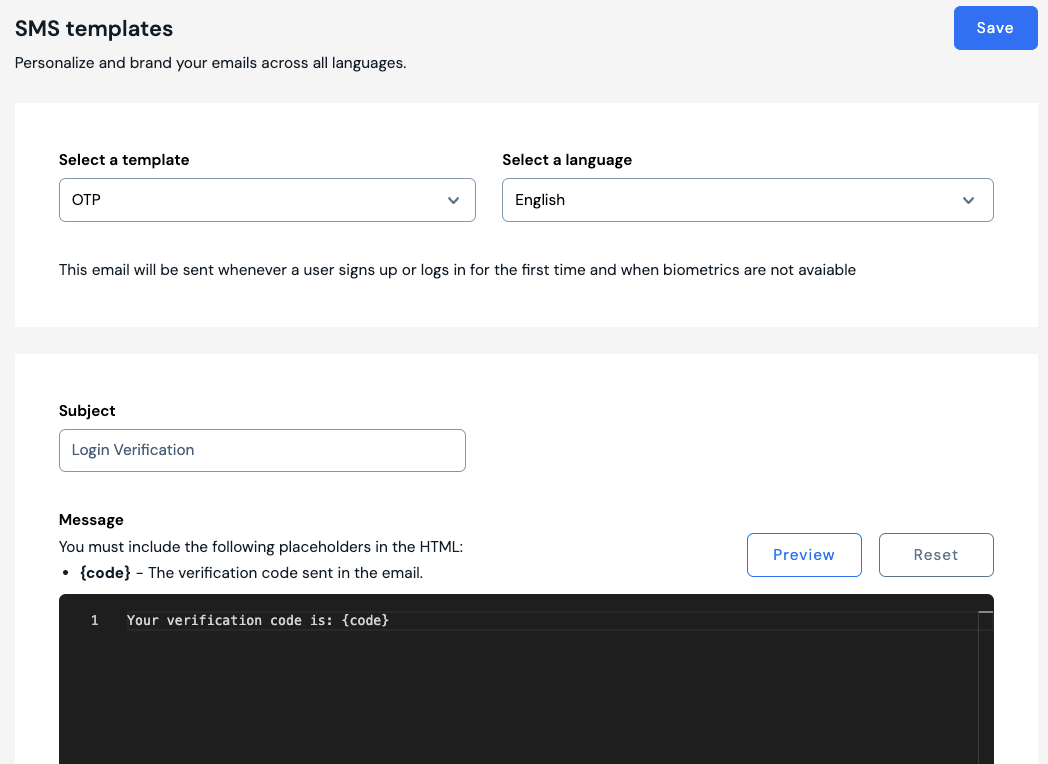
{code} token.
Example OTP SMS
Best Practices
- Keep the message short and direct so it fits comfortably in a single SMS segment.
- Include the
{code}token exactly once and make the purpose of the code clear. - Avoid links or extra marketing content in OTP messages.
- Localize the message for each language your app supports.
- Tell users to ignore the message if they did not request the code.