

Enable phone number as the login identifier
Configure phone-based login for each OwnID app that should send verification codes by SMS:- Log into the Console and select the App that you want to configure.
- Click User journey from the left navigation panel.
- In the Login identifier section, select Phone number.
- Click Customize list of countries to limit which phone number country codes are available to users, if needed.
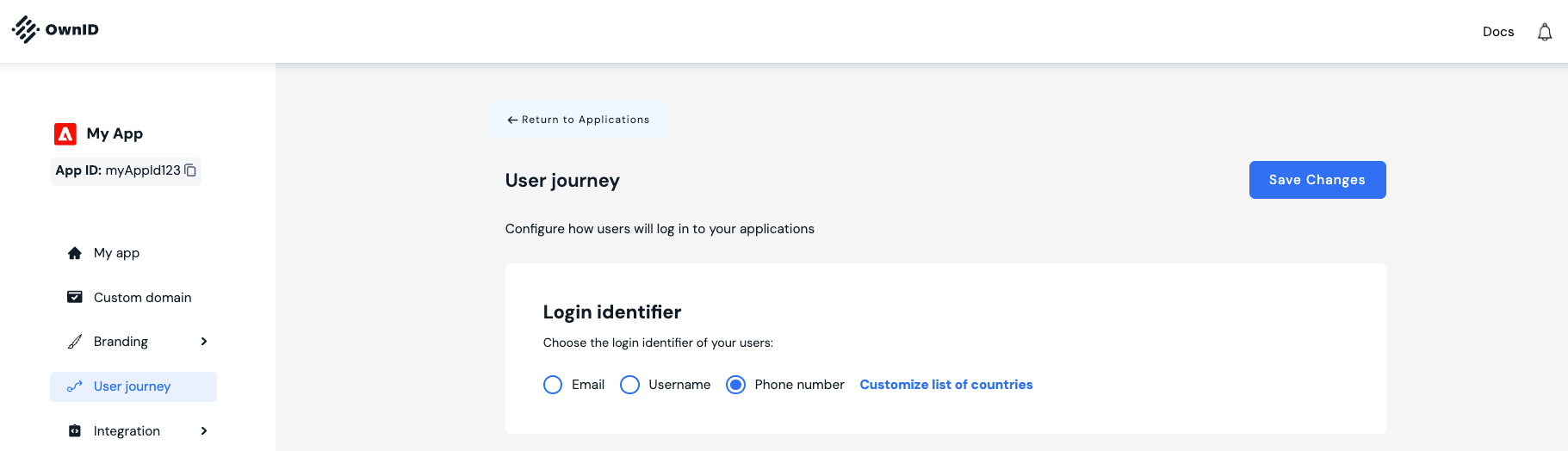
- Click Save Changes.
Select your SMS configuration
After phone number login is enabled, scroll to OTP configuration, select SMS as the delivery channel, and choose how OwnID should send verification messages.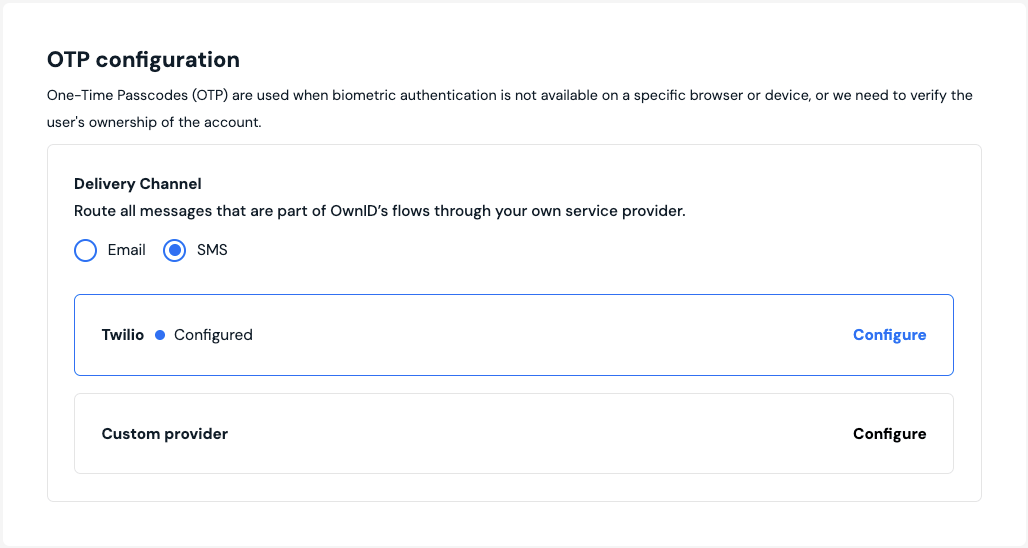
Configure Twilio
Enter your Twilio credentials in the OwnID console.
Configure a Custom SMS Provider
Build an endpoint to integrate with your custom SMS provider.
Customize SMS Templates
Personalize OTP SMS messages for supported locales.