

Configuring Twilio
You configure Twilio uniquely for each of your apps. To get started, go to the OwnID console and login to your account.- From the Apps page, click the app you want to configure for SMS verification.
- Click the User journey link from the navigation panel.

- In Login identifier, select Phone number. Click Customize list of countries if you need to control which phone number country codes users can select.
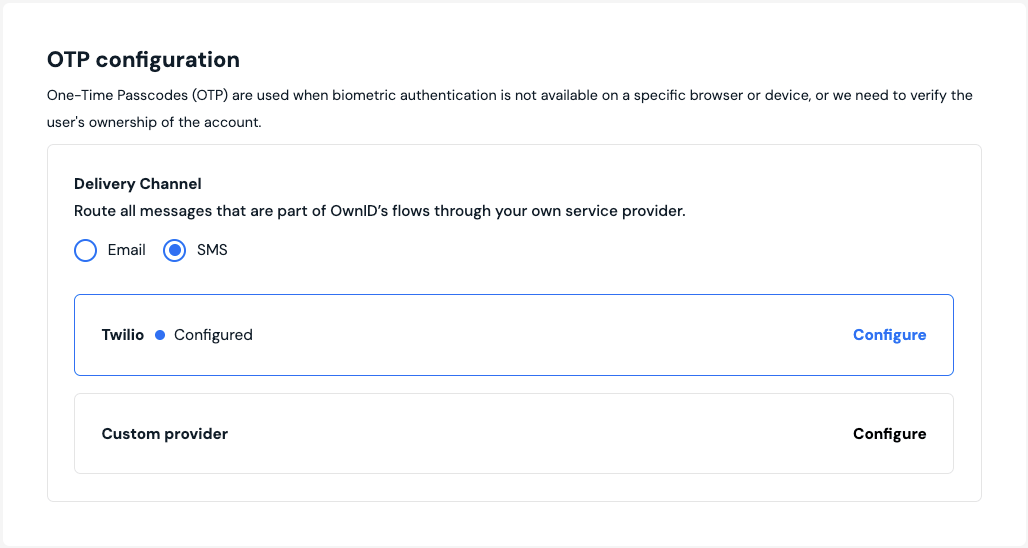
- In the OTP configuration panel, select SMS under Delivery Channel.
- Click the Twilio bar.
- When the configuration form opens, enter:
- Twilio Account SID.
- Twilio Auth Token.
- Sender phone number in the From field.
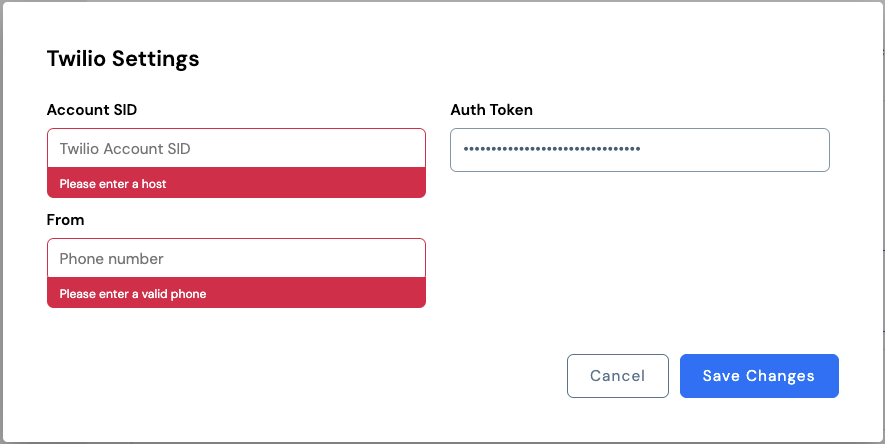
- Click Save Changes.